> ## Documentation Index
> Fetch the complete documentation index at: https://docs.condense.io/llms.txt
> Use this file to discover all available pages before exploring further.
# Campaigns
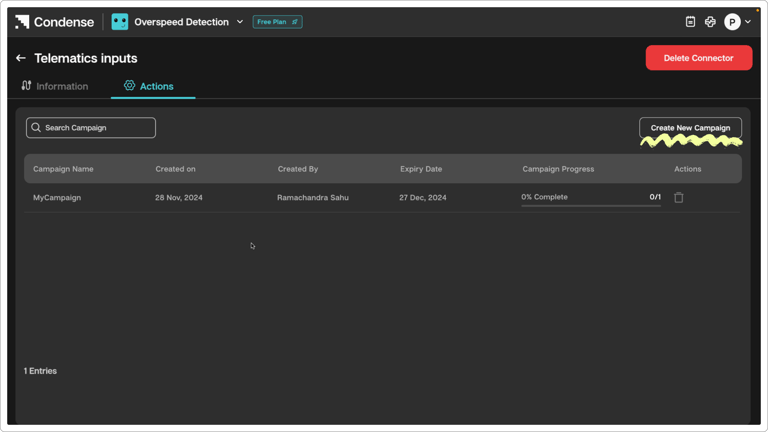
A **Campaign** is a targeted workflow designed to manage and execute tasks for telematics devices within a specified timeframe. Campaigns enable users to send commands to devices and monitor the progress of the campaign in real time.
 ## **Core Features of Campaigns**
### **Command Configuration**
* **Predefined Commands**: Select from a list of pre-defined commands
* **Custom Commands**: Write device-specific commands
### **Bulk Operations**
* Upload multiple devices using the template.
* Save time with **Bulk Upload** or **Download Template** for standardized format
### **Progress Tracking**
* Monitor completion status via **Campaign Progress**
* Filter campaigns by date, creator, or name
### **Expiry Date Management**
Set deadlines to ensure campaigns auto-conclude, preventing outdated tasks
### **Search & Filter**
Quickly locate campaigns using keywords or dates in the **Search Campaign** bar.
## **Step-by-Step Guide for Campaign Creation and Execution**
## **Step 1: Navigate to Actions**
1. Go to Pipelines for Telematics device type connector
## **Core Features of Campaigns**
### **Command Configuration**
* **Predefined Commands**: Select from a list of pre-defined commands
* **Custom Commands**: Write device-specific commands
### **Bulk Operations**
* Upload multiple devices using the template.
* Save time with **Bulk Upload** or **Download Template** for standardized format
### **Progress Tracking**
* Monitor completion status via **Campaign Progress**
* Filter campaigns by date, creator, or name
### **Expiry Date Management**
Set deadlines to ensure campaigns auto-conclude, preventing outdated tasks
### **Search & Filter**
Quickly locate campaigns using keywords or dates in the **Search Campaign** bar.
## **Step-by-Step Guide for Campaign Creation and Execution**
## **Step 1: Navigate to Actions**
1. Go to Pipelines for Telematics device type connector
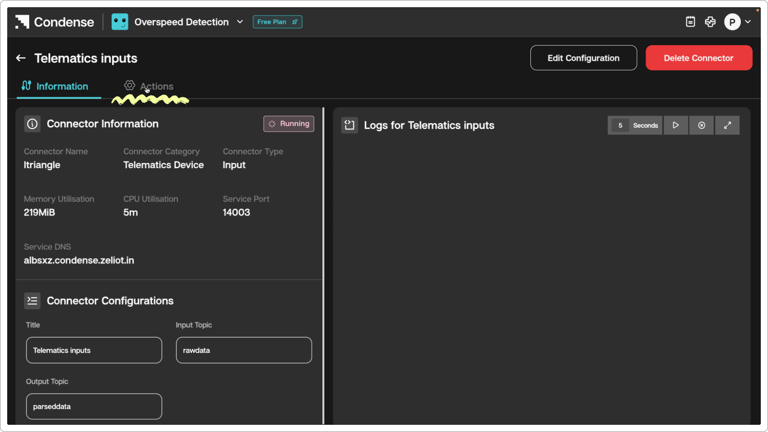
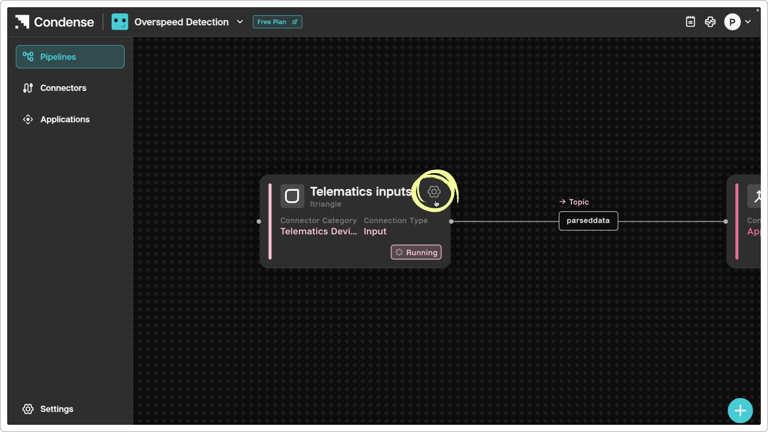 1. Click on the Telematics device type connector card and click on the Actions tab.
 To learn more about Pipelines, please read the detailed guide on [Pipelines](/condense/condense-app-getting-started/pipelines)
## **Step 2: Creating a New Campaign**
### **Initiate Campaign Creation**
Click **Create New Campaign** on the campaign page.
### **Campaign Details**
**Campaign Name**: Enter a unique name (e.g., "Q3 Fleet Tracking").
To learn more about Pipelines, please read the detailed guide on [Pipelines](/condense/condense-app-getting-started/pipelines)
## **Step 2: Creating a New Campaign**
### **Initiate Campaign Creation**
Click **Create New Campaign** on the campaign page.
### **Campaign Details**
**Campaign Name**: Enter a unique name (e.g., "Q3 Fleet Tracking").
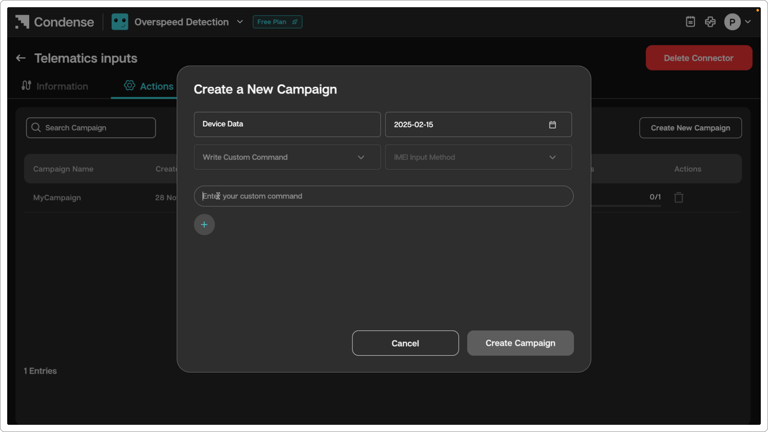 **Expiry Date**: Select an end date for the campaign.
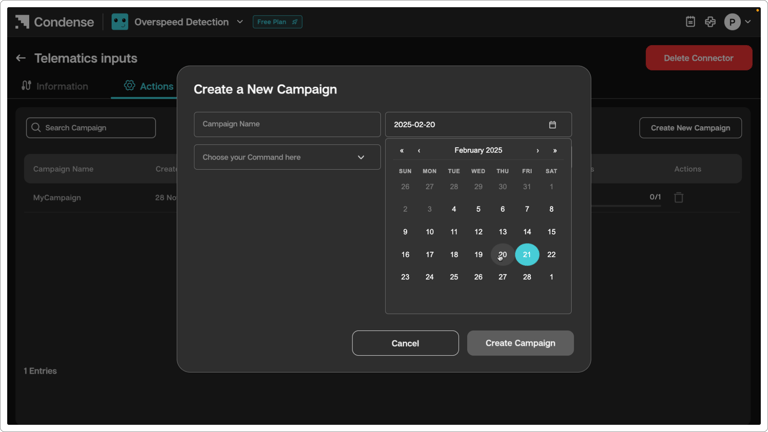 1. **Add IMEI details**:
* **Manual IMEI**: Enter the **IMEI Number** manually.
* **Bulk Upload**:
1. Download the **Template** for bulk entries.
2. Fill in IMEI numbers
3. Upload the file.
2. **Commands Configuration**:
* **Choose Command**: Select predefined commands from the dropdown.
* **Custom Command**: Write a custom command if needed.
3. **Finalize**:
* Click **Create Campaign** to save.
* Use **Cancel** to discard changes.
### **Step 3: Managing Campaigns**
#### **Campaign List View**:
* Access the list by clicking the **Search Campaign**.
* Columns include
* **Campaign Name -** A unique, user-defined identifier for the campaign
* **Created On -** The timestamp (date and time) when the campaign was created.
* **Created By -** The username associated with the Condense account who created the campaign
* **Expiry Date -** The deadline by which the campaign must be completed. After this date, the campaign will cease execution.
* **Progress** (% and entries completed) - The proportion of devices that have finished executing the command (ex - 1200 out of 2000 devices).
#### **Actions**:
* **Search**: Filter campaigns by name or date.
* **Monitor Progress**: Track completion via the **Campaign Progress** bar.
* **Delete**: Remove outdated campaigns (if supported).
### **Step 4: Track Progress and status of each IMEI in the campaign**
#### **IMEI List View**
1. **Add IMEI details**:
* **Manual IMEI**: Enter the **IMEI Number** manually.
* **Bulk Upload**:
1. Download the **Template** for bulk entries.
2. Fill in IMEI numbers
3. Upload the file.
2. **Commands Configuration**:
* **Choose Command**: Select predefined commands from the dropdown.
* **Custom Command**: Write a custom command if needed.
3. **Finalize**:
* Click **Create Campaign** to save.
* Use **Cancel** to discard changes.
### **Step 3: Managing Campaigns**
#### **Campaign List View**:
* Access the list by clicking the **Search Campaign**.
* Columns include
* **Campaign Name -** A unique, user-defined identifier for the campaign
* **Created On -** The timestamp (date and time) when the campaign was created.
* **Created By -** The username associated with the Condense account who created the campaign
* **Expiry Date -** The deadline by which the campaign must be completed. After this date, the campaign will cease execution.
* **Progress** (% and entries completed) - The proportion of devices that have finished executing the command (ex - 1200 out of 2000 devices).
#### **Actions**:
* **Search**: Filter campaigns by name or date.
* **Monitor Progress**: Track completion via the **Campaign Progress** bar.
* **Delete**: Remove outdated campaigns (if supported).
### **Step 4: Track Progress and status of each IMEI in the campaign**
#### **IMEI List View**
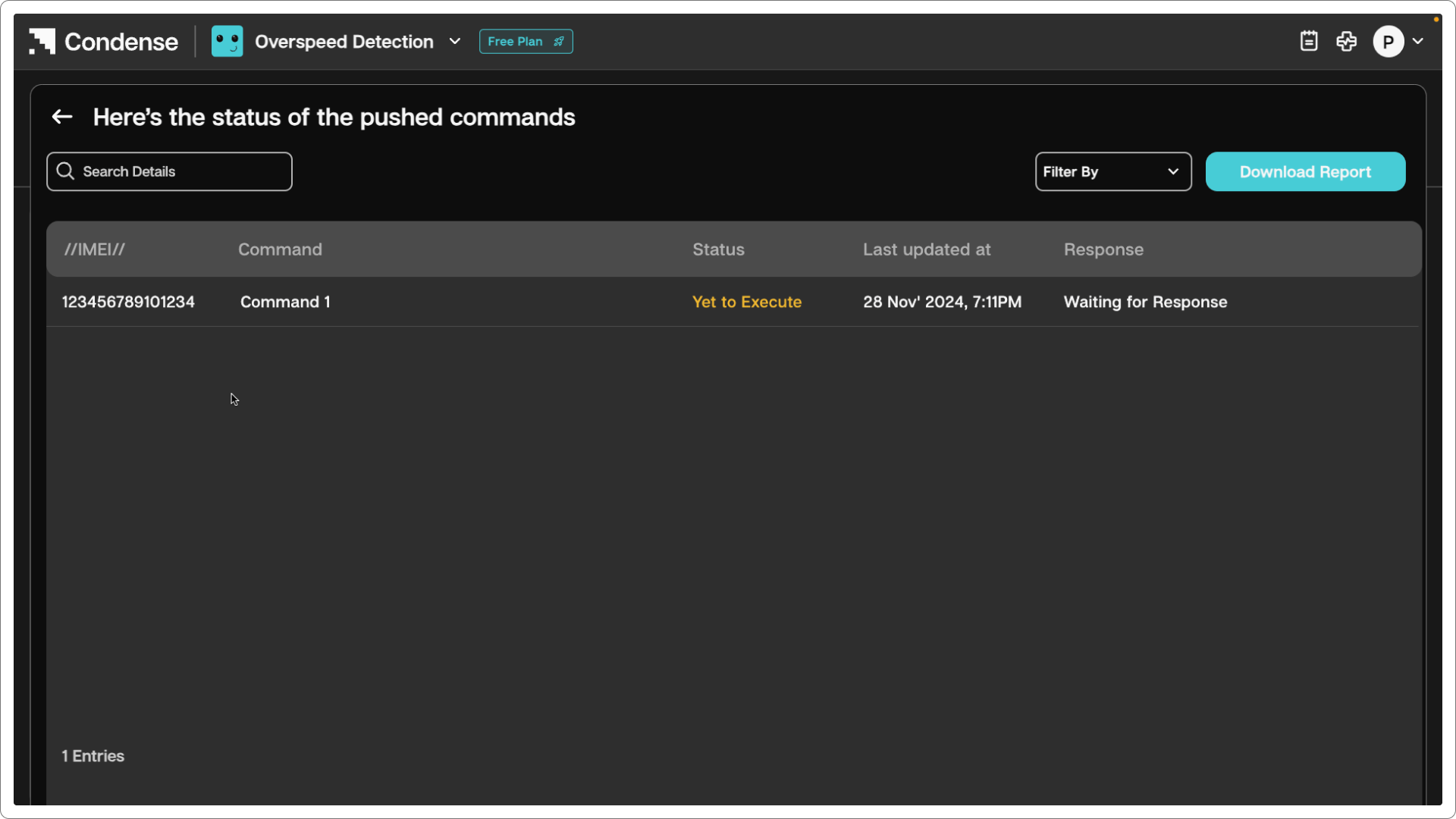 Click the campaign name to view a table/list of all targeted devices, filtered by their IMEI.
* Access the list by clicking the **Campaign**.
* Columns include:
* **IMEI -** Unique Identifier for each device
* **Command:** Selected during campaign creation from a list of pre-defined commands or custom commands
* **Status**: Indicates the current state of the command execution. It includes below statuses:
* **Yet to Execute**: Command is queued but not yet processed
* **Executing**: The device is actively performing the command
* **Time Out**: The device failed to respond within a predefined window (may require retrying).
* **Executed**: Command completed successfully.
* **Last Updated At:** Timestamp showing when the response from the device was received.
* **Response:** Feedback from the device after executing the command
## FAQs
1. **After how much time is a command marked as timed out?** A command is marked as **Timed Out** if it remains in the *Executing stage* for **more than 60 minutes**. This applies only if the device is online during this period.
2. **Do pre-built and custom commands follow the same timeout rules?** Yes, the **60-minute timeout** applies uniformly to both pre-built and custom commands in the *Executing stage*.
3. **When is the manual retry option available?** The manual retry option becomes available **only after a command has timed out**.
4. **How are overlapping campaigns handled?** If two campaigns targeting the same device (e.g., IMEI 1) with the **same start/expiry dates** are created, the system processes them in a **campaign creation order**. The earlier-created campaign executes first.
5. **What happens to queued commands during retries?** Timed-out commands are **automatically removed** from the queue. Retrying adds the new campaign to the queue, subject to the same prioritization rules.
6. **What are the stages for command execution?** Commands typically transition through:
**Queued** → **Executing** → **Completed**/**Timed Out**/**Failed**.
Click the campaign name to view a table/list of all targeted devices, filtered by their IMEI.
* Access the list by clicking the **Campaign**.
* Columns include:
* **IMEI -** Unique Identifier for each device
* **Command:** Selected during campaign creation from a list of pre-defined commands or custom commands
* **Status**: Indicates the current state of the command execution. It includes below statuses:
* **Yet to Execute**: Command is queued but not yet processed
* **Executing**: The device is actively performing the command
* **Time Out**: The device failed to respond within a predefined window (may require retrying).
* **Executed**: Command completed successfully.
* **Last Updated At:** Timestamp showing when the response from the device was received.
* **Response:** Feedback from the device after executing the command
## FAQs
1. **After how much time is a command marked as timed out?** A command is marked as **Timed Out** if it remains in the *Executing stage* for **more than 60 minutes**. This applies only if the device is online during this period.
2. **Do pre-built and custom commands follow the same timeout rules?** Yes, the **60-minute timeout** applies uniformly to both pre-built and custom commands in the *Executing stage*.
3. **When is the manual retry option available?** The manual retry option becomes available **only after a command has timed out**.
4. **How are overlapping campaigns handled?** If two campaigns targeting the same device (e.g., IMEI 1) with the **same start/expiry dates** are created, the system processes them in a **campaign creation order**. The earlier-created campaign executes first.
5. **What happens to queued commands during retries?** Timed-out commands are **automatically removed** from the queue. Retrying adds the new campaign to the queue, subject to the same prioritization rules.
6. **What are the stages for command execution?** Commands typically transition through:
**Queued** → **Executing** → **Completed**/**Timed Out**/**Failed**.