> ## Documentation Index
> Fetch the complete documentation index at: https://docs.condense.io/llms.txt
> Use this file to discover all available pages before exploring further.
# Split Utility
 ## Overview
The Split Utility in Kafka Streams helps streamline data processing by categorising and routing data based on user-defined conditions. It effectively manages data by directing it to primary or secondary topics, ensuring efficient and real-time processing
## **Key Features**
### **Intelligent Data Routing**
* Automatically routes data to either primary or secondary topics based on conditional evaluation
* Applies filtering logic to streaming data without coding or manual intervention
### **Operational Flexibility**
* Modify routing rules without disrupting data flow or redeploying pipelines
* Pre-validate data structures to ensure compatibility before deployment
### **Zero-Code Implementation**
* Configure complex stream splitting logic through an intuitive UI without writing code
* Define data routing policies using a clear, business-oriented approach by defining rules for splitting
## **How to Use the Split Utility**
### **Step 1. Access the Split Utility**
## Overview
The Split Utility in Kafka Streams helps streamline data processing by categorising and routing data based on user-defined conditions. It effectively manages data by directing it to primary or secondary topics, ensuring efficient and real-time processing
## **Key Features**
### **Intelligent Data Routing**
* Automatically routes data to either primary or secondary topics based on conditional evaluation
* Applies filtering logic to streaming data without coding or manual intervention
### **Operational Flexibility**
* Modify routing rules without disrupting data flow or redeploying pipelines
* Pre-validate data structures to ensure compatibility before deployment
### **Zero-Code Implementation**
* Configure complex stream splitting logic through an intuitive UI without writing code
* Define data routing policies using a clear, business-oriented approach by defining rules for splitting
## **How to Use the Split Utility**
### **Step 1. Access the Split Utility**
 1. Log in to your Condense account
2. From the main menu, select **Transforms**
3. Click on **Split Utility** from the Transforms page
### **Step 2: Choose Configuration Method**
#### **Option A: Auto-Fill from Topic** **(Recommended)**
Click **"Choose a Topic"** under *Read Topic.* It auto-populates schema fields for the configuration of the Split Utility.
1. Log in to your Condense account
2. From the main menu, select **Transforms**
3. Click on **Split Utility** from the Transforms page
### **Step 2: Choose Configuration Method**
#### **Option A: Auto-Fill from Topic** **(Recommended)**
Click **"Choose a Topic"** under *Read Topic.* It auto-populates schema fields for the configuration of the Split Utility.
 If the topic is empty, the user will not be able to set up the configuration for the Split utility
#### **Option B: Manual JSON Upload**
If the topic is empty, the user will not be able to set up the configuration for the Split utility
#### **Option B: Manual JSON Upload**
 Click "Upload" and provide JSON as well as validate it. It auto-populates schema fields for the configuration of the Split Utility.
Manual JSON must exactly match your Kafka topic schema
### **Step 3. Set Up Configurations for Topic**
1. Enter a descriptive **Utility Name** for your split configuration
2. Select or specify the **Input Topic** that will provide data to the utility
3. Define a unique **Primary Output Topic** for condition-satisfied data
4. Define a unique **Secondary Output Topic** for condition-rejected data
### **Step 4: Configure Rules for Split**
1. Click **Add Rule**
2. For each rule:
* **Field Name**: Select from auto-populated list (never type manually)
* **Condition**: Set operator (>, \<, =) and threshold
3. Grouping Rules - Click **"Add Group"** to combine multiple rules\_.\_ Rules follow logical evaluation order.
### **Step 5: Deploy**
1. Real-Time Rule Preview - The top preview bar shows your current rule structure for split (Updates instantly as you add/change rules)
Check the preview bar to verify:
* Correct grouping with parentheses
* Logical operator priority matches your intent
1. Click **Deploy Utility**
2. Go to **Pipelines** to monitor your split utility deployment on the pipeline.
## **Editing a Split Configuration**
1. Navigate to the **Pipelines** page
Click "Upload" and provide JSON as well as validate it. It auto-populates schema fields for the configuration of the Split Utility.
Manual JSON must exactly match your Kafka topic schema
### **Step 3. Set Up Configurations for Topic**
1. Enter a descriptive **Utility Name** for your split configuration
2. Select or specify the **Input Topic** that will provide data to the utility
3. Define a unique **Primary Output Topic** for condition-satisfied data
4. Define a unique **Secondary Output Topic** for condition-rejected data
### **Step 4: Configure Rules for Split**
1. Click **Add Rule**
2. For each rule:
* **Field Name**: Select from auto-populated list (never type manually)
* **Condition**: Set operator (>, \<, =) and threshold
3. Grouping Rules - Click **"Add Group"** to combine multiple rules\_.\_ Rules follow logical evaluation order.
### **Step 5: Deploy**
1. Real-Time Rule Preview - The top preview bar shows your current rule structure for split (Updates instantly as you add/change rules)
Check the preview bar to verify:
* Correct grouping with parentheses
* Logical operator priority matches your intent
1. Click **Deploy Utility**
2. Go to **Pipelines** to monitor your split utility deployment on the pipeline.
## **Editing a Split Configuration**
1. Navigate to the **Pipelines** page
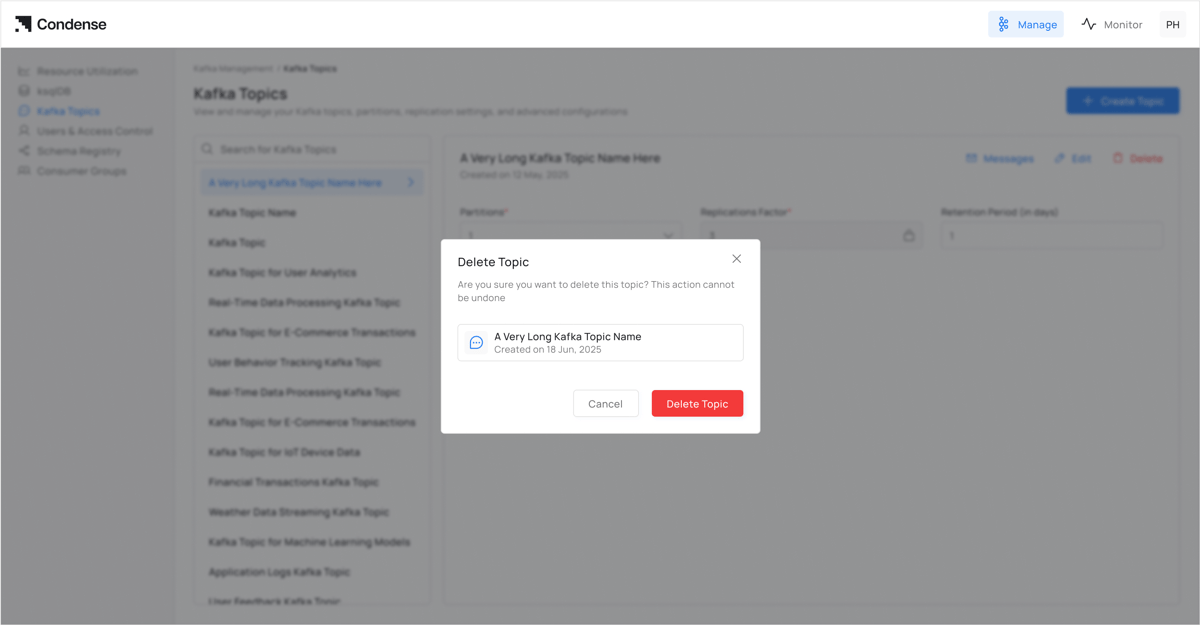 2. Select the deployed Split Utility you wish to modify
3. Click **Edit Configurations** to access settings
2. Select the deployed Split Utility you wish to modify
3. Click **Edit Configurations** to access settings
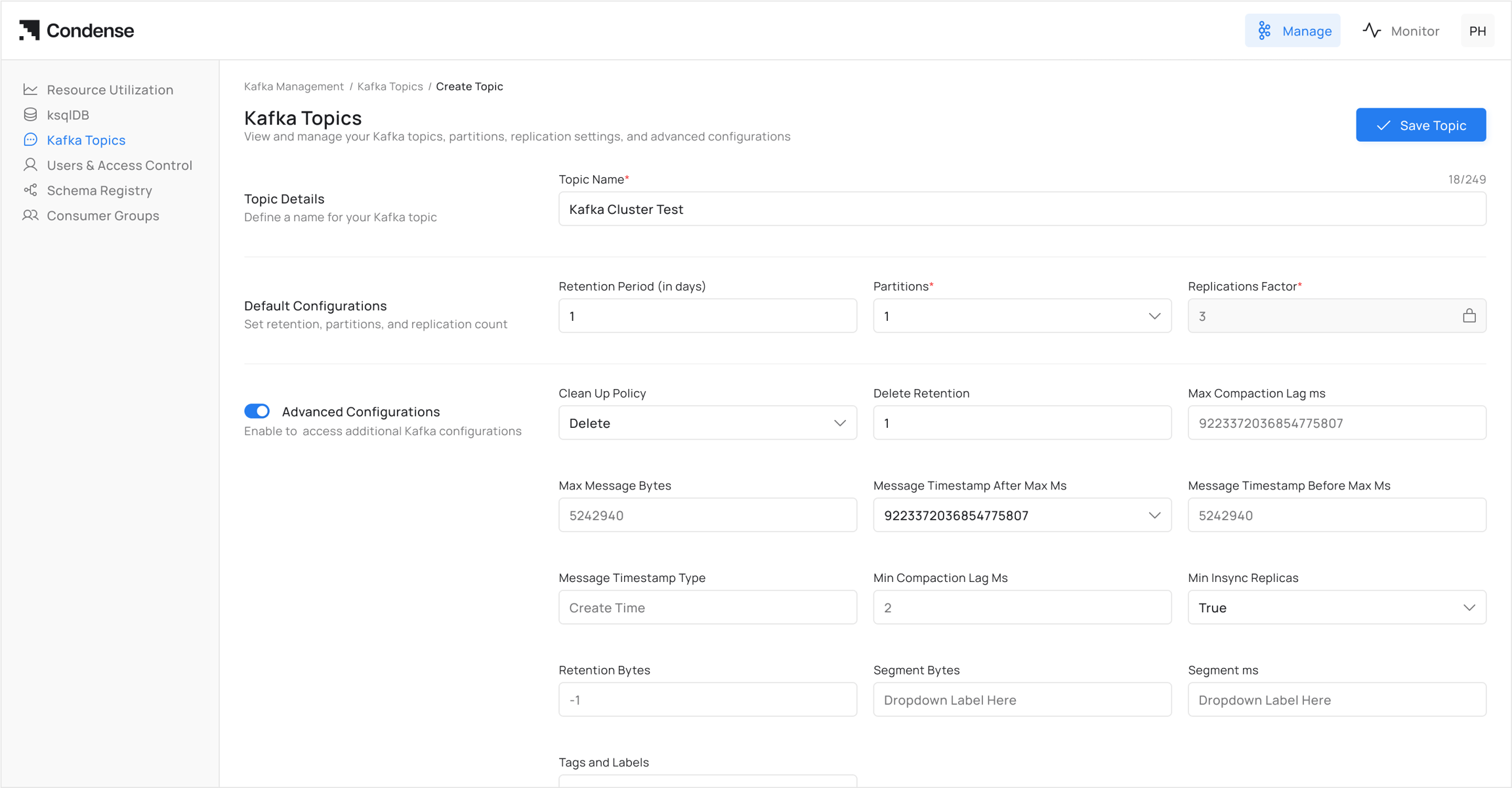 4. Update rule parameters as needed
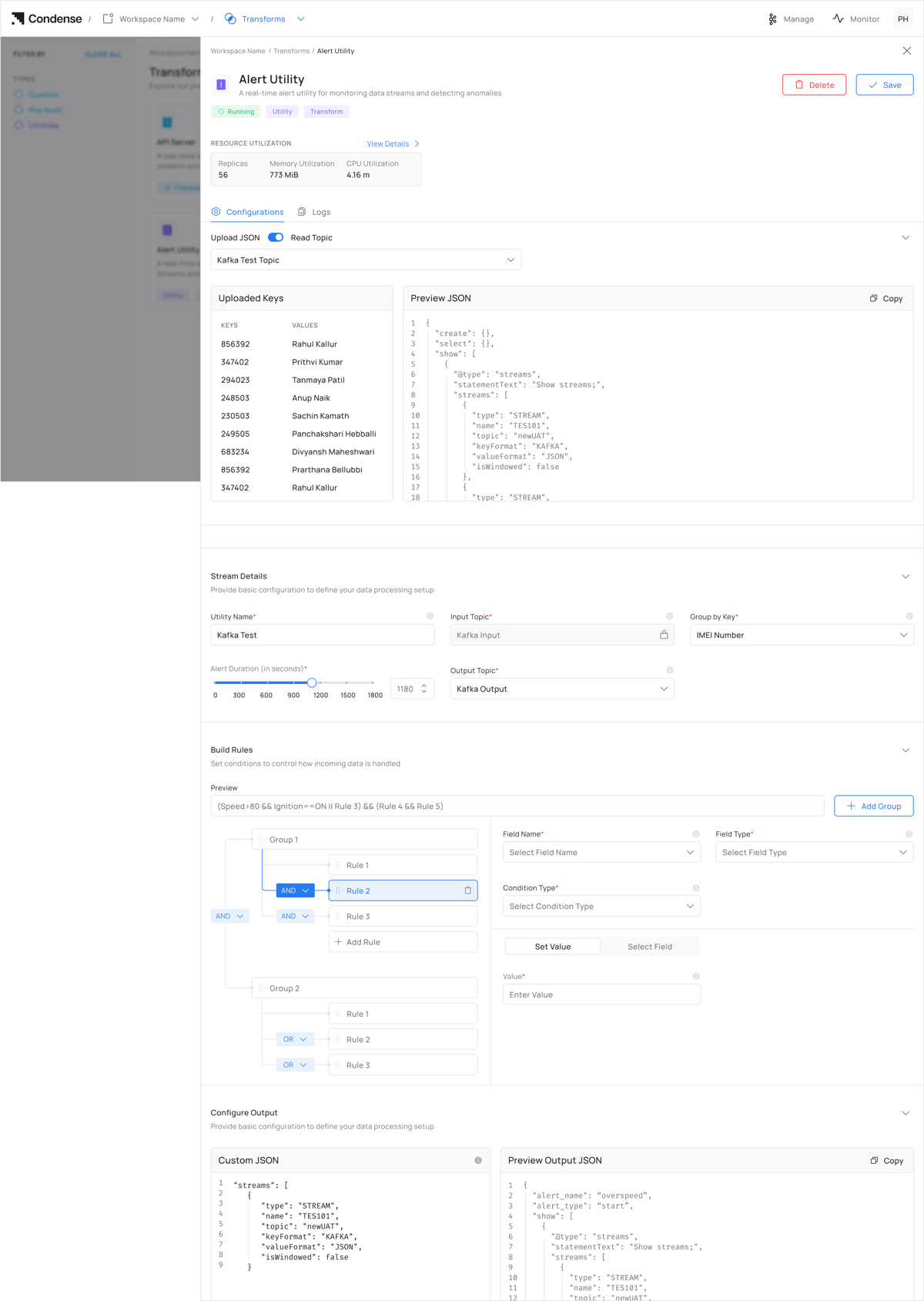 5. Click **Deploy Utility** to apply changes
## **Deleting a Split Configuration**
1. Navigate to the **Pipelines** page
2. Select the deployed Split Utility you wish to remove
3. Click the **Delete Utility** button
5. Click **Deploy Utility** to apply changes
## **Deleting a Split Configuration**
1. Navigate to the **Pipelines** page
2. Select the deployed Split Utility you wish to remove
3. Click the **Delete Utility** button
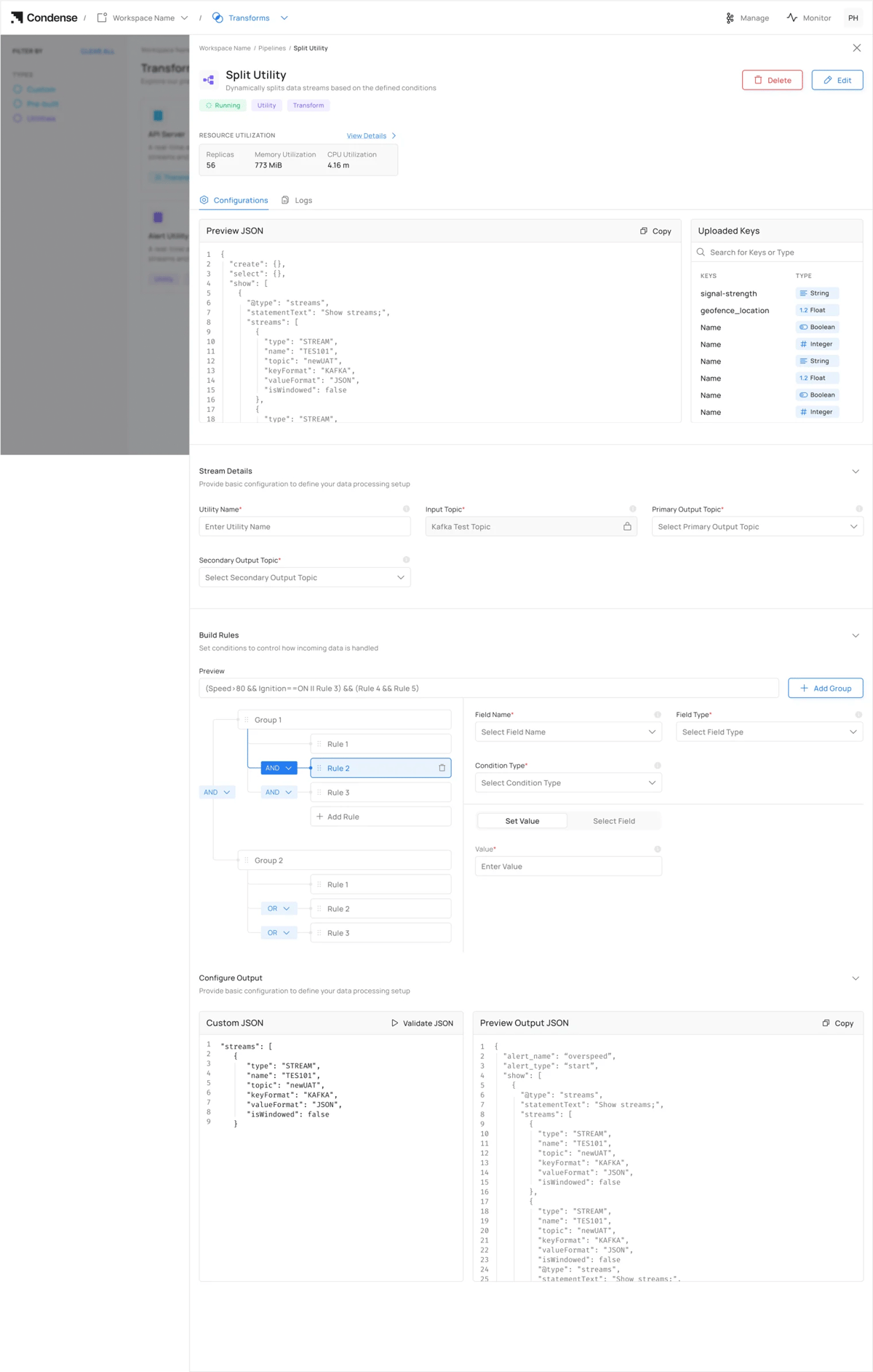 Confirm deletion in the prompt window
## Frequently Asked Questions (FAQs)
#### **Q1: What is the primary purpose of the Split Utility?**
A: The Split Utility routes Kafka data into primary and secondary output topics based on user-defined conditions.
#### **Q2: How does the Split Utility determine where to route messages?**
A: The utility evaluates JSON messages against configured rules and conditions. Messages meeting the criteria are sent to the primary output topic; those failing the criteria go to the secondary output topic.
#### **Q3: Can I use the Split Utility with non-JSON data?**
A: No, the Split Utility specifically processes JSON-formatted data. Other formats are not supported in the current implementation.
#### **Q4: Can I use the same topic for input and output?**
A: No, the input topic, primary output topic, and secondary output topic must all be different to prevent processing loops and ensure proper data flow.
#### **Q5: What happens if I configure conflicting or overlapping rules?**
A: Rules are evaluated in the order they are defined. Once a message satisfies a rule, it is immediately routed to the primary output topic.
Confirm deletion in the prompt window
## Frequently Asked Questions (FAQs)
#### **Q1: What is the primary purpose of the Split Utility?**
A: The Split Utility routes Kafka data into primary and secondary output topics based on user-defined conditions.
#### **Q2: How does the Split Utility determine where to route messages?**
A: The utility evaluates JSON messages against configured rules and conditions. Messages meeting the criteria are sent to the primary output topic; those failing the criteria go to the secondary output topic.
#### **Q3: Can I use the Split Utility with non-JSON data?**
A: No, the Split Utility specifically processes JSON-formatted data. Other formats are not supported in the current implementation.
#### **Q4: Can I use the same topic for input and output?**
A: No, the input topic, primary output topic, and secondary output topic must all be different to prevent processing loops and ensure proper data flow.
#### **Q5: What happens if I configure conflicting or overlapping rules?**
A: Rules are evaluated in the order they are defined. Once a message satisfies a rule, it is immediately routed to the primary output topic.