

Core Features of Campaigns
Command Configuration
- Predefined Commands: Select from a list of pre-defined commands
- Custom Commands: Write device-specific commands
Bulk Operations
- Upload multiple devices using the template.
- Save time with Bulk Upload or Download Template for standardized format
Progress Tracking
- Monitor completion status via Campaign Progress
- Filter campaigns by date, creator, or name
Expiry Date Management
Set deadlines to ensure campaigns auto-conclude, preventing outdated tasksSearch & Filter
Quickly locate campaigns using keywords or dates in the Search Campaign bar.Step-by-Step Guide for Campaign Creation and Execution
Step 1: Navigate to Actions
- Go to Pipelines for Telematics device type connector
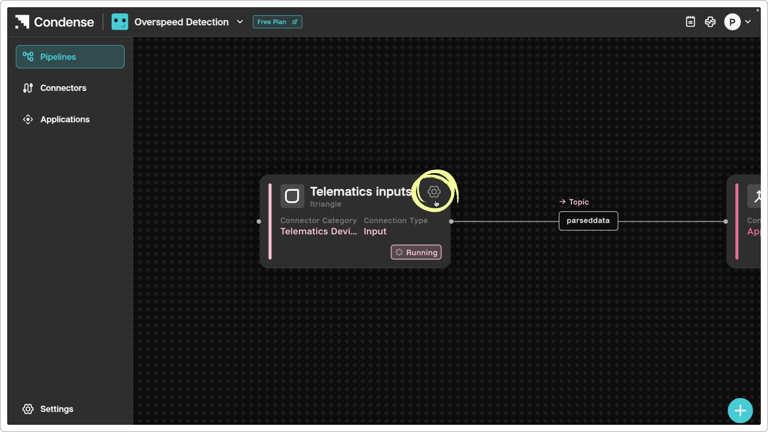
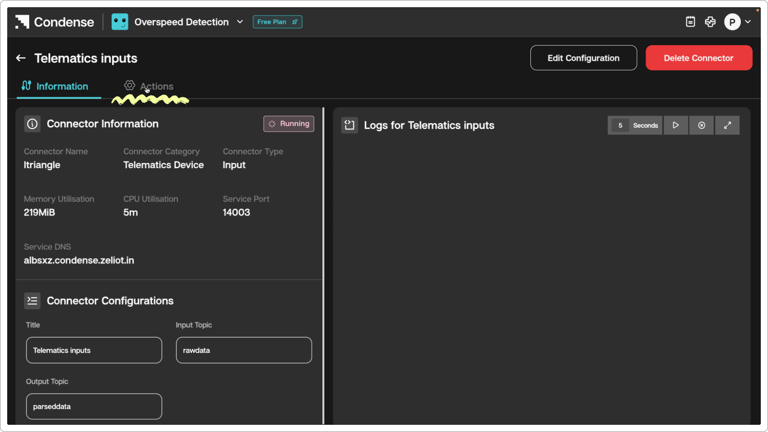
- Click on the Telematics device type connector card and click on the Actions tab.
To learn more about Pipelines, please read the detailed guide on Pipelines
Step 2: Creating a New Campaign
Initiate Campaign Creation
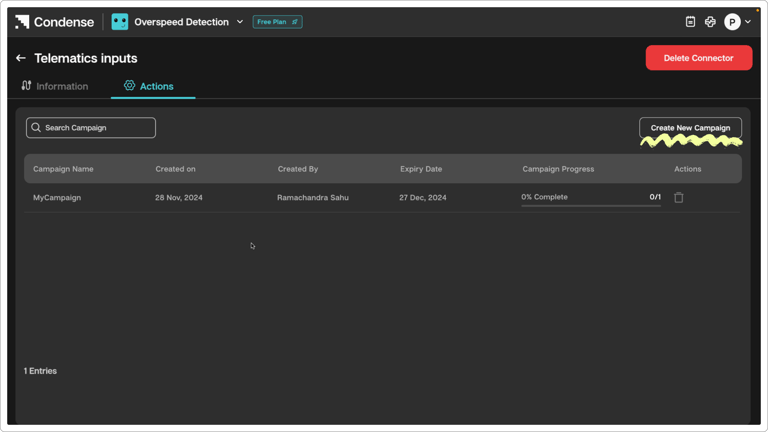
Click Create New Campaign on the campaign page.Campaign Details
Campaign Name: Enter a unique name (e.g., “Q3 Fleet Tracking”).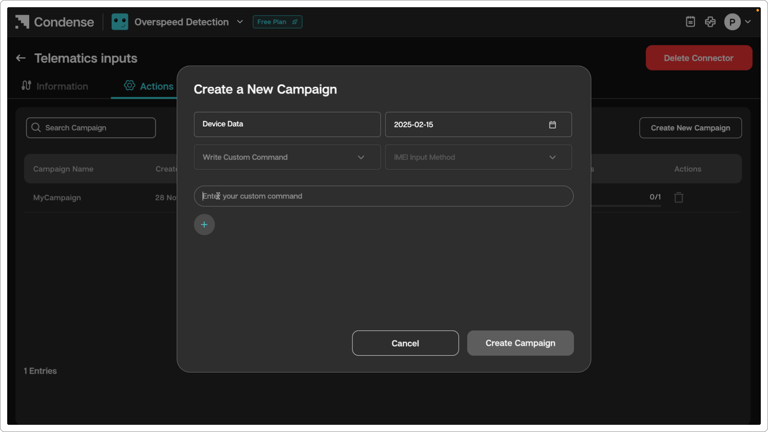
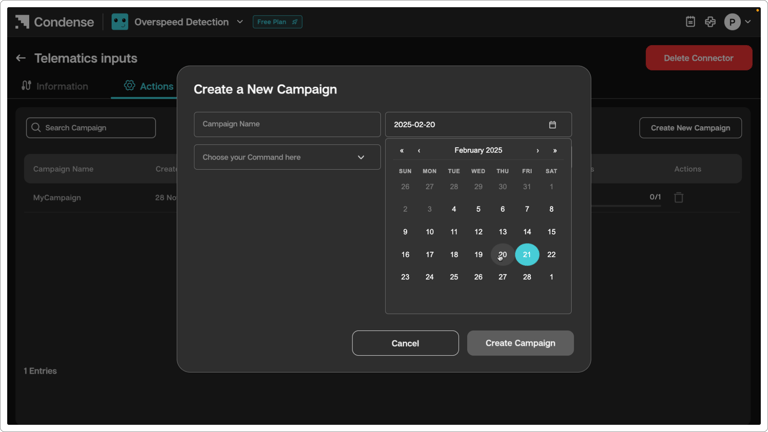
- Add IMEI details:
- Manual IMEI: Enter the IMEI Number manually.
- Bulk Upload:
- Download the Template for bulk entries.
- Fill in IMEI numbers
- Upload the file.
- Commands Configuration:
- Choose Command: Select predefined commands from the dropdown.
- Custom Command: Write a custom command if needed.
- Finalize:
- Click Create Campaign to save.
- Use Cancel to discard changes.
Step 3: Managing Campaigns
Campaign List View:
- Access the list by clicking the Search Campaign.
- Columns include
- Campaign Name - A unique, user-defined identifier for the campaign
- Created On - The timestamp (date and time) when the campaign was created.
- Created By - The username associated with the Condense account who created the campaign
- Expiry Date - The deadline by which the campaign must be completed. After this date, the campaign will cease execution.
- Progress (% and entries completed) - The proportion of devices that have finished executing the command (ex - 1200 out of 2000 devices).
Actions:
- Search: Filter campaigns by name or date.
- Monitor Progress: Track completion via the Campaign Progress bar.
- Delete: Remove outdated campaigns (if supported).
Step 4: Track Progress and status of each IMEI in the campaign
IMEI List View
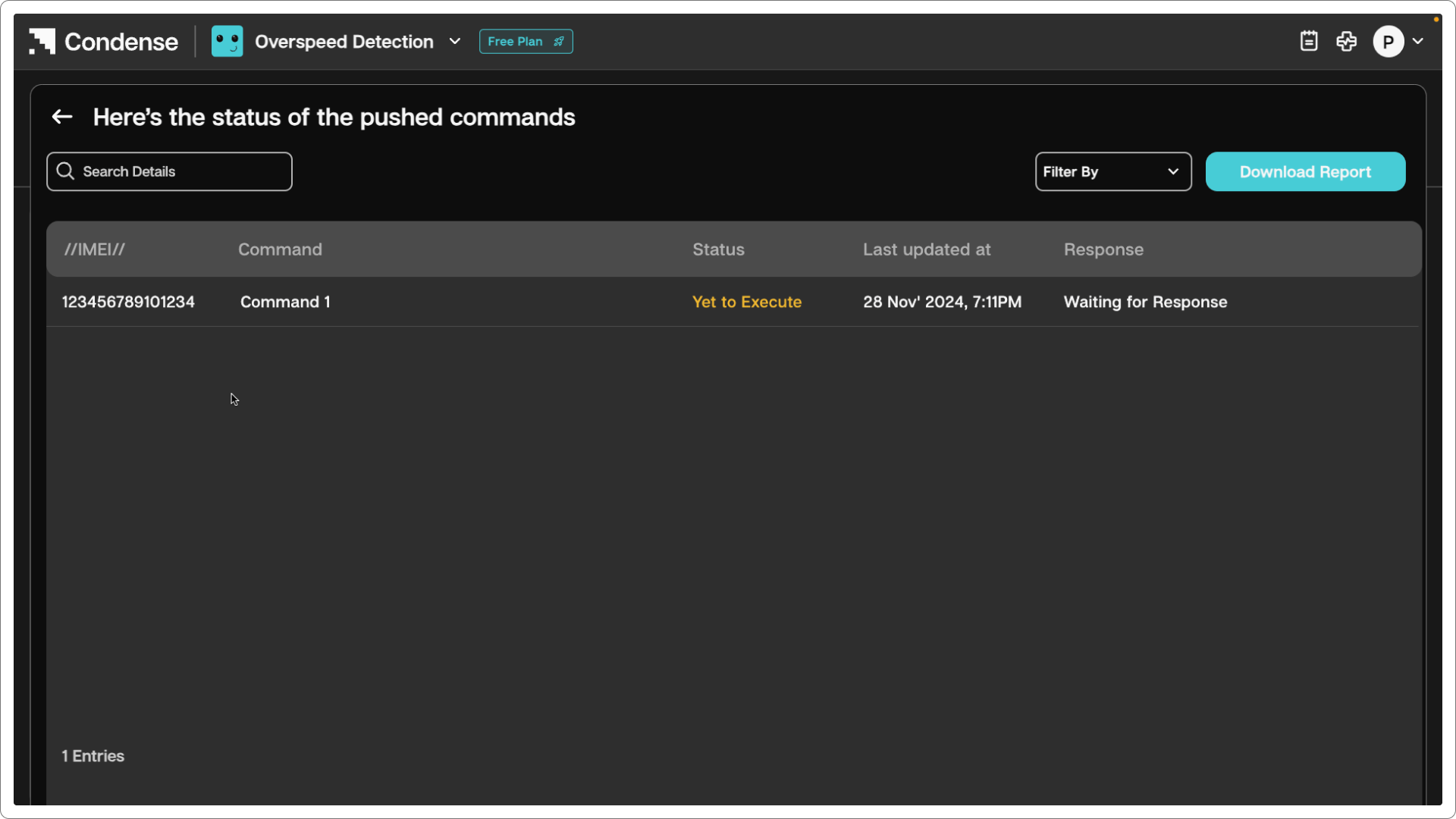
- Access the list by clicking the Campaign.
- Columns include:
- IMEI - Unique Identifier for each device
- Command: Selected during campaign creation from a list of pre-defined commands or custom commands
- Status: Indicates the current state of the command execution. It includes below statuses:
- Yet to Execute: Command is queued but not yet processed
- Executing: The device is actively performing the command
- Time Out: The device failed to respond within a predefined window (may require retrying).
- Executed: Command completed successfully.
- Last Updated At: Timestamp showing when the response from the device was received.
- Response: Feedback from the device after executing the command
FAQs
- After how much time is a command marked as timed out? A command is marked as Timed Out if it remains in the Executing stage for more than 60 minutes. This applies only if the device is online during this period.
- Do pre-built and custom commands follow the same timeout rules? Yes, the 60-minute timeout applies uniformly to both pre-built and custom commands in the Executing stage.
- When is the manual retry option available? The manual retry option becomes available only after a command has timed out.
- How are overlapping campaigns handled? If two campaigns targeting the same device (e.g., IMEI 1) with the same start/expiry dates are created, the system processes them in a campaign creation order. The earlier-created campaign executes first.
- What happens to queued commands during retries? Timed-out commands are automatically removed from the queue. Retrying adds the new campaign to the queue, subject to the same prioritization rules.
- What are the stages for command execution? Commands typically transition through: Queued → Executing → Completed/Timed Out/Failed.