

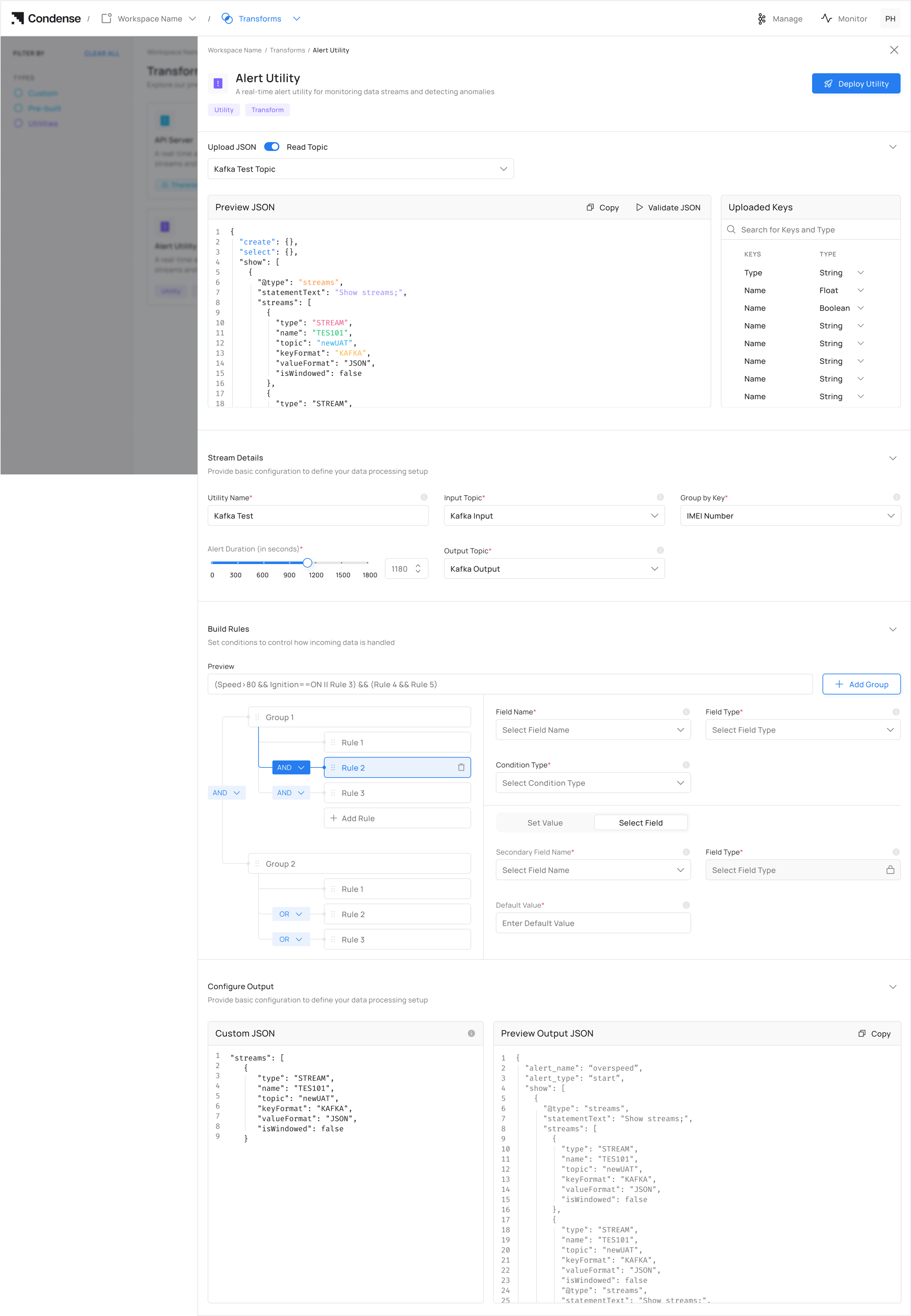
Overview
The Alert Utility is a real-time monitoring tool that allows users to define conditions on streaming data and trigger alerts when those conditions are met for a specified duration. Alerts are published to an output topic for further action without manual intervention.Key Features
Real-Time Alerting
Dynamically monitors data streams and triggers alerts instantly when conditions are met.Flexible Rule Configuration
Supports multiple conditions (e.g.,>, <, =) on numeric, string, and boolean fields.
Configurable Alert Duration
Set a time window (0–1800 seconds) to ensure alerts only trigger after conditions persist.Topic-Based Integration
Reads from a single input topic and publishes alerts to a designated output topic.Grouped Alerts
Aggregates alerts by a user-defined key (e.g.,device_id, user_id) for targeted monitoring.
No-Code Setup
Intuitive UI for rule creation—no scripting required.How to Use the Alert Utility
Prerequisites
- Admin or Developer access in Condense
- Kafka topics created with proper permissions
- Basic understanding of your data schema
Step 1: Access the Alert Utility
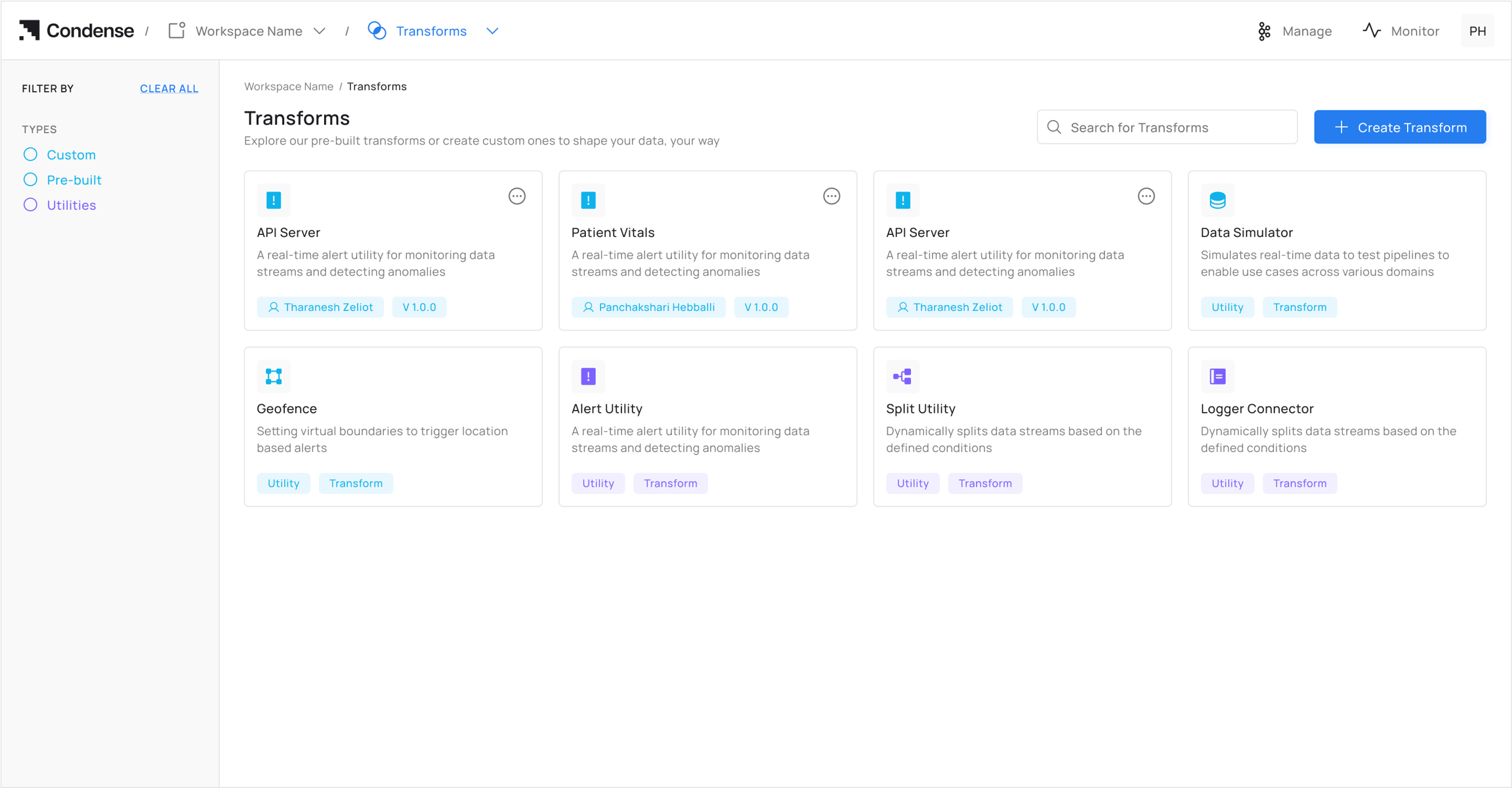
- Log in to your Condense account
- From the main menu, select Transforms
- Click on Alert Utility from the Transforms page
Step 2: Choose Configuration Method
Option A: Auto-Fill from Topic (Recommended)
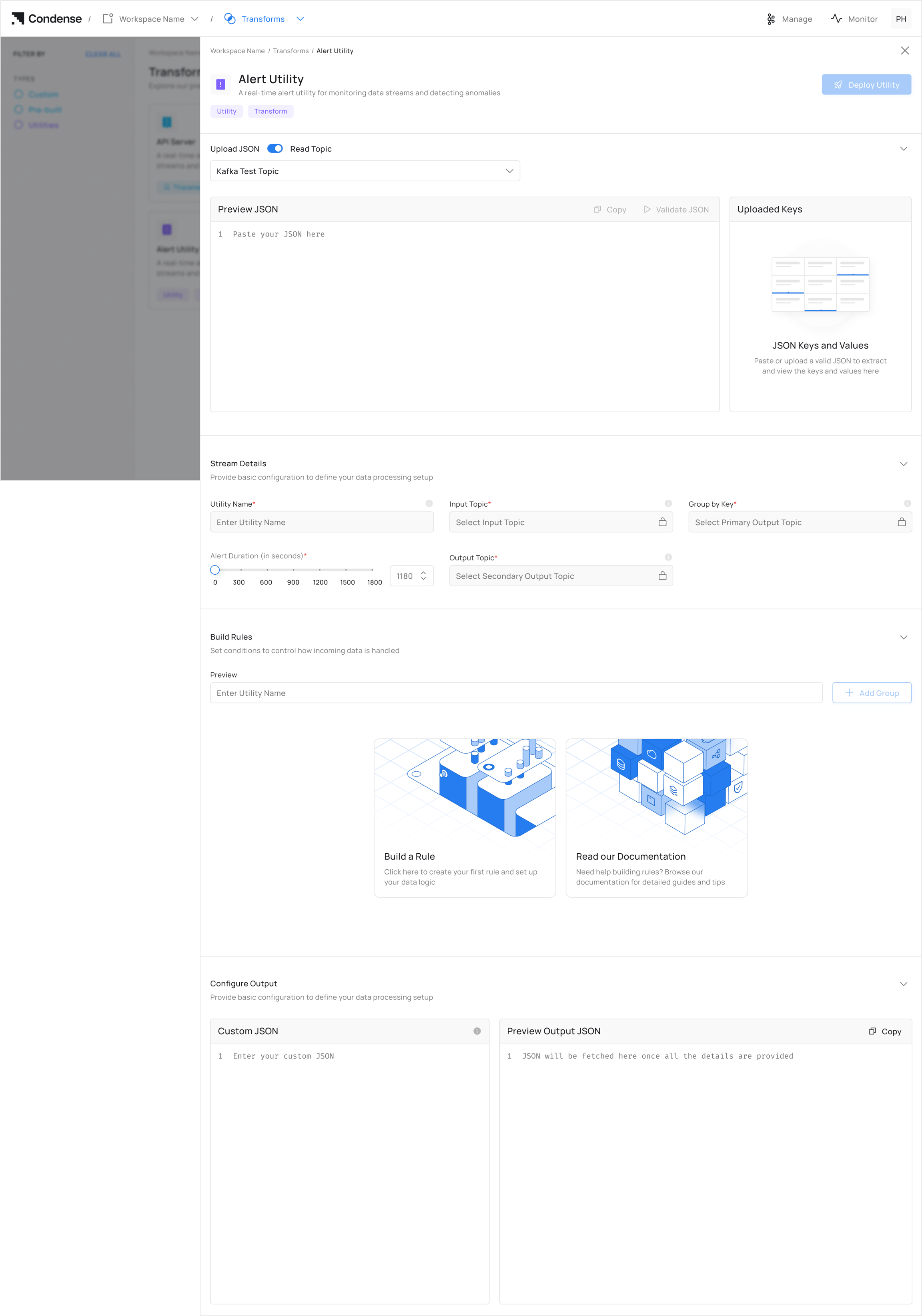
- Click “Choose a Topic” under Read Topic. It auto-populates schema fields for the configuration of the Alert utility.
If the topic is empty, the user will not be able to set up the configuration for the Alert utility
Option B: Manual JSON Upload
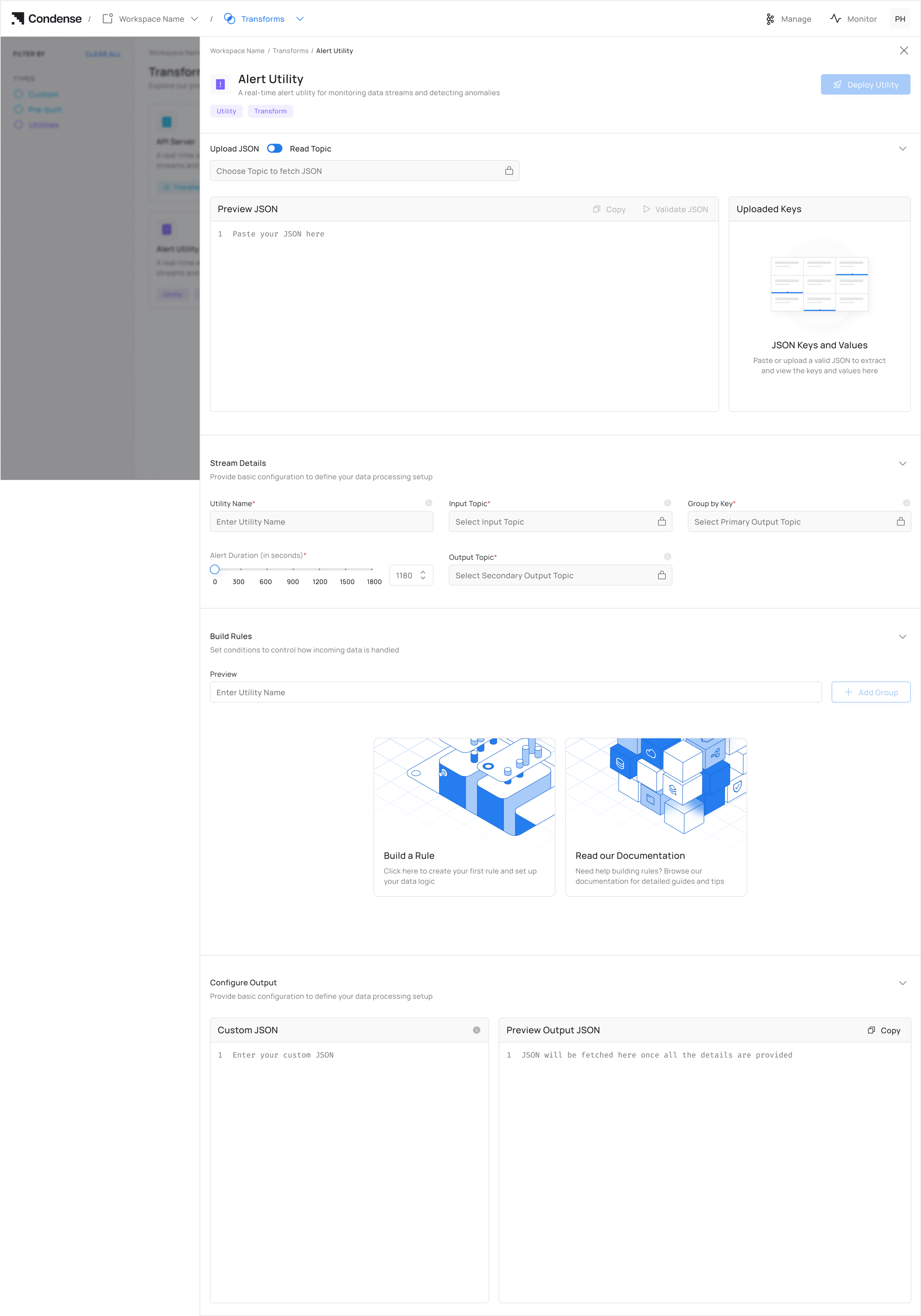
Manual JSON must exactly match your Kafka topic schema
Step 3: Set Up Configurations for Topics
- Enter a descriptive Utility Name for your Alert configuration
- Select or specify the Input Topic that will provide data to the utility
- Group incoming records by a selected Group By key field to configure alert logic
- Specify the alert duration to control how long a condition must persist before triggering an alert
- Define a unique Output Topic for the alerts utility.
Step 4: Configure Rules for Alert
- Click Add Rule
- For each rule:
- Field Name: Select from auto-populated list (never type manually)
- Condition: Set operator (>, <, =) and threshold
- Grouping Rules - Click “Add Group” to combine multiple rules (Example: Group “Engine Alerts” with rules for temperature AND pressure). Rules follow logical evaluation order.
Step 5: Deploy
Real-Time Rule Preview - The top preview bar shows your current rule structure (Updates instantly as you add/change rules)Check the preview bar to verify:
- Correct grouping with parentheses
- Logical operator priority matches your intent
- Click Deploy Utility
- Go to Pipelines > Your Alert Name to monitor your alert deployment on the pipeline.
The process of editing or deleting a deployed utility remains the same
Editing an Alert Configuration
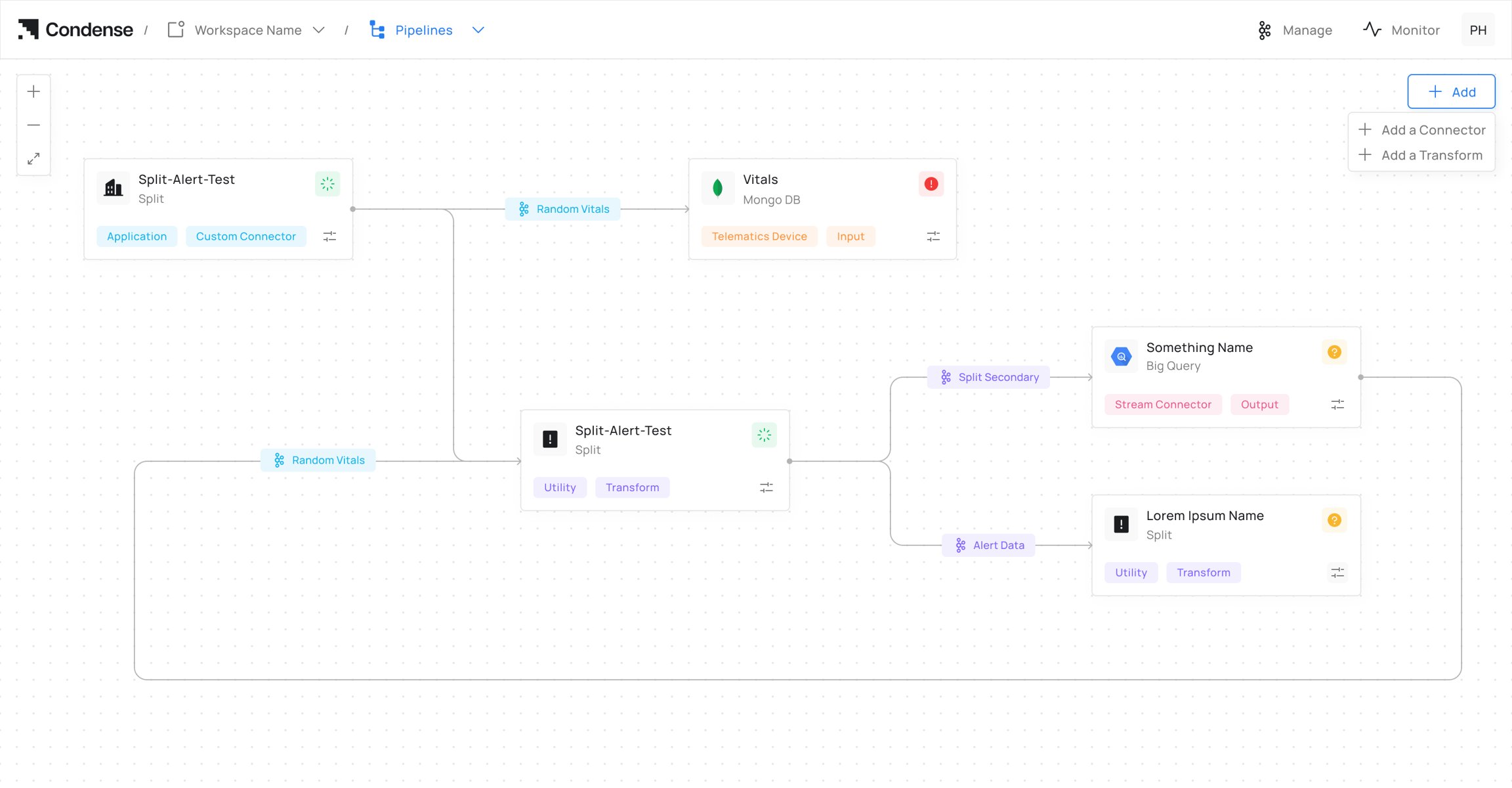
- Navigate to the Pipelines page.
- Select the deployed Alert Utility you want to modify.
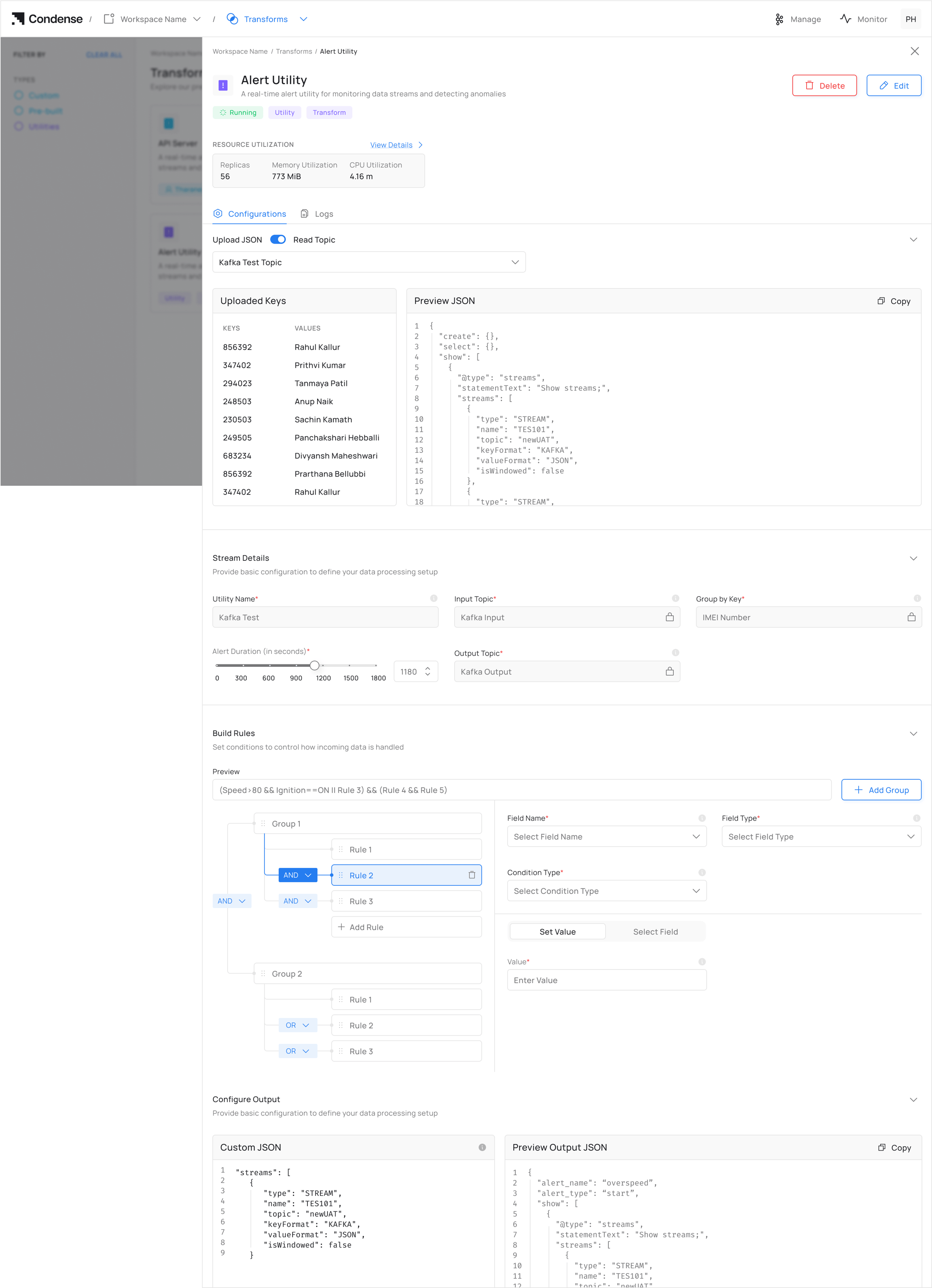
- Click Edit Configurations to open the utility configuration.
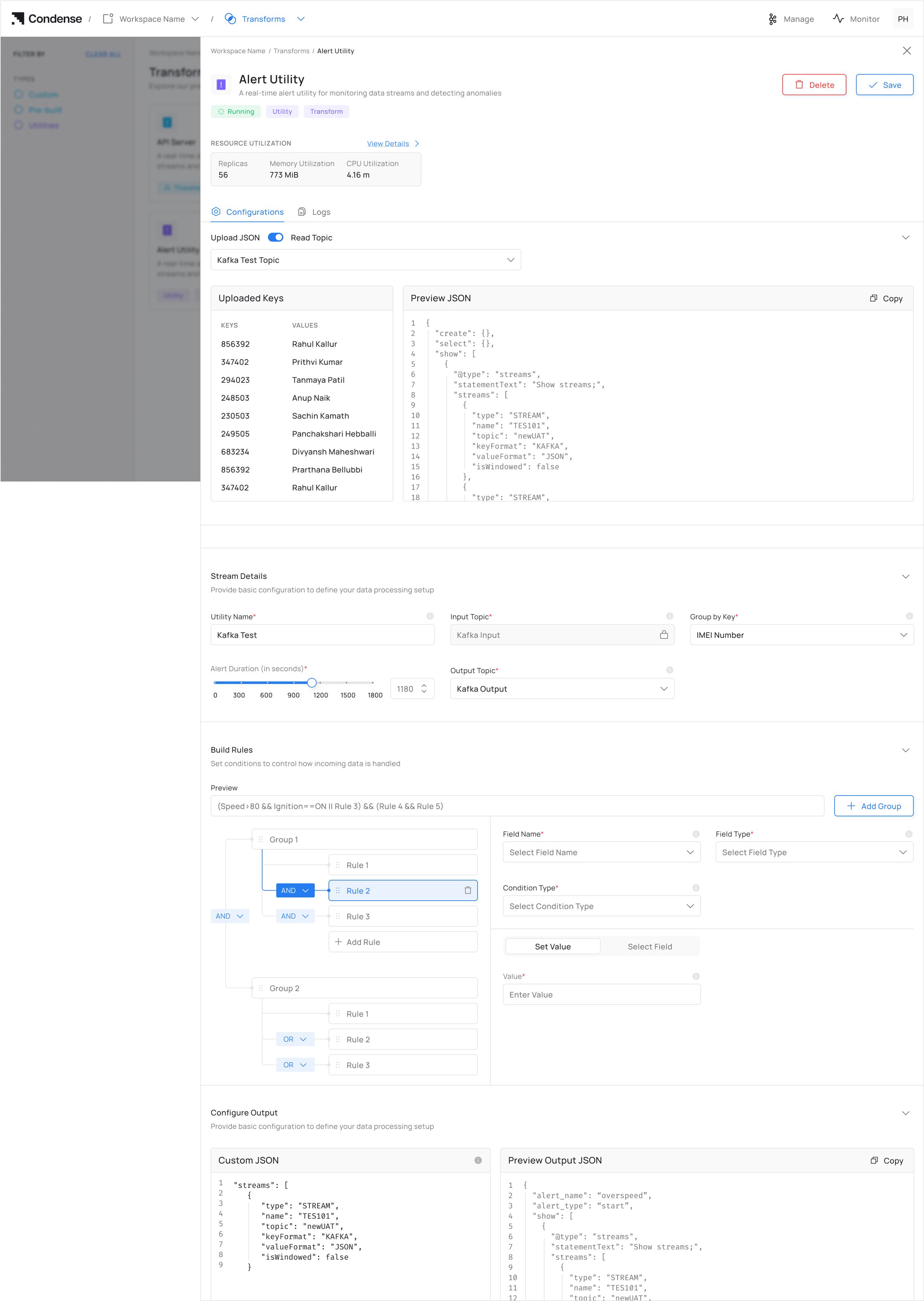
- Update the required configuration, including:
- Utility Name
- Input Topic
- Output Topic
- Group By field
- Alert Duration
- Rule conditions
- Variables used in rule expressions (New in v2.4.0)
- Review the updated rule expression using the preview bar.
- Click Deploy Utility to apply the updated configuration.
Starting with Condense v2.4.1, variables used in Alert Utility rule expressions can be edited directly without recreating the utility. This simplifies updates when field names, thresholds, or rule logic change.
Deleting an Alert Configuration
- Navigate to the Pipelines page
- Select the deployed Alert Utility you wish to remove
- Click the Delete Utility button
- Confirm deletion in the prompt window
Frequently Asked Questions (FAQs)
Q1: Can I monitor multiple input topics with one alert configuration?
No, each alert configuration can only monitor a single input topic. If you need to monitor multiple topics, you’ll need to create separate alert configurations for each.Q2: How does the “Alert Duration” setting work?
The Alert Duration determines how long a condition must be continuously met before an alert is triggered. For example, if you set it to 60 seconds, the specified condition must persist for a full minute before an alert is sent to the output topic.Q3: Can I send alerts to multiple output topics?
No, each alert configuration can only send alerts to a single output topic. If you need to distribute alerts to multiple destinations, consider implementing additional logic downstream from your output topic.Q4: What field types are supported for alert conditions?
The Alert Utility supports Integer, Float, String, and Boolean field types.Q5: What condition types are available for rule configuration?
The available conditions include greater than (>), less than (<), equal to (=), matches (for strings), and between (for ranges).Q6: Can I create rules in bulk?
No, rules must be added individually through the interface. Bulk rule creation is not currently supported.Q7: How do I know if my alert utility is functioning correctly?
You can verify alert functionality by:- Checking the status on the Pipelines page
- Monitoring the output topic for alert messages