

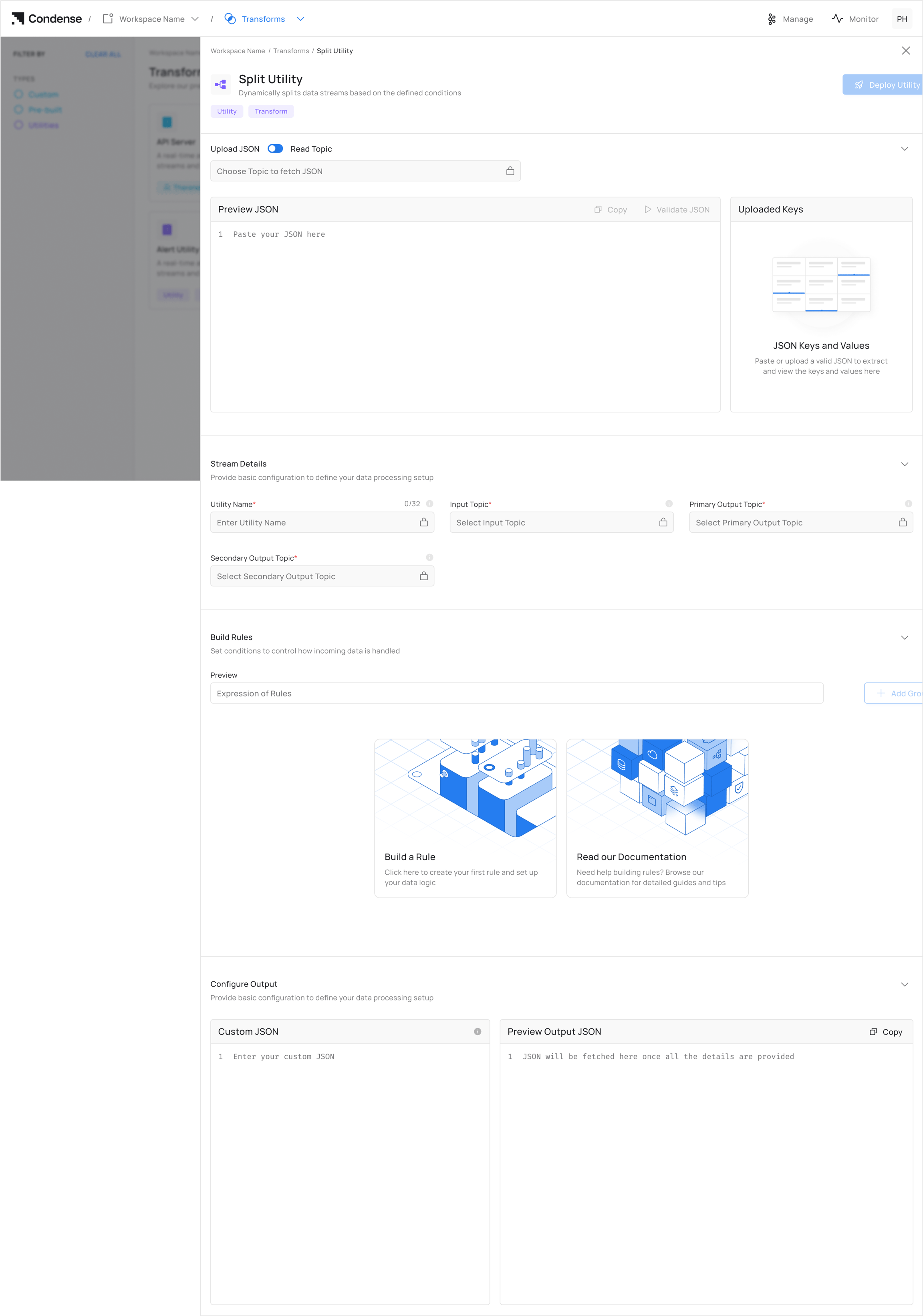
Overview
The Split Utility in Kafka Streams helps streamline data processing by categorising and routing data based on user-defined conditions. It effectively manages data by directing it to primary or secondary topics, ensuring efficient and real-time processingKey Features
Intelligent Data Routing
- Automatically routes data to either primary or secondary topics based on conditional evaluation
- Applies filtering logic to streaming data without coding or manual intervention
Operational Flexibility
- Modify routing rules without disrupting data flow or redeploying pipelines
- Pre-validate data structures to ensure compatibility before deployment
Zero-Code Implementation
- Configure complex stream splitting logic through an intuitive UI without writing code
- Define data routing policies using a clear, business-oriented approach by defining rules for splitting
How to Use the Split Utility
Step 1. Access the Split Utility
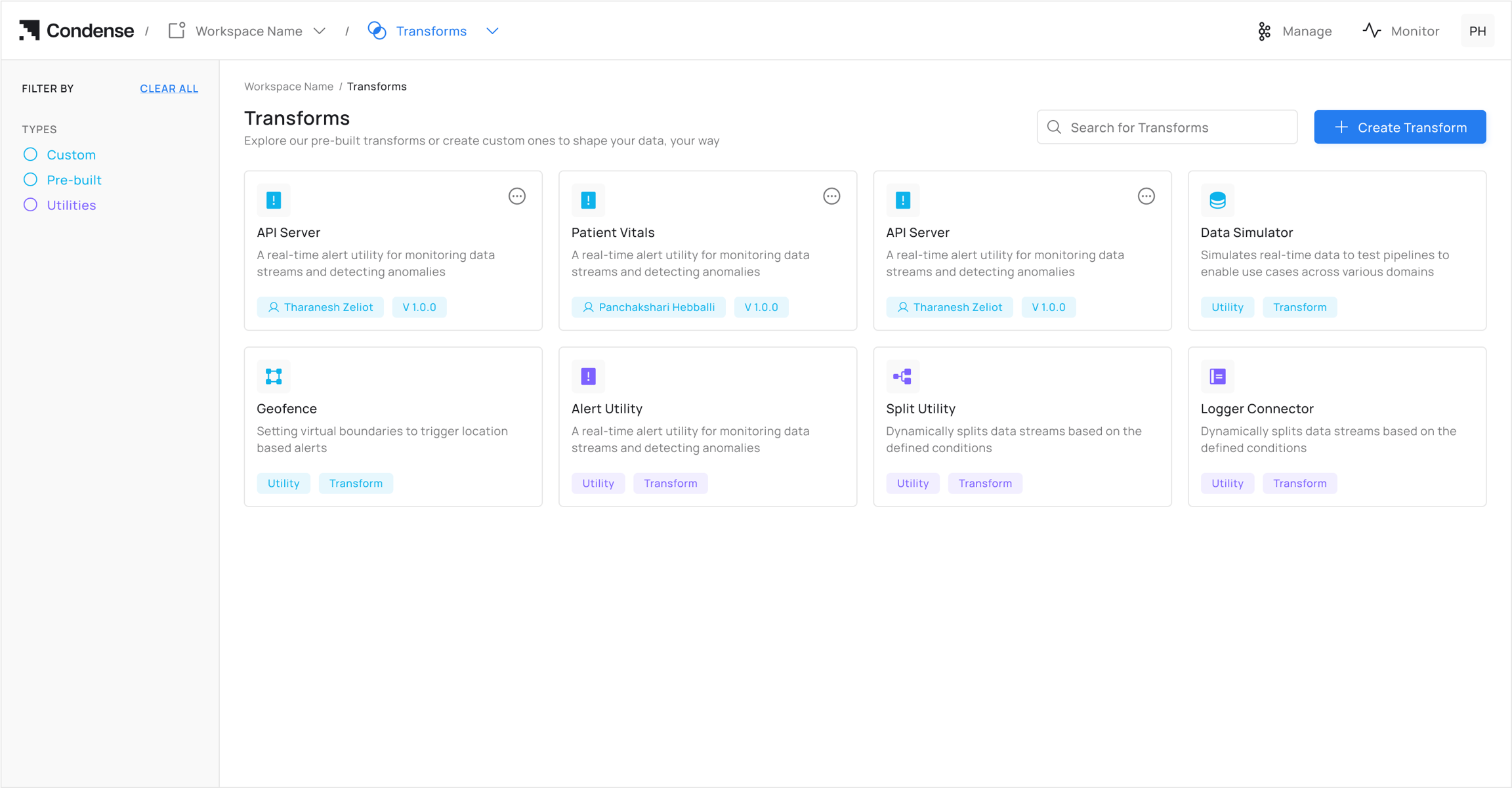
- Log in to your Condense account
- From the main menu, select Transforms
- Click on Split Utility from the Transforms page
Step 2: Choose Configuration Method
Option A: Auto-Fill from Topic (Recommended)
Click “Choose a Topic” under Read Topic. It auto-populates schema fields for the configuration of the Split Utility.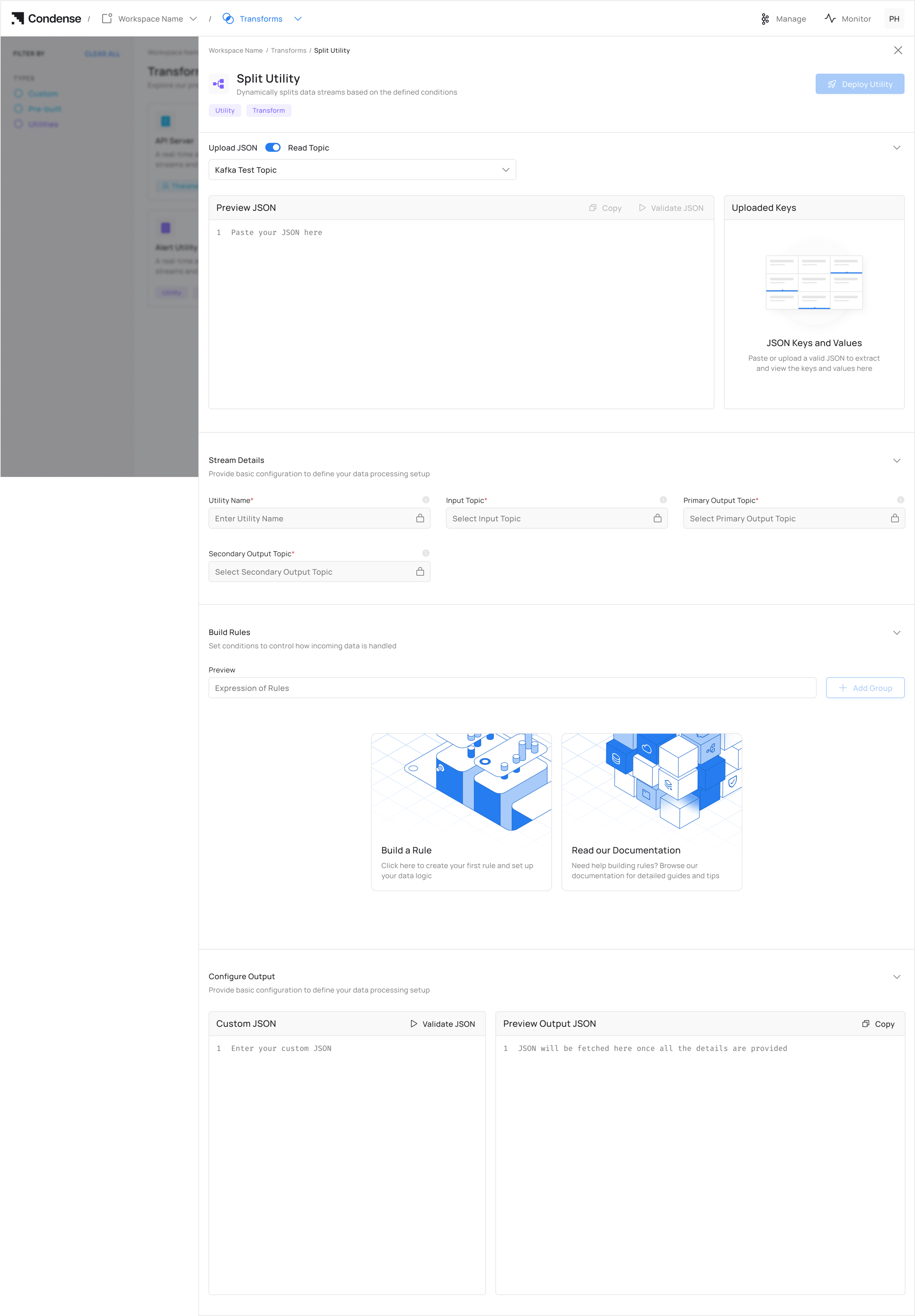
If the topic is empty, the user will not be able to set up the configuration for the Split utility
Option B: Manual JSON Upload
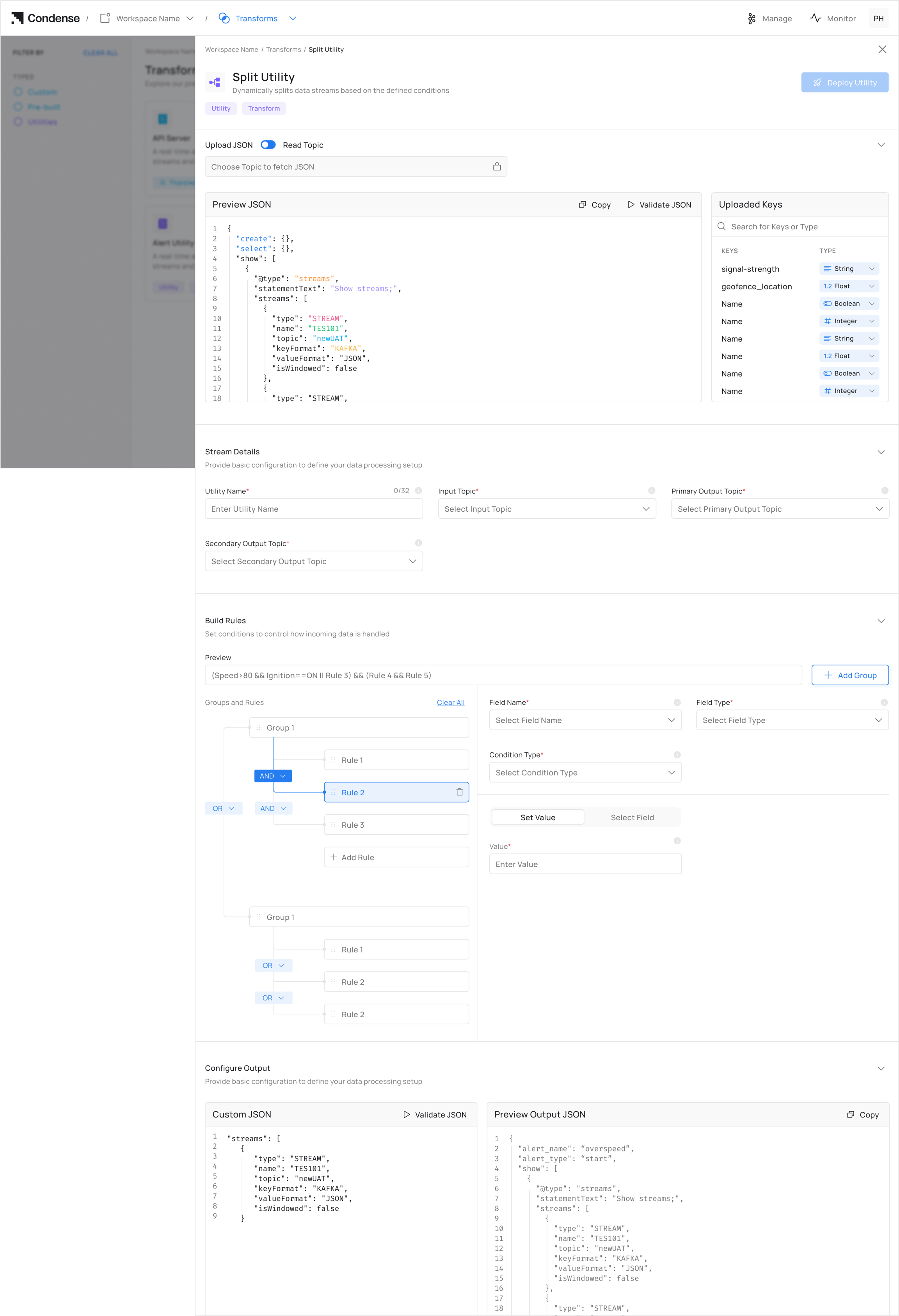
Manual JSON must exactly match your Kafka topic schema
Step 3. Set Up Configurations for Topic
- Enter a descriptive Utility Name for your split configuration
- Select or specify the Input Topic that will provide data to the utility
- Define a unique Primary Output Topic for condition-satisfied data
- Define a unique Secondary Output Topic for condition-rejected data
Step 4: Configure Rules for Split
- Click Add Rule
- For each rule:
- Field Name: Select from auto-populated list (never type manually)
- Condition: Set operator (>, <, =) and threshold
- Grouping Rules - Click “Add Group” to combine multiple rules_._ Rules follow logical evaluation order.
Step 5: Deploy
- Real-Time Rule Preview - The top preview bar shows your current rule structure for split (Updates instantly as you add/change rules)
- Correct grouping with parentheses
- Logical operator priority matches your intent
- Click Deploy Utility
- Go to Pipelines to monitor your split utility deployment on the pipeline.
Editing a Split Configuration
- Navigate to the Pipelines page.
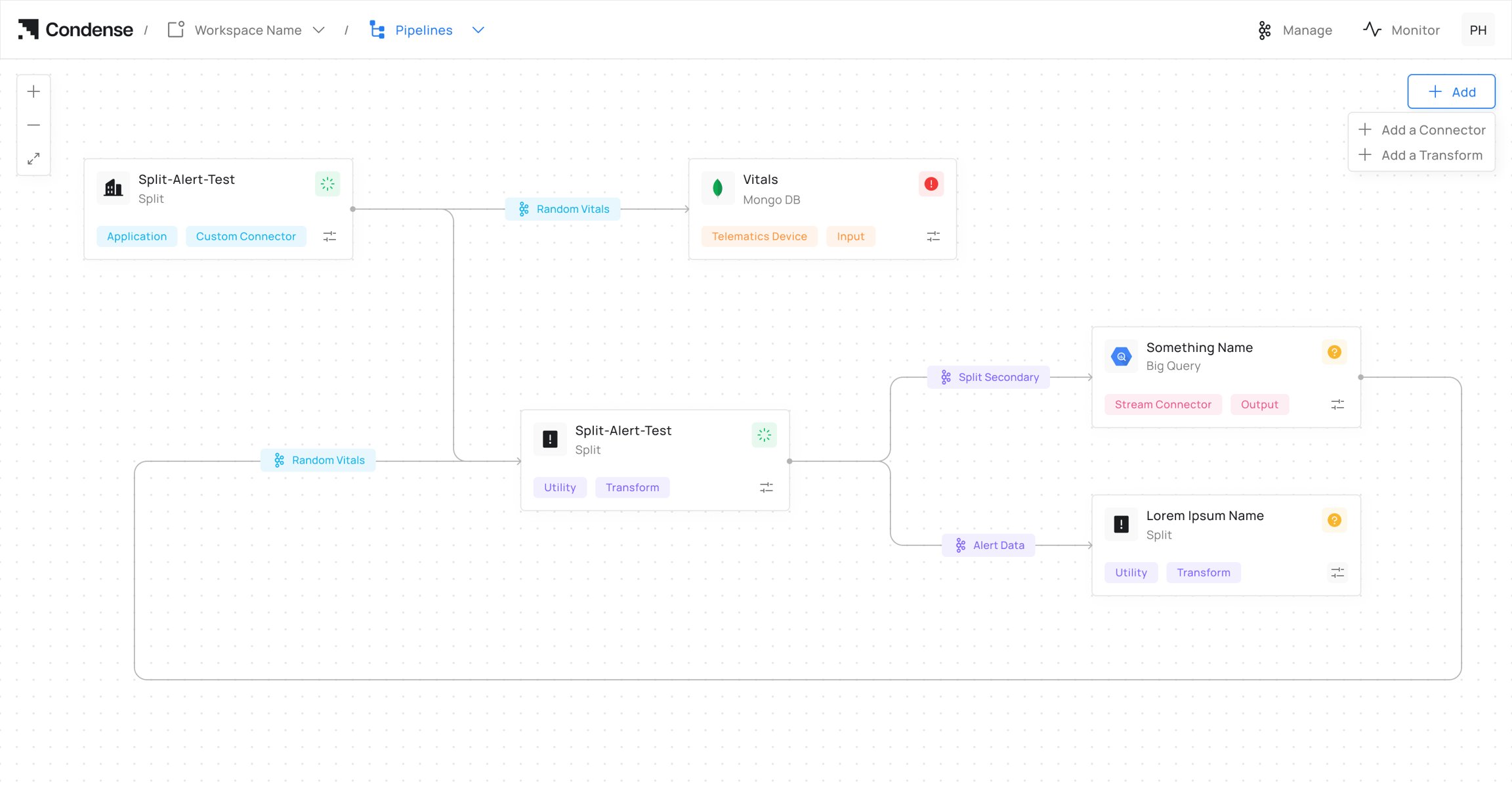
- Select the deployed Split Utility you want to modify.
- Click Edit Configurations to open the utility configuration.
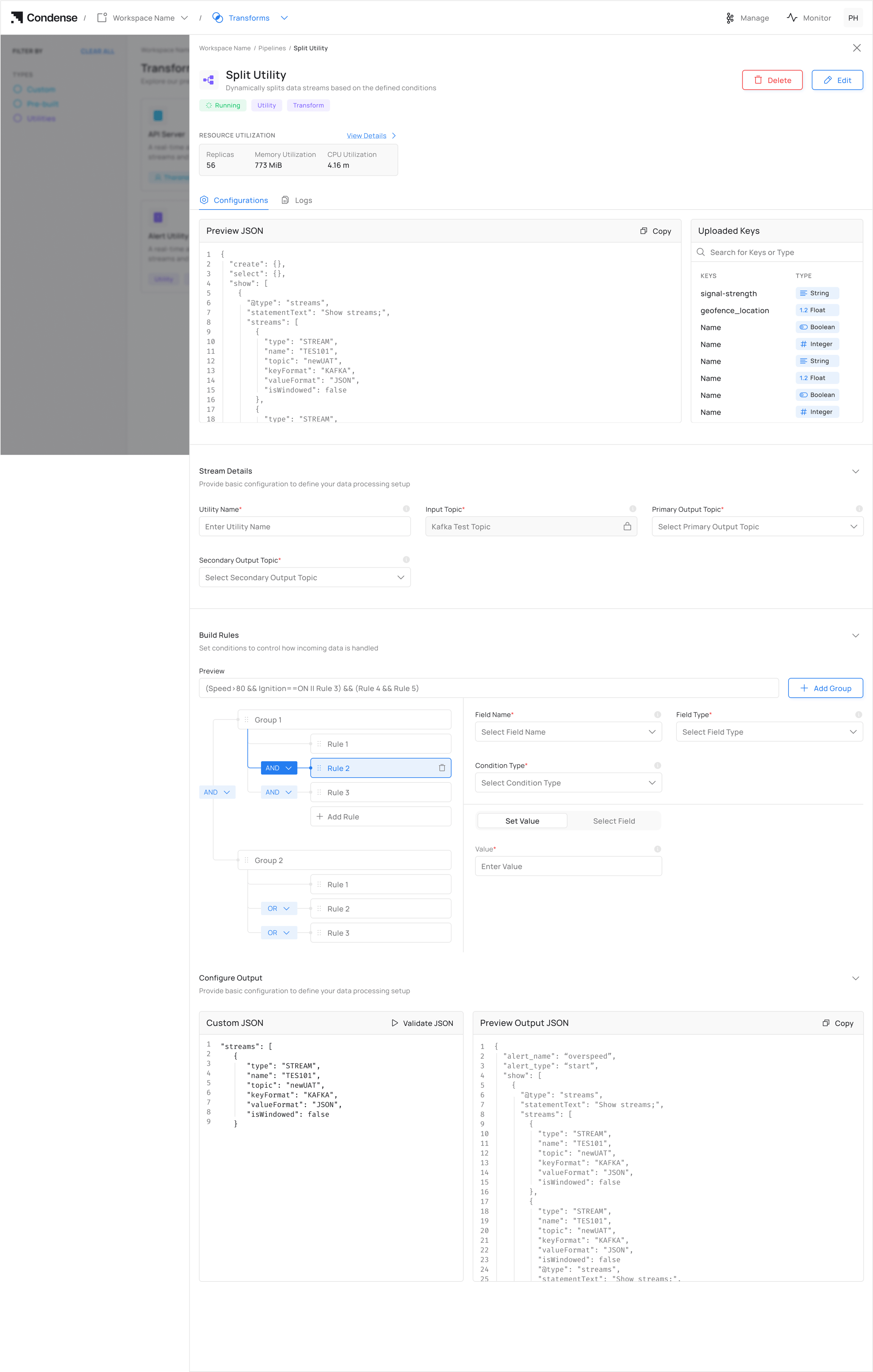
- Update the required configuration, including:
- Utility Name
- Input Topic
- Primary Output Topic
- Secondary Output Topic
- Rule conditions
- Variables used in rule expressions (New in v2.4.0)
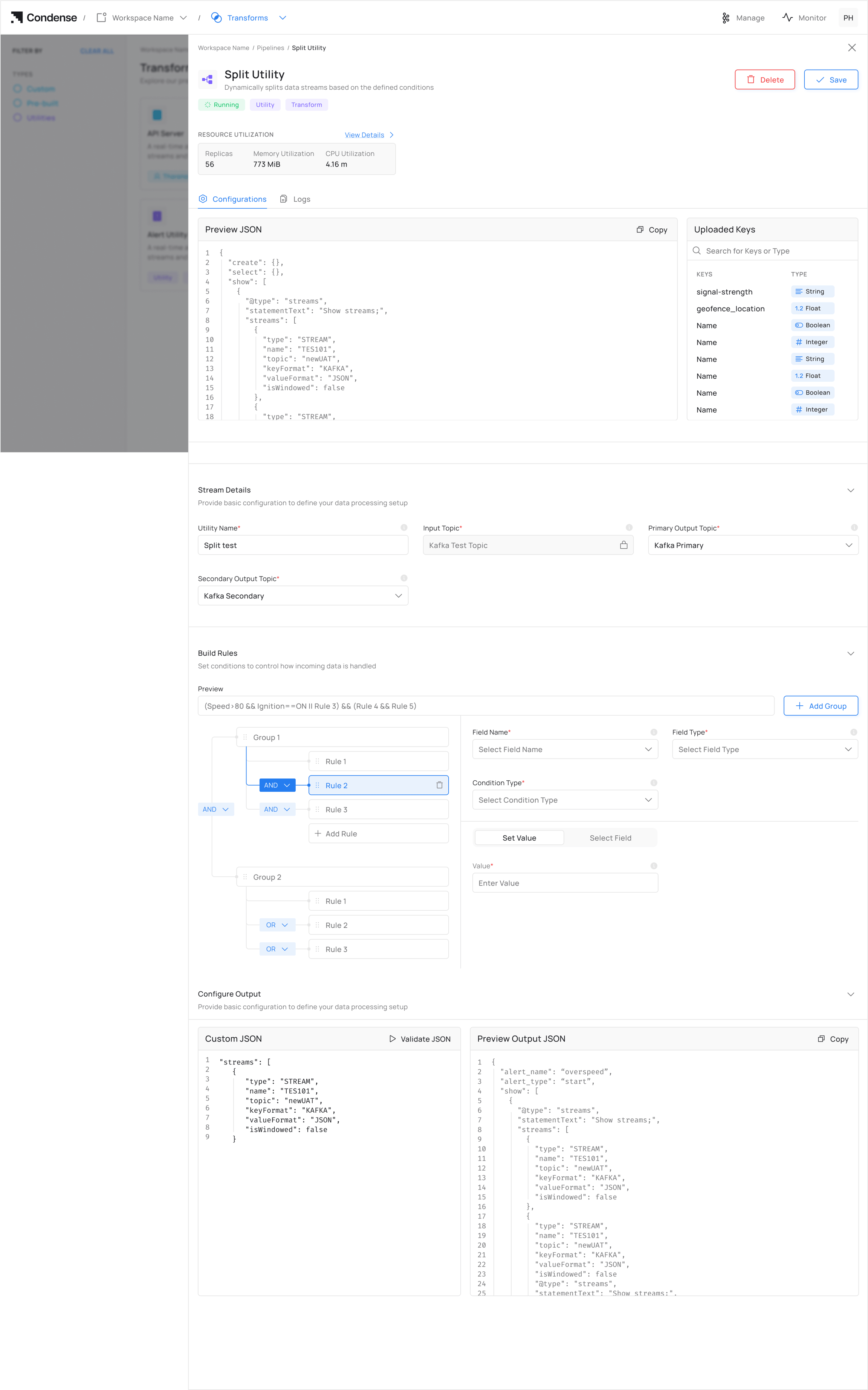
- Review the updated rule expression using the preview bar.
- Click Deploy Utility to apply the updated configuration.
Starting with Condense v2.4.0, variables used in Split Utility rule expressions can be edited directly without recreating the utility. This allows routing logic to be updated quickly when field names, conditions, or business rules change.
Deleting a Split Configuration
- Navigate to the Pipelines page
- Select the deployed Split Utility you wish to remove
- Click the Delete Utility button
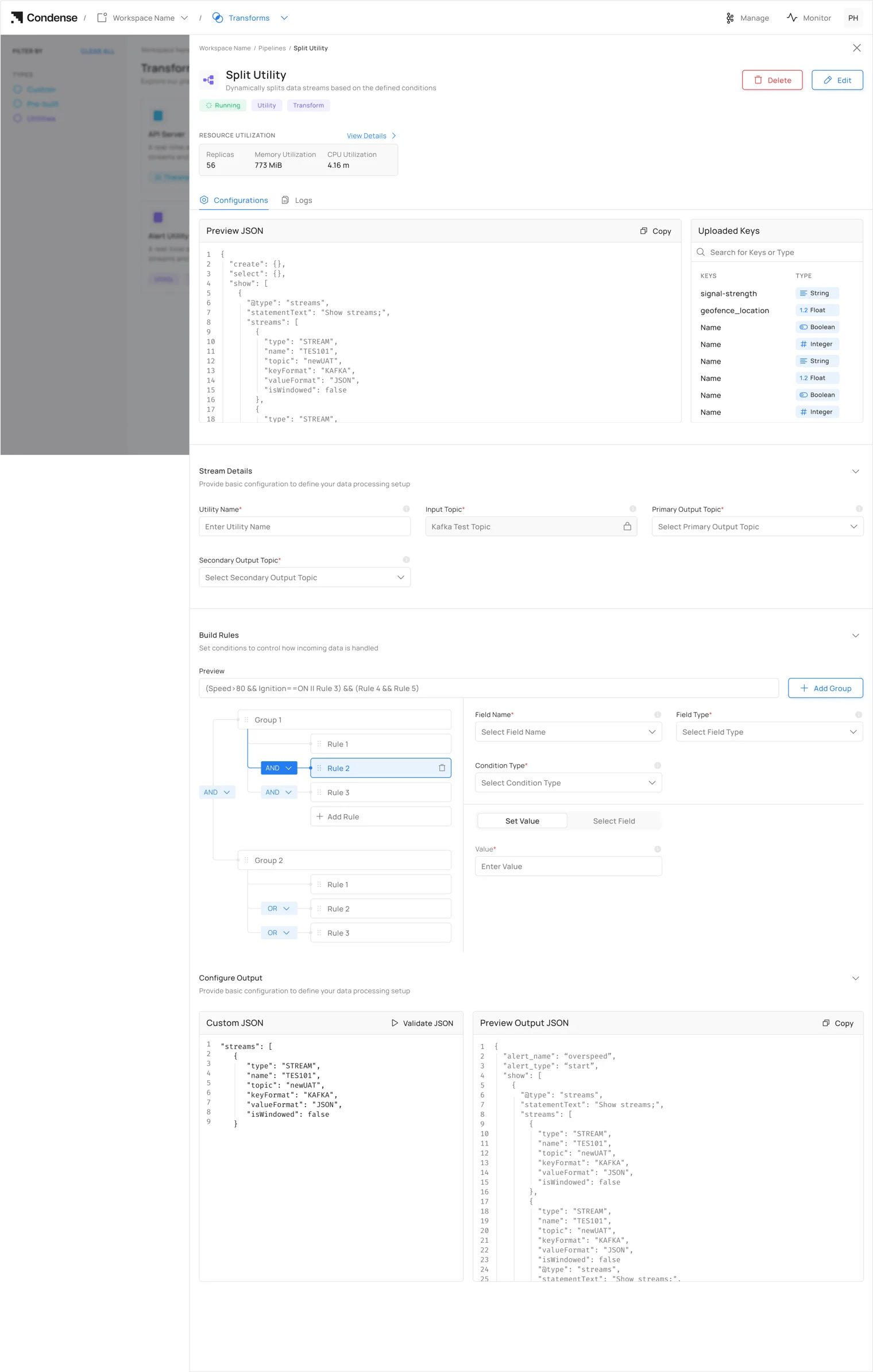
- Confirm deletion in the prompt window