

Creating an Organization and Becoming Organization Admin
- Sign up or create a new organization in Condense Console https://console.condense.zeliot.in/signUp
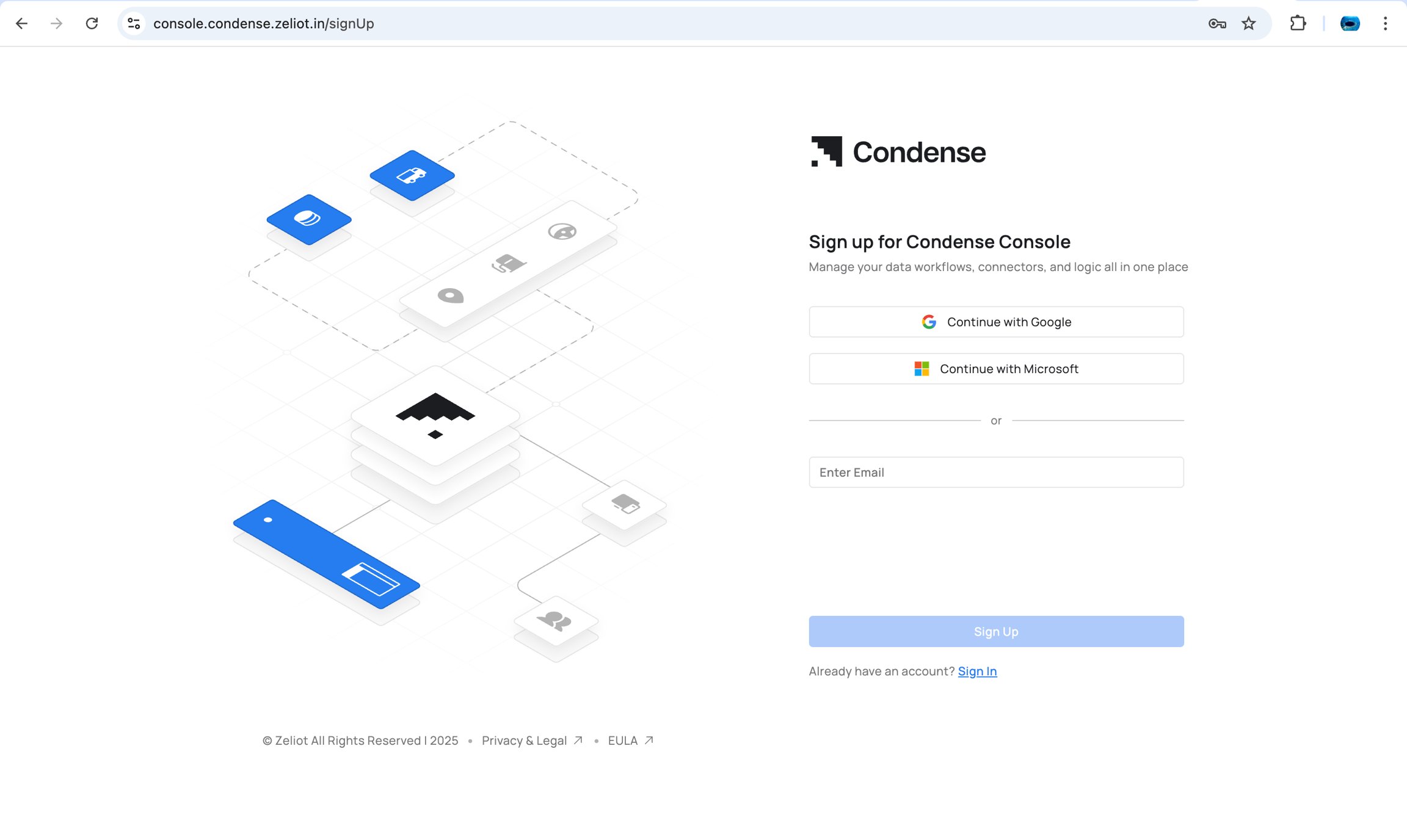
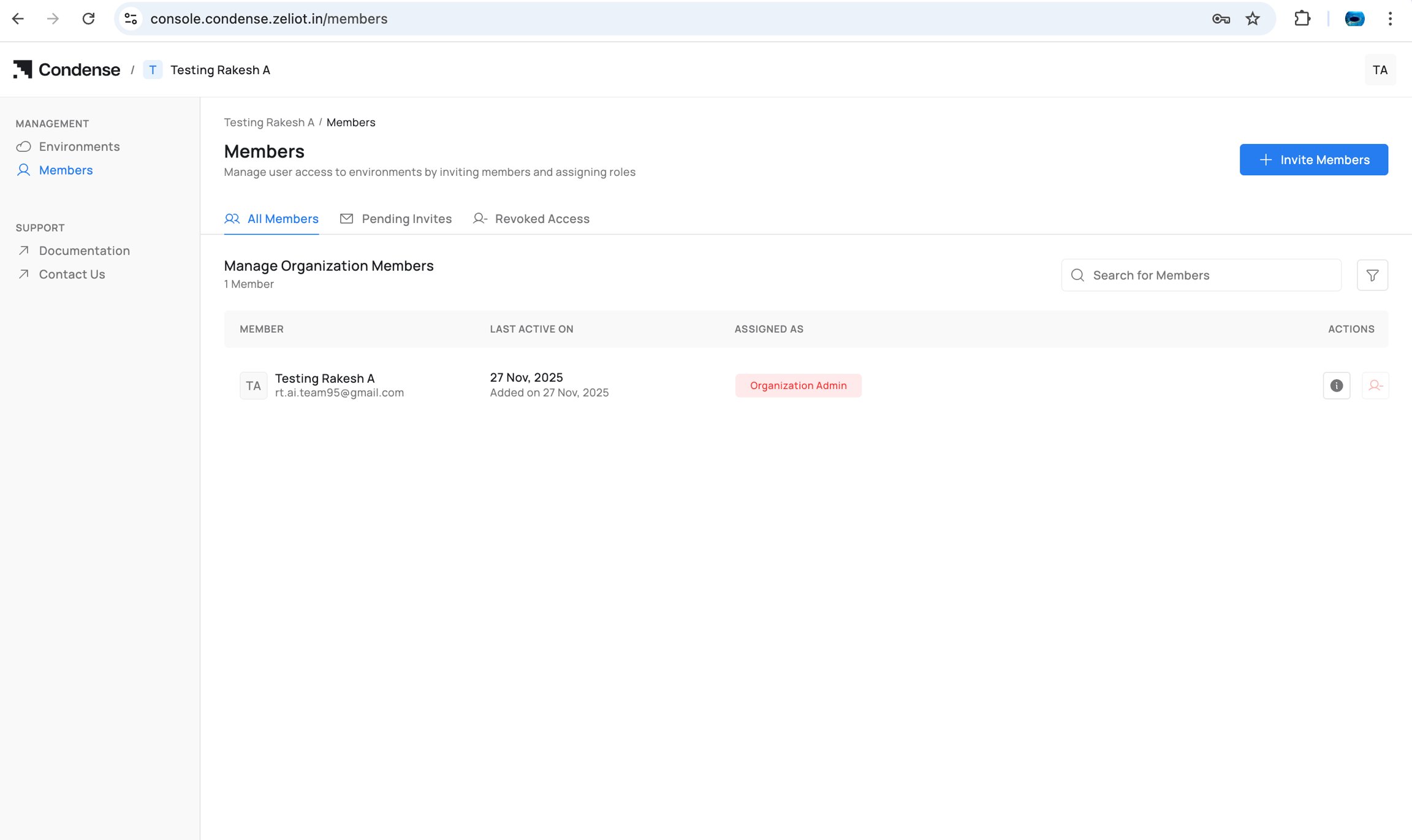
- The creator automatically becomes the Organization Admin
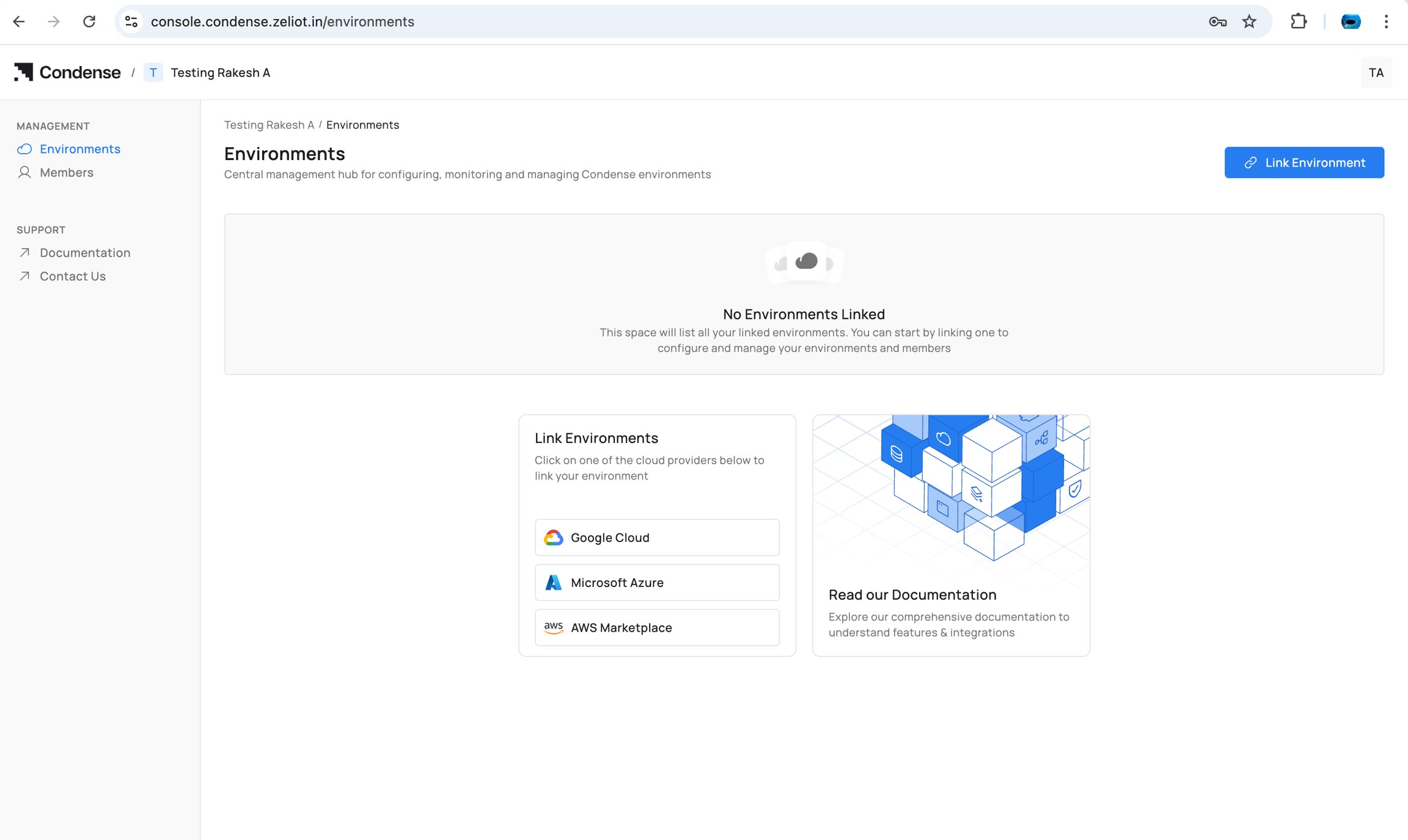
- Environment(s) can now be linked to the organization
Inviting Members
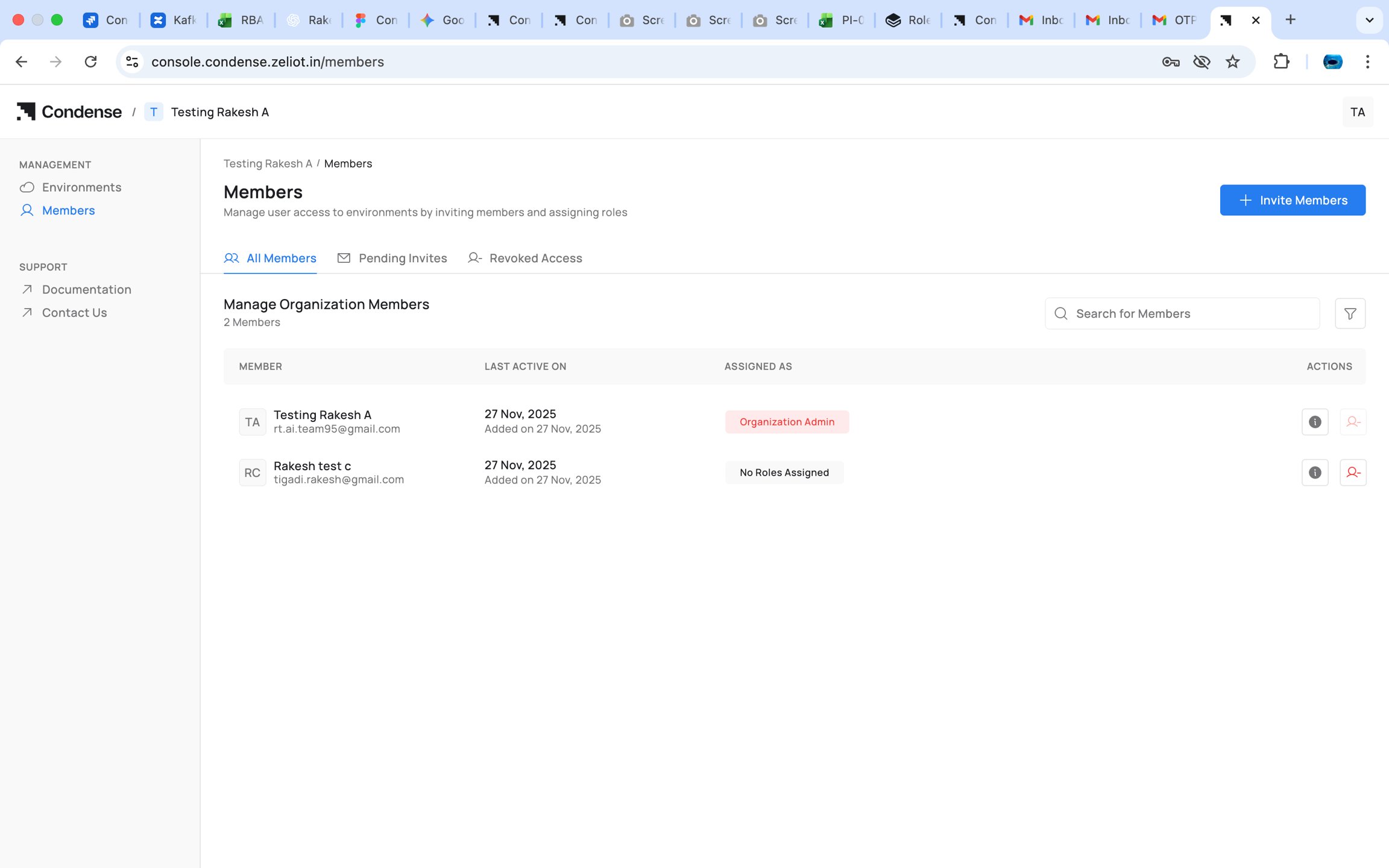
As Organization Admin or Account Admin:- Go to Members
- Select Invite Member
- Enter the email addresses, then choose the roles and environments
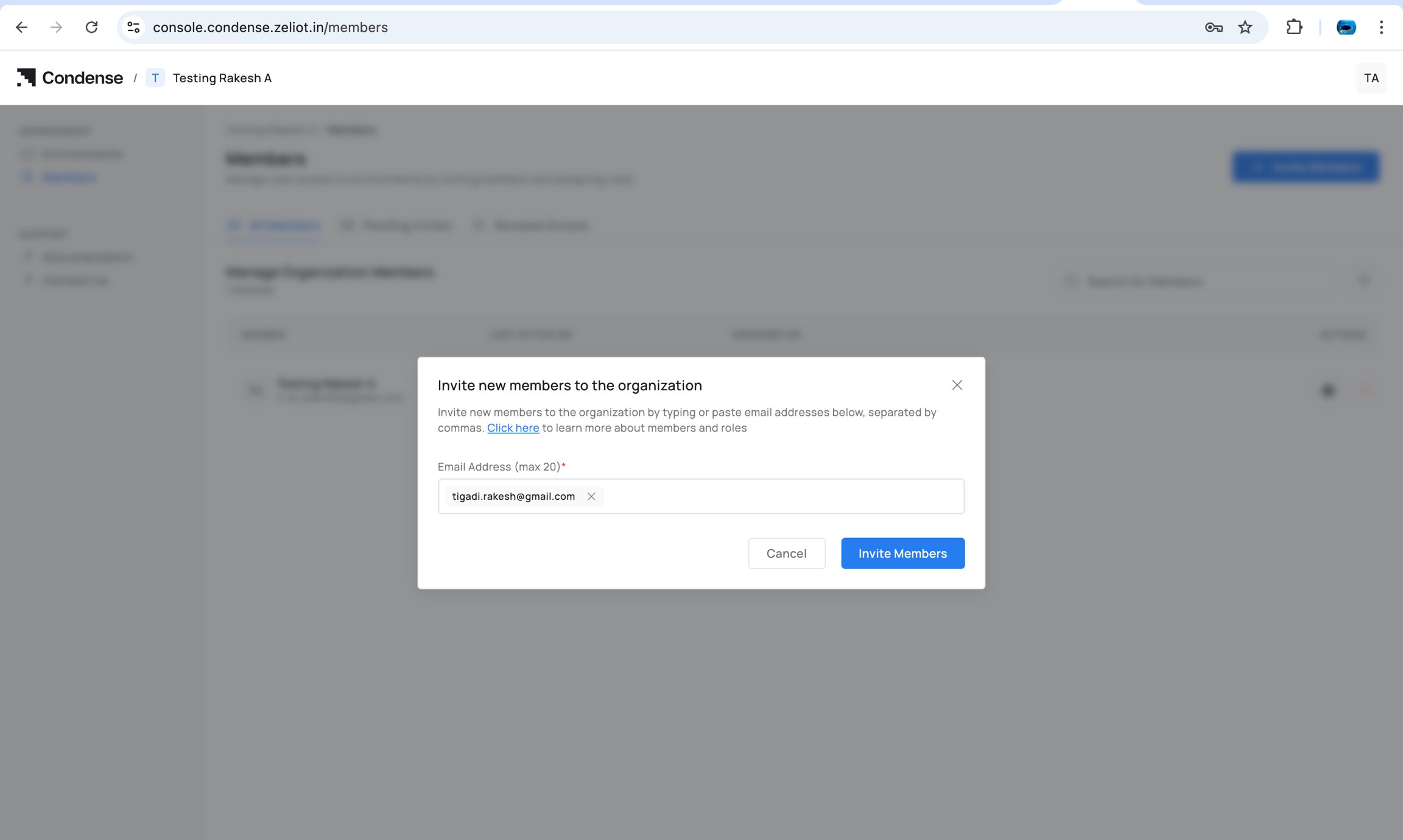
- Send invite
Inviting Existing Condense Users (New in v2.4.1)
Starting with Condense v2.4.1, users who already have a Condense account can be invited to additional organizations using the same email address. When the invitation is accepted:- No new Condense account is created.
- The new organization is added to the user’s existing account.
- Existing organizations remain unchanged.
- Roles and permissions are managed independently within each organization.
A single Condense account can belong to multiple organizations while maintaining separate members, environments, workspaces, and permissions for each organization.
- Select the member and assign one of the Organization-level roles:
- Organization Admin
- Account Admin
- Billing Admin
- Environment Admin (for selected environments)
- Environment User (for selected environments)
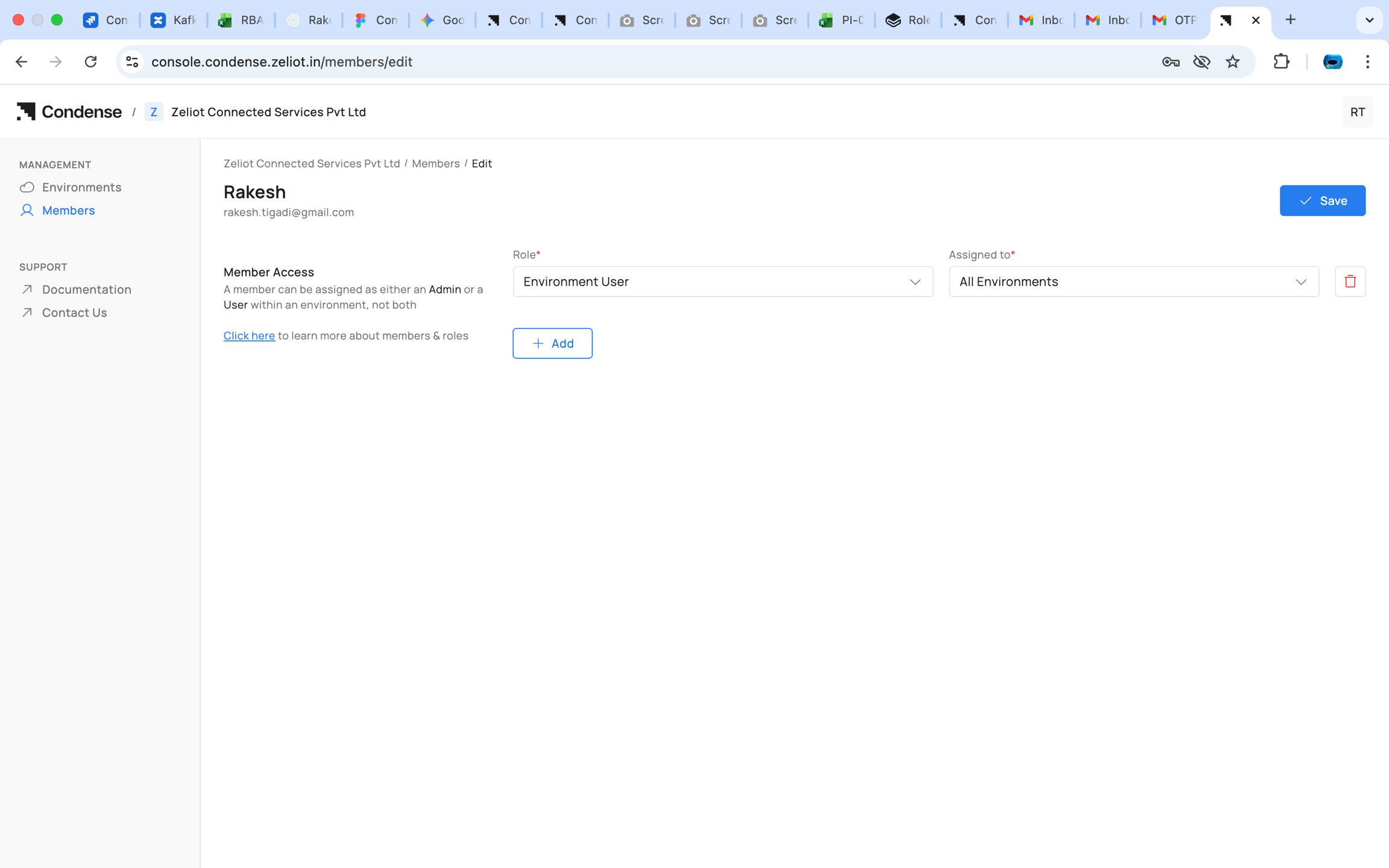
You cannot assign any role to member if there is no Environment is associated to organization
Set Up Access Before the Person Signs Up (New in v2.6.0)
Until now, giving a new person access took four steps in a fixed order, and the last three could only start after they signed up: Invite → Wait for signup → Assign environment → Assign roles Starting with Condense v2.6.0, you choose roles and environments in the same step as the invitation, and you can adjust them while the invitation is still waiting to be accepted: Invite → Assign roles and environments → Person signs up → Immediate accessWhat you set up before signup
What you can choose depends on your own role.
The invited person shows as Pending until they accept the invitation and complete signup.
Invitation rules
- You can invite up to 20 email addresses in one invitation.
- Gmail addresses and work email addresses are accepted. Temporary email addresses are not.
- If the same combination of email address, role and environment is added more than once, Condense highlights Already added in red and does not add it again.
Where you see a pending invitation
An Environment Admin sees pending invitations only for the environments they manage.
What you can change while the invitation is pending
Changes to a pending person’s roles are recorded in the Activity Auditor.
What happens when the person signs up
When the person accepts the invitation and signs in, Condense applies the access you prepared: their Console role, their Core environments, and their workspace role. They land on a working environment instead of an empty dashboard, and no one has to be told that they signed up.Pre-configured access works the same way as access assigned after signup. The same roles and the same limits apply.
Assigning Organizational Roles
Organization Admins can assign:- Organization Admin
- Account Admin
- Billing Admin
Assigning Environment Roles
Account Admin can:- Select a member
- Choose Add to Environment
- Select an environment
- Assign either:
- Environment Admin
- Environment User
Manage People from an Environment’s Page (New in v2.6.0)
An environment’s page in Condense Console lists its people the same way the Members page does, in three tabs:- Active Members: people who have signed up and have access to this environment.
- Pending Invites: people who were invited to this environment and have not signed up yet.
- Revoked Access: people whose access was revoked.
Remove a member from an environment
Remove Member takes the person out of this environment only. Their roles in other environments and their other mappings stay as they are. To remove someone from the whole organization, use the Members page.Restore a member
Restore Member brings the person back into the organization with no roles and no environments. Because they have no environment yet, they do not appear under Active Members on an environment’s page. They appear under Active Members on the Members page, where you can assign their roles and environments again.Assigning Workspace Roles (inside Condense Core)
Only Environment Admins do this. It works the same for people who have signed up and for people whose invitation is still pending. For an Environment User:- Navigate to Members in Condense Core
- Find the person under Active Members or Pending Invites
- Choose Edit
- Select a role:
- Maintainer
- Developer
- Viewer
- Select one or more workspaces
- Choose Save Changes
Kafka Admin is chosen in Condense Console when the person is invited, together with their environment role. It is not set in this step.
Note The role selected applies to all selected workspaces. Later additions must use the same role.
Example Scenario
Setup
Environments: Production, Testing Workspaces: FleetTracking, ColdChain, SandboxTeam
User Experience
- Anita Full authority across both environments and all workspaces.
- Bharat Sees Production only. Sees only FleetTracking because of the Kafka Admin role.
- Divya Sees all workspaces in Testing. Can deploy and manage connectors in Sandbox.
- Eshan Sees Production. Sees FleetTracking and ColdChain as Developer.
- Farah Sees Sandbox with read-only access.
Behavior
- Environment Admins see and operate across all workspaces of their environments
- Environment Users only see the workspaces they have a role for
- Workspace roles for an Environment User always remain uniform across all selected workspaces
Capability Overview
Condense RBAC provides a structured, predictable access model across three layers:
- Organization Layer : governs who administers the organization and who can assign access
- Environment Layer : determines seniority and visibility for operations
- Workspace Layer : controls fine-grained operational capabilities
Lifecycle Guide
Lifecycle Guide
The following lifecycle illustrates how a user is onboarded into an organization and granted access to Condense resources.1. Create an Organization
A new user signs up for Condense and creates an organization. The creator is automatically assigned the Organization Admin role. Outcome:- Organization created
- Organization Admin assigned
- Ready to link environments
2. Link an Environment
The Organization Admin links one or more Condense environments to the organization. Outcome:- Environment becomes available for member assignment
- Environment roles can now be configured
3. Invite Members
The Organization Admin or Account Admin invites users by entering their email address, choosing roles and environments, and sending an invitation. The user receives an invitation email and joins the organization after accepting it. You do not have to wait for them to accept. Steps 4, 5 and 6 can be completed, and changed, while the invitation is Pending. Outcome:- Invitation sent
- Roles and environments assigned, before or after the person accepts
4. Assign Organization Roles
Assign one of the available organization-level roles based on administrative responsibilities. Available roles include:- Organization Admin
- Account Admin
- Billing Admin
- Administrative permissions configured
5. Assign Environment Roles
Assign users to one or more linked environments. Available roles include:- Environment Admin
- Environment User
- Kafka Admin
- User gains access to the selected environments
6. Assign Workspace Roles
For Environment Users, assign workspace-level permissions within Condense Core. Available workspace roles include:- Maintainer
- Developer
- Viewer
- User receives access to the required workspaces
Roles and environments assigned before signup take effect the first time the person signs in.
7. Start Working
Once all required roles have been assigned, members can:- Access their assigned environments
- Open authorized workspaces
- Build and deploy pipelines
- Manage connectors and transforms (based on role)
- Monitor Kafka resources and applications
8. Ongoing Administration
Organization Admins can continue to manage the organization by:- Inviting new members
- Updating member roles
- Removing members
- Linking additional environments
- Managing organization settings
- Restoring members whose access was revoked
Frequently Asked Questions (FAQs)
Frequently Asked Questions (FAQs)
Q1: Who can invite members to an organization?
Organization Admins and Account Admins can invite members. Organization Admins assign organization-level roles. Account Admins assign environment roles and environments.Q2: What happens after a member accepts an invitation?
Once the invitation is accepted, the member is added to the organization. If you already assigned roles and environments while the invitation was pending, the member has that access on first sign-in. Otherwise, an Organization Admin or Account Admin can assign the appropriate roles after they join.Q3: Can I invite someone who already has a Condense account?
Yes. Starting with Condense v2.4.1, existing Condense users can be invited to additional organizations using the same email address. The new organization is added to their existing account without requiring a new registration.Q4: Can a user belong to multiple organizations?
Yes. A single Condense account can belong to multiple organizations. Users can switch between organizations while maintaining separate roles, permissions, environments, and workspaces for each organization.Q5: Do I need a different email address for each organization?
No. The same email address can be used across multiple organizations. Each organization manages access independently.Q6: Can I assign roles before linking an environment?
Organization-level roles can be assigned without an environment. However, Environment Admin and Environment User roles can only be assigned after at least one environment has been linked to the organization.Q7: What is the difference between Organization, Environment, and Workspace roles?
- Organization Roles control administrative access to the Condense Console.
- Environment Roles determine access to specific Condense environments.
- Workspace Roles provide fine-grained permissions within individual workspaces in Condense Core.