


Consumer Groups page displaying all available consumer groups and their current status.
Accessing Consumer Groups
To access Consumer Groups:- Navigate to Kafka Management.
- Select the required Kafka Cluster.
- Click Consumer Groups from the left navigation panel.
Consumer Groups Overview
The Consumer Groups page provides a consolidated view of all consumer groups. Each row represents a consumer group and includes operational information such as:
Use the search bar to quickly locate a specific consumer group.
View Consumer Group Details
Select View Details to inspect a consumer group.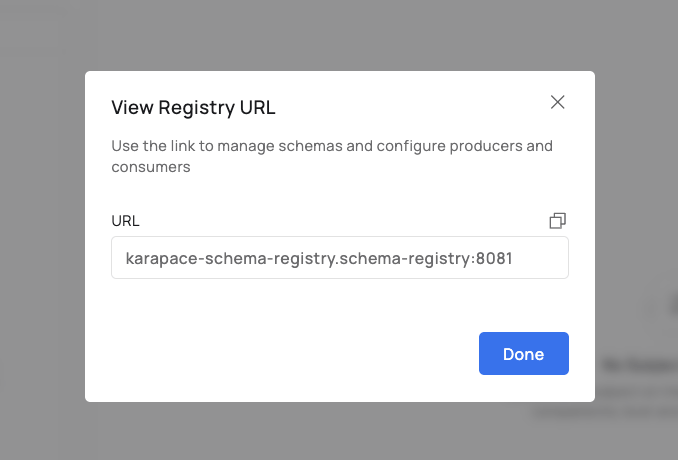
Consumer Group details displaying topic subscriptions and partition-level offset information.
This information helps administrators monitor consumer progress and identify message processing delays.
Consumer Lag
Consumer Lag represents the number of messages that have not yet been processed by a consumer group. A low lag generally indicates that consumers are processing messages efficiently, while a consistently increasing lag may indicate slower processing or consumer performance issues. Review lag periodically to ensure applications continue processing data as expected.Delete a Consumer Group
Consumer Groups can be removed directly from the Kafka Management interface. To delete a consumer group:- Locate the required consumer group.
- Click Delete.
- Review the confirmation dialog.
- Confirm the deletion.
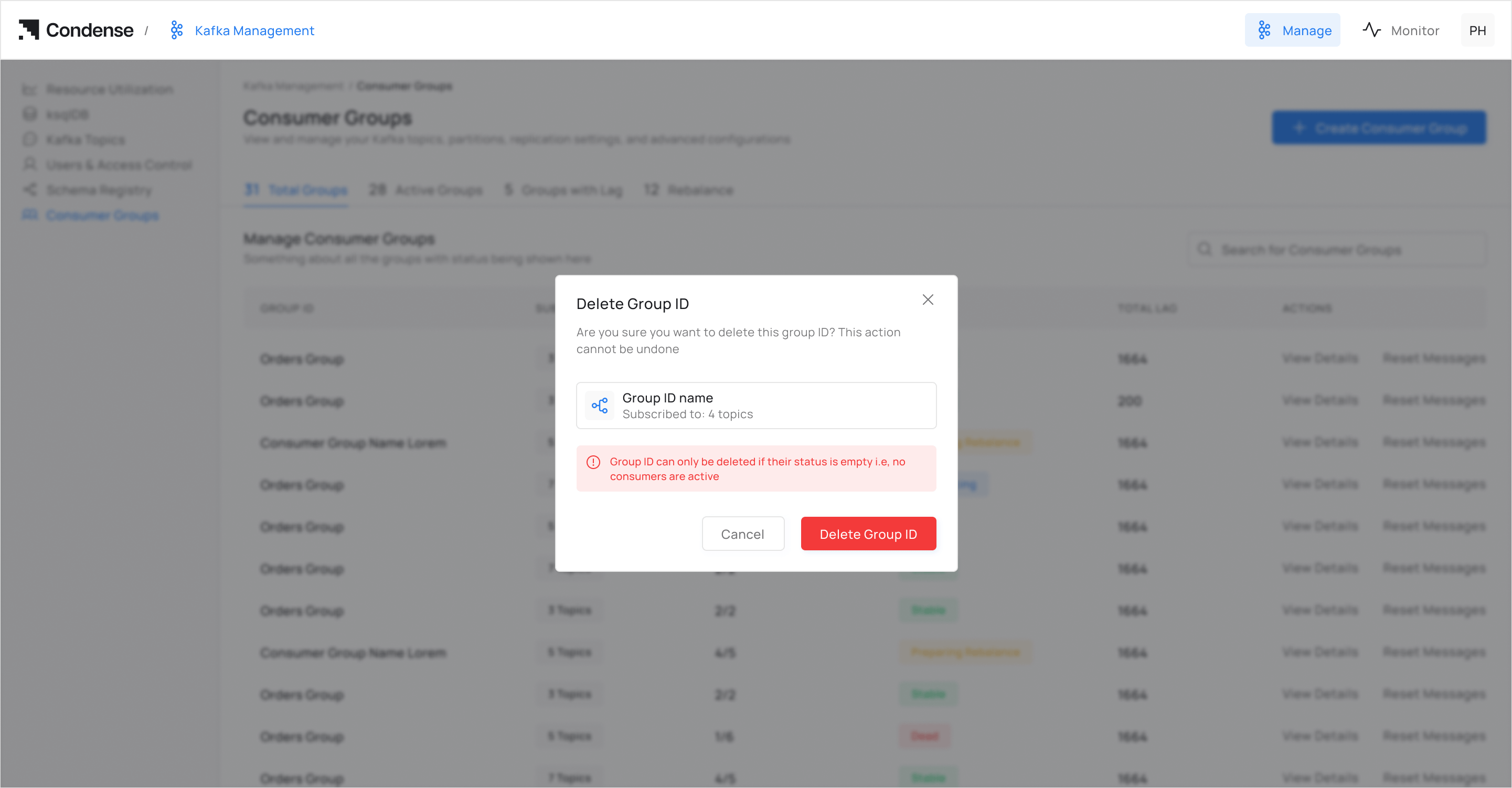
Confirmation dialog displayed before permanently deleting a consumer group.
Empty Consumer Groups
A consumer group may not display any topic or partition information if it has not yet started consuming messages or currently has no active subscriptions.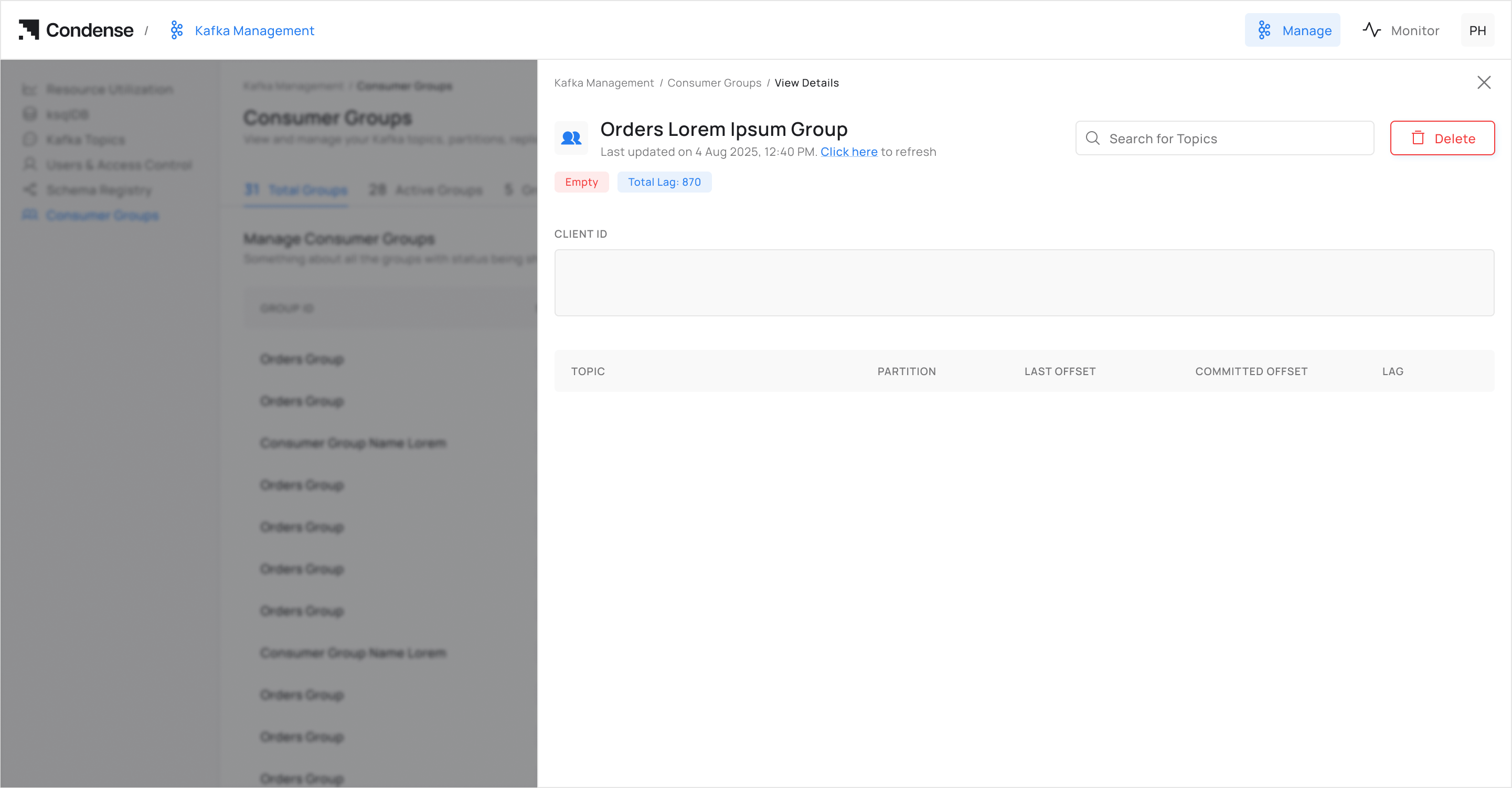
Consumer Group details for a group without active topic subscriptions.
Best Practices
- Regularly monitor consumer lag to identify processing bottlenecks.
- Remove obsolete consumer groups that are no longer required.
- Review consumer group activity before deleting a group.
- Verify consumer status after deploying new consumer applications.
- Monitor consumer groups as part of routine Kafka cluster health checks.
Related Documentation
- Kafka Topics
- Kafka Connect
- Kafka Administration
- Securing Kafka