

Organisation creation happens automatically as part of the sign-up flow — you do not need to create one separately if you are signing up for the first time.
What is an Organization?
An organization in Condense is the administrative boundary for your entire team. It contains:Step 1 - Sign Up and Authenticate
Before creating an organization, you need to sign up for a Condense account. Condense supports three sign-up methods:- Google (GSuite) — sign up with your work Google account
- Microsoft (M365) — sign up with your work Microsoft account
- Email and Password — sign up with your email address
Look for the invite email from hello@zeliot.in — it contains the unique URL for you to sign up and access the Condense App.
Step 2 - Create Your Organization
After successful authentication, you will be automatically redirected to the Organization Creation page: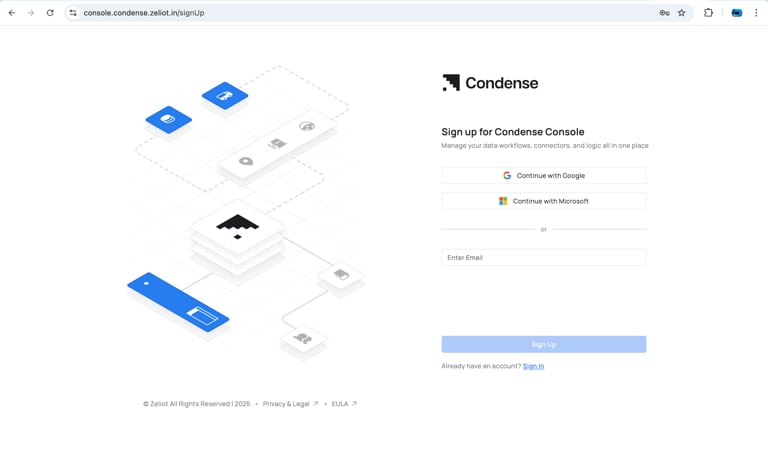
Organization Creation Page
- Enter your Organization Name
- Click Create Organization
Step 3 - You’re In!
Upon successful organization creation, you will be redirected to the All Workspaces section inside the Condense App: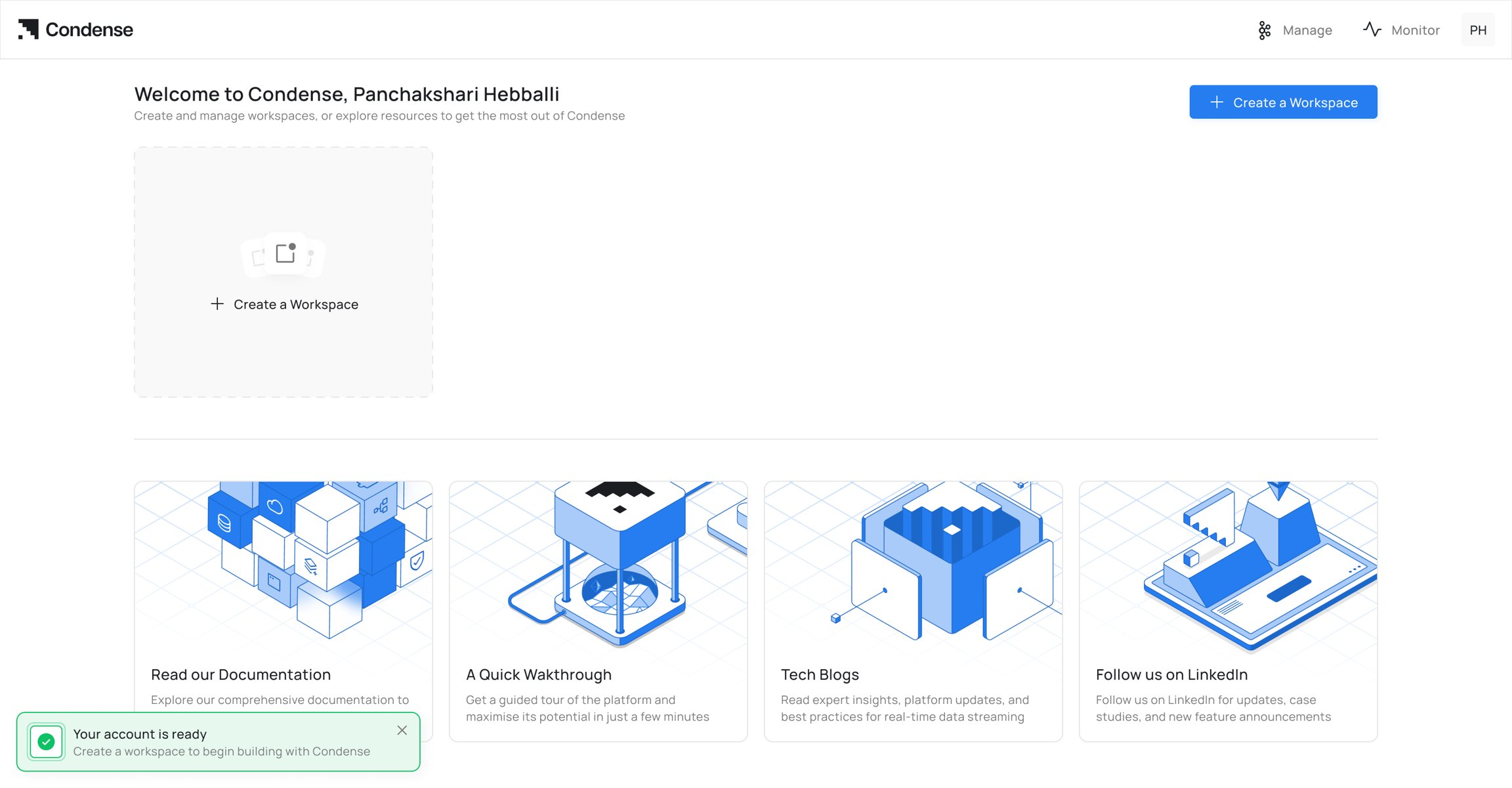
Workspaces Section After Organization Creation
Managing Your Organization
Once created, your organization can be managed from Settings → Organization tab. As an Organization Admin you can:Multi-Organization Support (New in v2.4.1)
Starting with Condense v2.4.1, users can belong to multiple organizations using a single Condense account. This allows administrators, partners, and users working across multiple customers or business units to access all their organizations without creating separate accounts. Each organization maintains its own members, workspaces, environments, roles, and settings. Switching between organizations does not affect resources or permissions in other organizations.Switching Organizations
If your account belongs to multiple organizations:- Sign in to Condense.
- Click the Organization Selector in the application header.
- Select the organization you want to access.
- Condense switches your active organization and loads the corresponding resources.
Workspaces, connectors, pipelines, environments, and users are always scoped to the currently selected organization.
Access Control
Organization membership does not automatically grant access to resources. Permissions continue to be enforced through Condense’s Role-Based Access Control (RBAC). Your role and permissions are evaluated independently for each organization you belong to.Benefits
- Access multiple organizations using a single login.
- Switch organizations without signing out.
- Maintain separate roles and permissions for each organization.
- Keep resources isolated between organizations.
- Simplify collaboration across customers, partners, and internal teams.
Organization Roles
Condense has two organization-level roles:What’s Next?
After creating your organization:- Invite your team - go to Settings → Users & Roles → Invite Members
- Create a workspace - set up an isolated environment for your pipeline
- Link an environment - connect your deployed Condense environment
- Build your first pipeline - deploy connectors and transforms
- Join or switch organizations - if you’ve been invited to multiple organizations, use the organization selector to access the required workspace.