

AI Access Management is for Organization Admins who have access to it. Members do not see it. Members manage their own connections on the AI Tools page.
- Active Connections is organized by AI tool. Use it to see which AI tools are connected, how many members use each, and how much they are used.
- Member Connections is organized by member. Use it to see who has connected an AI tool, and which tools each person holds.
Pause, resume or disconnect
These three actions work at every level on this page.- Pause. Keeps the connection and stops the AI tool serving calls. Members lose access for now. It asks for a reason. Nobody has to do anything afterwards: you resume it when you are ready.
- Resume. Puts a paused tool back to work. It asks for nothing. Members can use the tool again immediately.
- Disconnect. Ends the connection. Members lose access and must reconnect to use it again. It asks for a reason. The members connect again from their AI tool. You cannot undo a disconnect from this page.
Active Connections
1
Open the Active Connections tab
The list shows each connected AI tool, the number of members connected to it, and its tool calls.
2
Find the AI tool
Search the list, or scroll to the tool.
3
Choose an action
Pause, resume or disconnect the tool. The action applies to every member of the organization using that AI tool.
4
Give a reason, then confirm
Condense tells you how many members are affected. To pause or disconnect, type a reason first. The box is labelled Reason for pausing access for a pause and Reason for disconnecting for a disconnect. Resume does not ask for one.
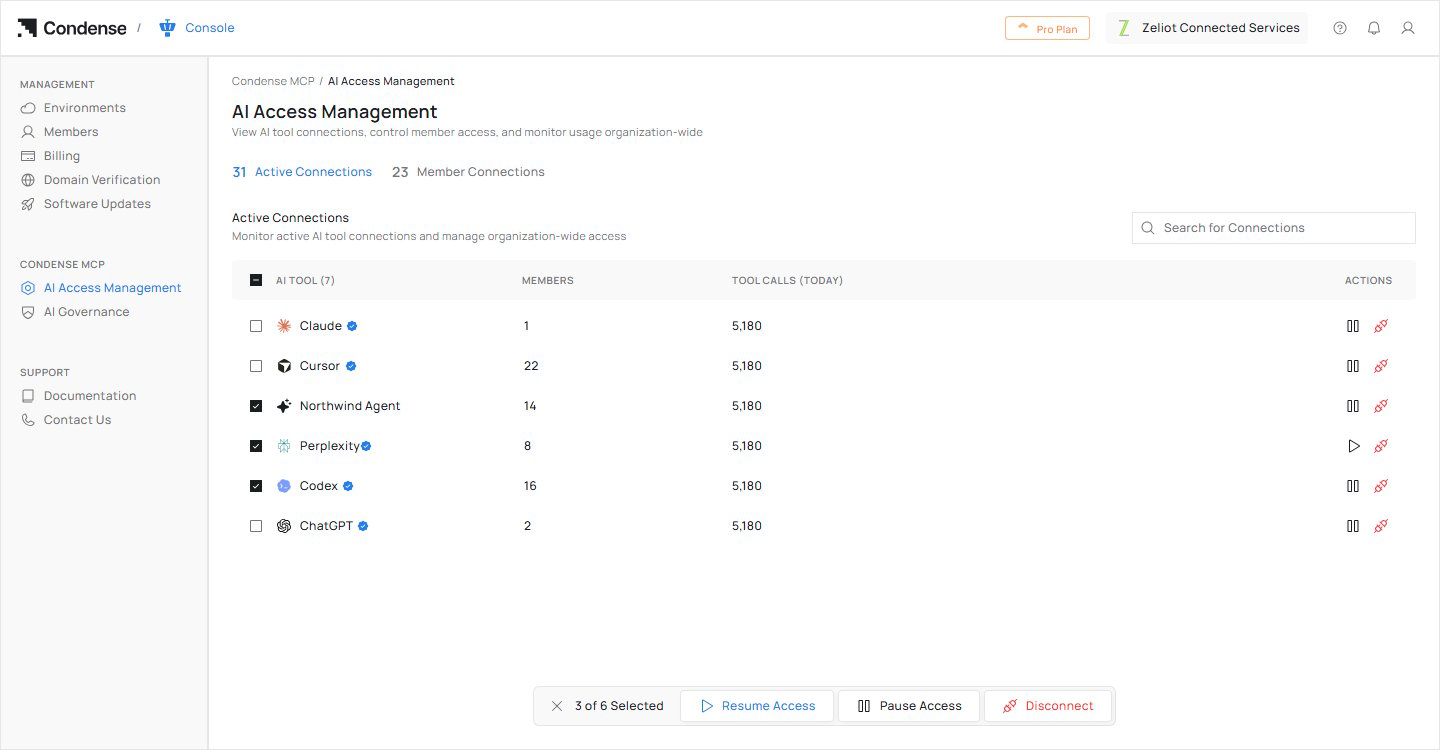
The Active Connections tab, with three AI tools selected. The bar at the bottom acts on all three.
- Disconnect. Confirmation: “This will immediately disconnect Claude for 9 members using it. They will lose access and must reconnect to use it again. This action cannot be undone.” Message afterwards: AI Tool Disconnected. Claude has been disconnected for all connected members.
- Pause. Confirmation: “This will pause Claude for 9 members using it. They will temporarily lose access to the tool. You can resume it at any time.” Message afterwards: AI Tool Paused. Claude has been paused for all connected members.
- Resume. Confirmation: “This will restore access for the members who were previously connected. They can use the tool again immediately.” Message afterwards: AI Tool Resumed. Claude is now available to all connected members.
Act on several AI tools at once
Select more than one AI tool to act on them together. A bar shows how many you selected, for example 3 of 6 Selected, with Resume Access, Pause Access and Disconnect. Condense asks you to confirm and says how many AI tools and members the action reaches.Member Connections
1
Open the Member Connections tab
The list shows each member who has connected an AI tool, the AI tools they hold and how many environments each reaches.
2
Check each member's status
A member shows as Active, Partially Paused (some of their tools are paused) or Paused by Admin (all of them).
3
Choose an action
Pause, resume or disconnect a whole member, or one AI tool for that member.
4
Give a reason, then confirm
Condense asks you to confirm. To pause or disconnect, type a reason first. When you disconnect a member, the box is labelled Reason for revoking access.
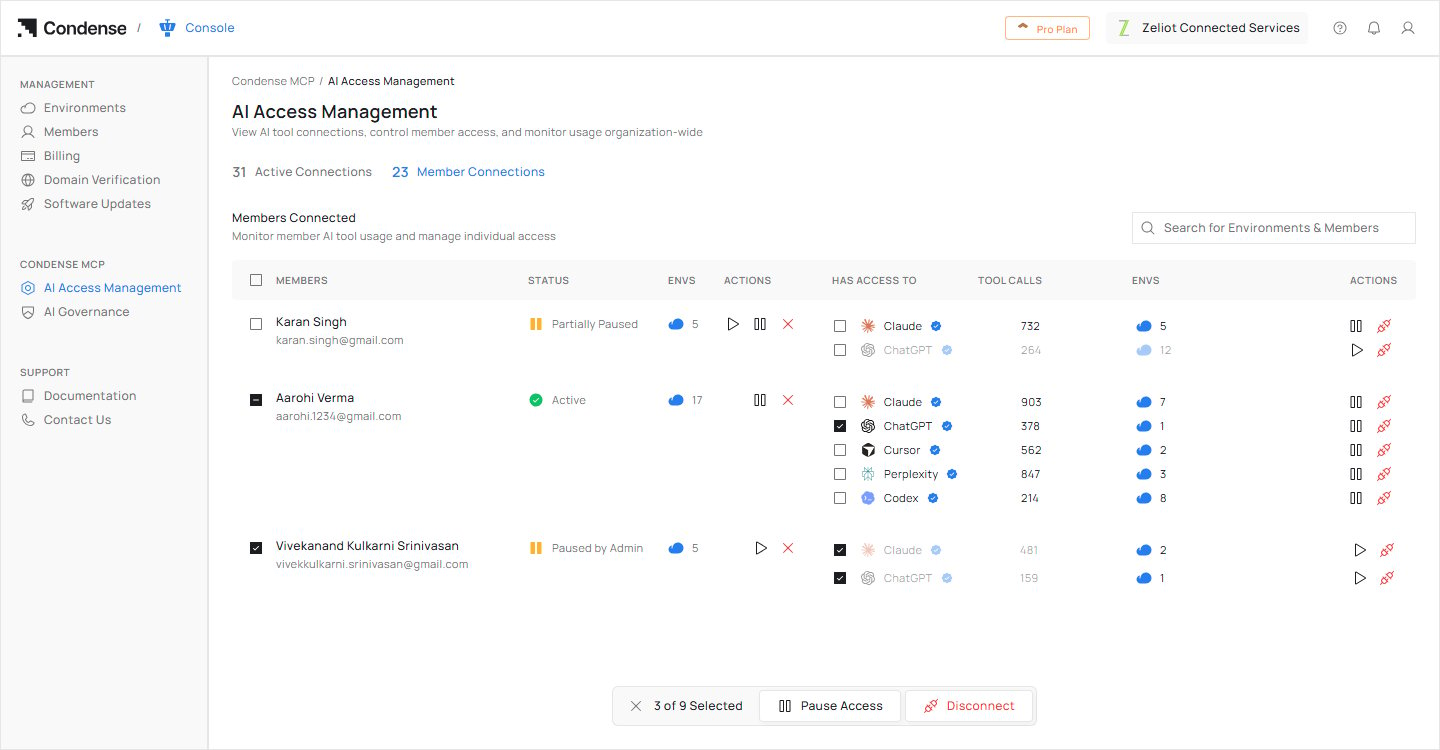
The Member Connections tab: each member with a status, and the AI tools they hold.
- An AI tool on the Active Connections tab reaches every member using that AI tool.
- A member on the Member Connections tab reaches that member, across every AI tool they hold.
- One AI tool inside a member’s row reaches that member and that AI tool only.
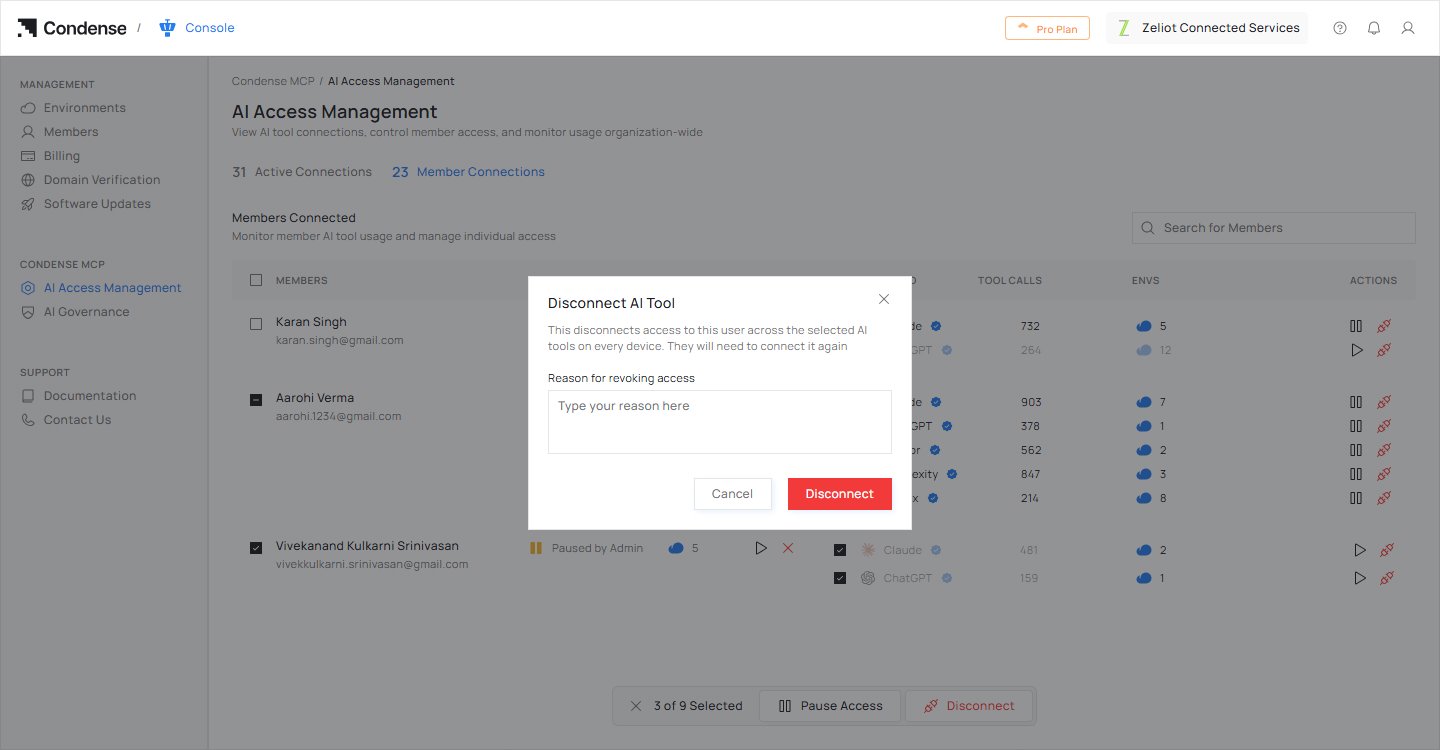
Disconnecting a member's access asks for a reason.
What members see
- A paused AI tool shows as paused by an administrator on the member’s AI Tools page. It cannot be used until you resume it.
- A member can reconnect a disconnected AI tool themselves. If you paused or revoked the member’s access, they may need you to restore it before reconnecting works.
- If nobody has connected an AI tool yet, both tabs are empty. Connected tools appear as members start using them.
Related
AI Governance
Set what AI tools may do in each environment.
Security and data handling
Recommendations for running AI tools safely.