

Open the AI Tools page
- Sign in to the Condense Console.
- In the navigation, open Condense MCP, then AI Tools.
- Choose the environment whose connections you want to see.
- Check the AI tools connected to that environment.
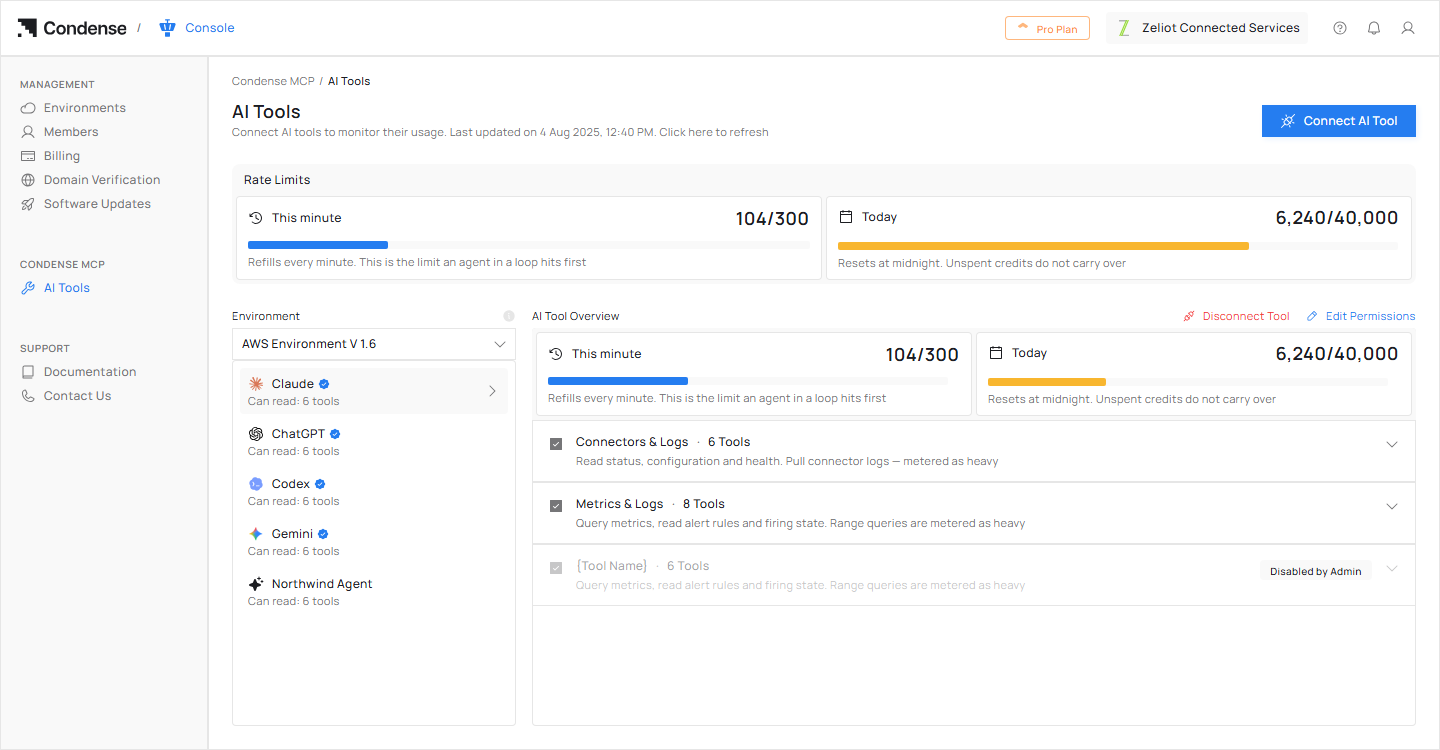
The AI Tools page: the AI tools connected to the environment on the left, and the permissions of the selected tool on the right.
Usage and limits
Usage of Condense MCP is limited per organization, so everyone in your organization shares the same limits. Two limits apply:- 5-hour limit. It resets every 5 hours.
- Daily limit. It resets every day.
Connection status
Each AI tool in your list shows a status.- Active. The AI tool is connected and working. You do not need to do anything.
- Expired. The sign-in for this connection has expired. Sign in again from your AI tool. See Verify and reconnect.
- Paused by admin. An administrator paused the AI tool. See If an administrator paused a tool.
Edit what an AI tool can use
You can narrow what a connected AI tool may use at any time. You do not have to connect again.1
Select the connection
Select the AI tool you want to change.
2
Choose Edit Permissions
The tool groups and the tools inside them become editable.
3
Review and change
Review what the AI tool can use now, and clear what it no longer needs.
4
Save
Select Save Changes. Select Cancel to leave the permissions as they were.
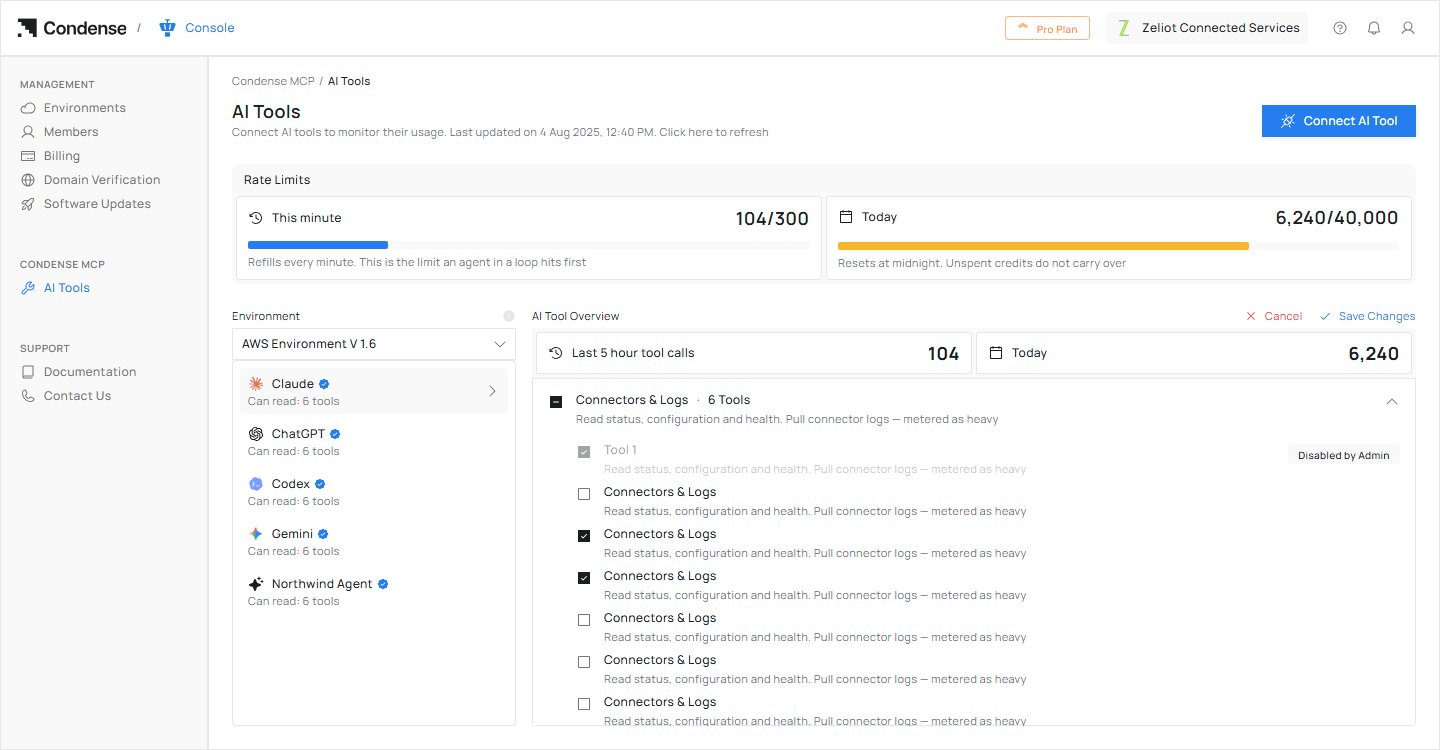
Editing permissions: tick or clear what the AI tool may use, then select Save Changes.
You can only choose from what your Condense role and your administrator allow. If an environment is read-only, the tools are listed with no checkboxes and there is no Edit Permissions option.
Disconnect an AI tool
Disconnect an AI tool when you no longer use it.1
Select the AI tool
Select the AI tool you want to remove.
2
Choose Disconnect Tool
Condense asks you to confirm. The message explains that this turns off Condense access for that AI tool immediately, on every device where you signed in, and that you will need to connect it again to use it.
3
Confirm
Confirm the removal. Condense shows AI Tool disconnected: The AI tool connection has been removed.
If an administrator paused a tool
An administrator can pause an AI tool. A paused tool stays in your list, marked as paused by an administrator, and shows This tool is currently unavailable because it has been paused by your administrator.- You cannot use it until an administrator resumes it.
- You cannot edit its permissions while it is paused.
- You can still disconnect it.
Related
Scope and permissions
How your approval, your administrator and your role work together.
Errors and troubleshooting
Fix a connection that stopped working.