

Approve a connection
1
Sign in to Condense
If you are not already signed in, sign in with your Condense account. Complete any extra authentication step Condense asks for.
2
Check the account
Signed in as shows the account you are using, next to your organization. If it is the wrong account, select Switch.
3
Choose the environment
Select an environment from the Environment list. Each entry shows the environment name and its region. Use Search for Environments to find one.Choose the environment yourself. Do not assume it will be the one you used last time.
4
Review the permissions
Condense lists what the AI tool is asking for in two groups, Connectors & Logs and Documentation. Select a group’s arrow to see its tools. Clear the checkbox of any group or tool the AI tool does not need.The counter at the bottom, for example 8 of 8 permissions selected, shows how much you are granting.
5
Accept
Select Accept. By continuing, you agree to the Terms & Conditions and the Privacy Policy linked on the page. Select Cancel if you do not want to connect.
6
Return to your AI tool
Condense shows a success message. Close the tab and go back to your AI tool.
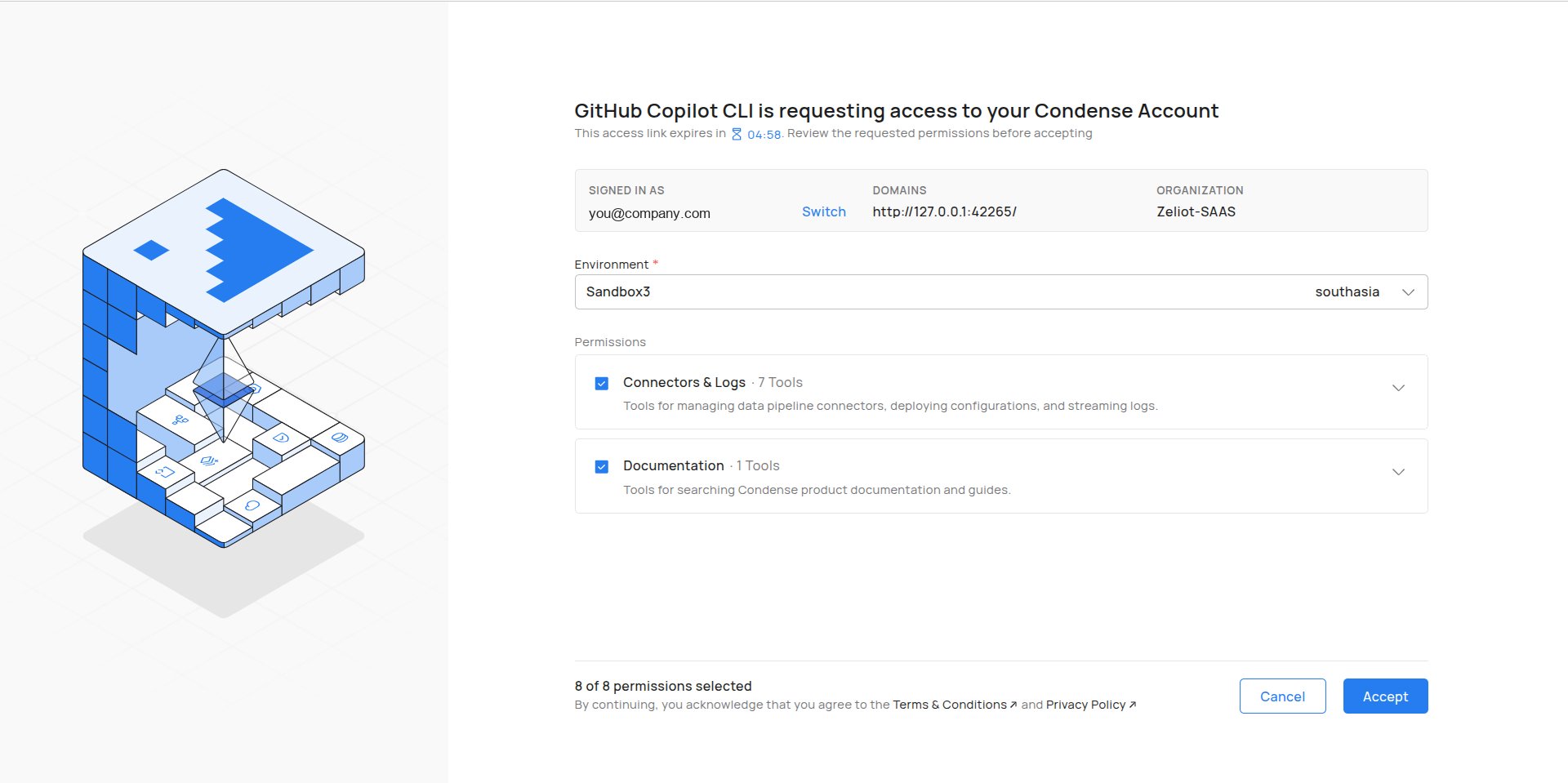
The approval page, with the environment and permissions to review.
What the page shows
- AI tool name is requesting access to your Condense Account. This names the AI tool asking to connect. Check that it is the tool you just started.
- This access link expires in. A countdown that starts at about 5 minutes. Finish before it reaches zero, or start the connection again from your AI tool.
- Signed in as. The Condense account you are connecting with. Switch lets you change it.
- Domains. The address your AI tool is sent back to after you accept. For command-line tools it is a local address, such as
http://127.0.0.1:42265/. - Organization. The Condense organization you are connecting.
- Environment. Required. The one environment this connection reads.
- Permissions. The tools the AI tool may use, in groups.
- n of n permissions selected. How many tools you are granting.
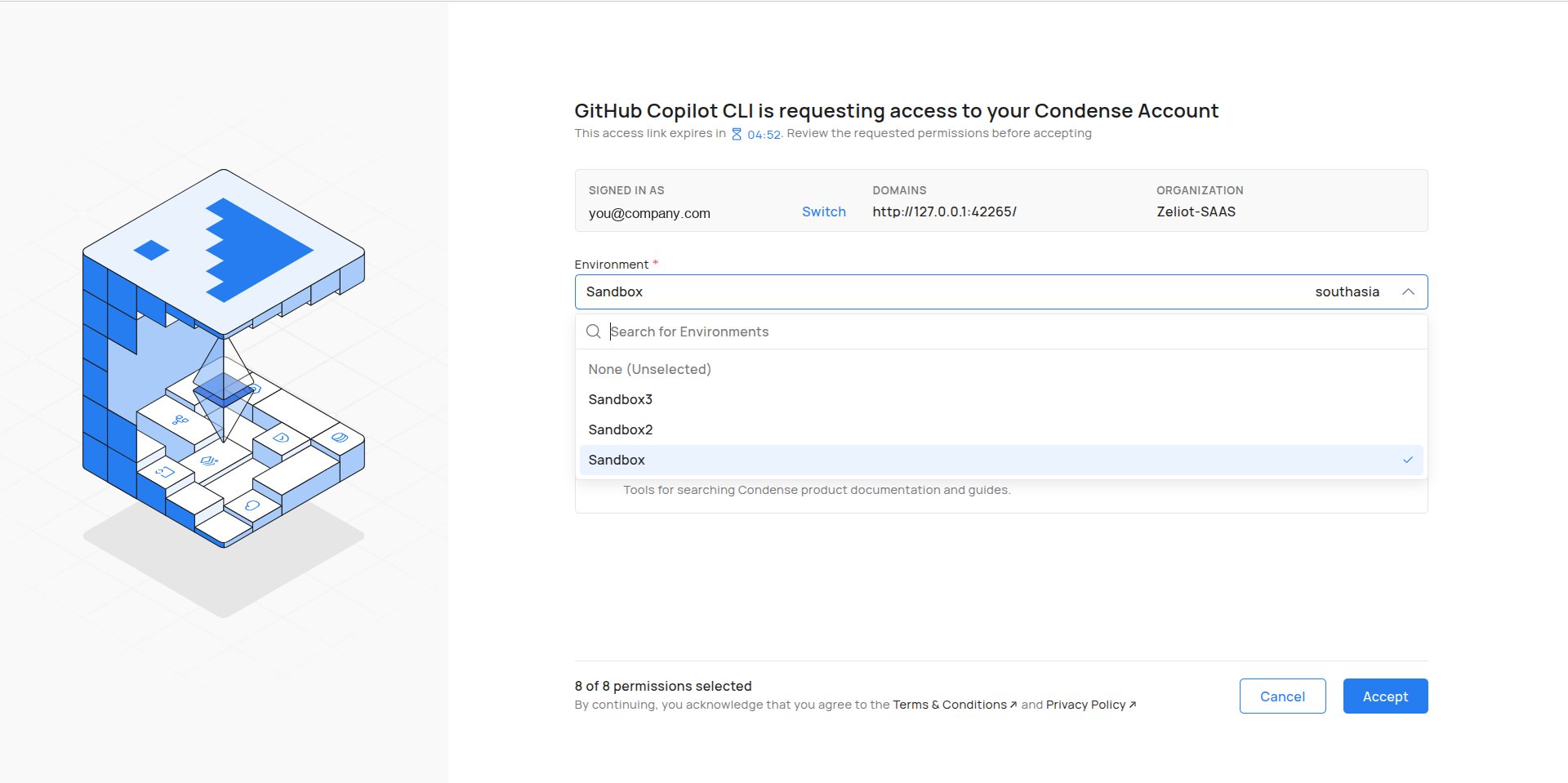
The environment list. Each entry shows the environment name and its region, and you can search it.
What each permission group contains
- Connectors & Logs (7 tools). For managing data pipeline connectors, deploying configurations and streaming logs. It holds
deploy_connector,ensure_workspace,get_connector_config_deployed,get_connector_configs_to_deploy,get_connector_logs,get_current_pipelineandget_custom_connector_configs. - Documentation (1 tool). For searching the Condense product documentation and guides. It holds
query_docs.
get_all_workspaces, is always on. It is not on the page because you cannot switch it off. See the Tool reference.
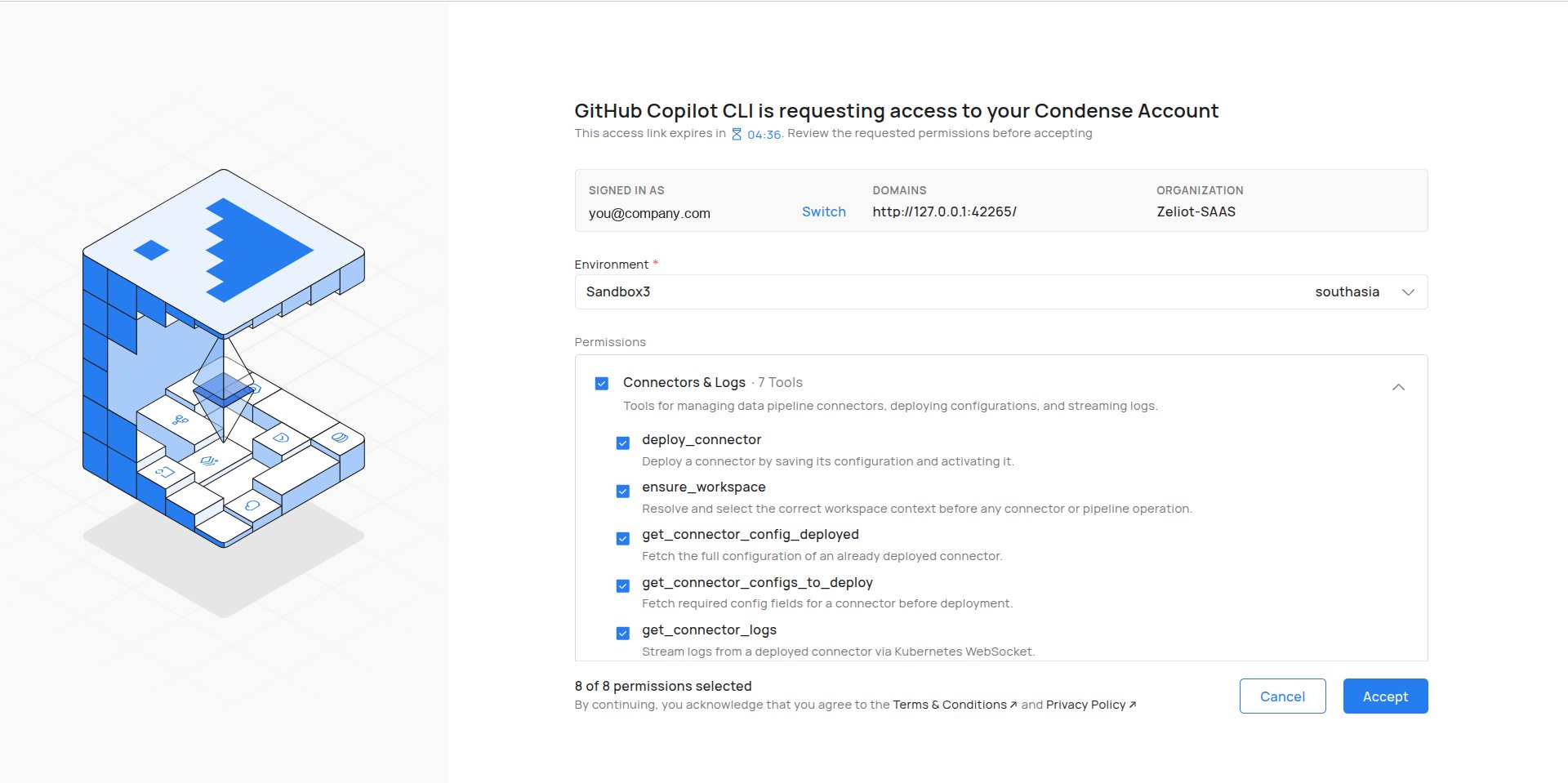
A group opened to show its tools. Each tool has its own checkbox.
If the page looks different
- No Environments Assigned. An environment is required to connect to Condense MCP, and none is assigned to your account. Contact your administrator to get access, then start again from your AI tool.
- This environment is restricted to read-only access by your administrator. An administrator set the environment to read-only. The groups are listed with no checkboxes, so you cannot change the selection. Open the groups to see what is available, then accept.
- Authentication Session Expired. The access link expired before you accepted. Return to your AI tool and start the connection again.
- Authentication Failed. Condense could not complete the connection. Close the tab and try connecting your AI tool again.
After you accept
Condense shows a success message, and your AI tool is connected to the environment you chose.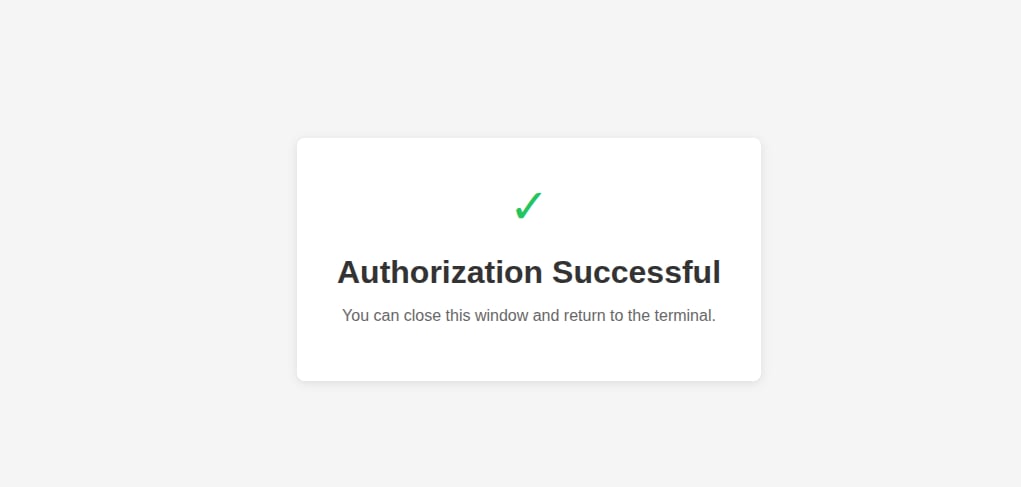
The success message after you accept.