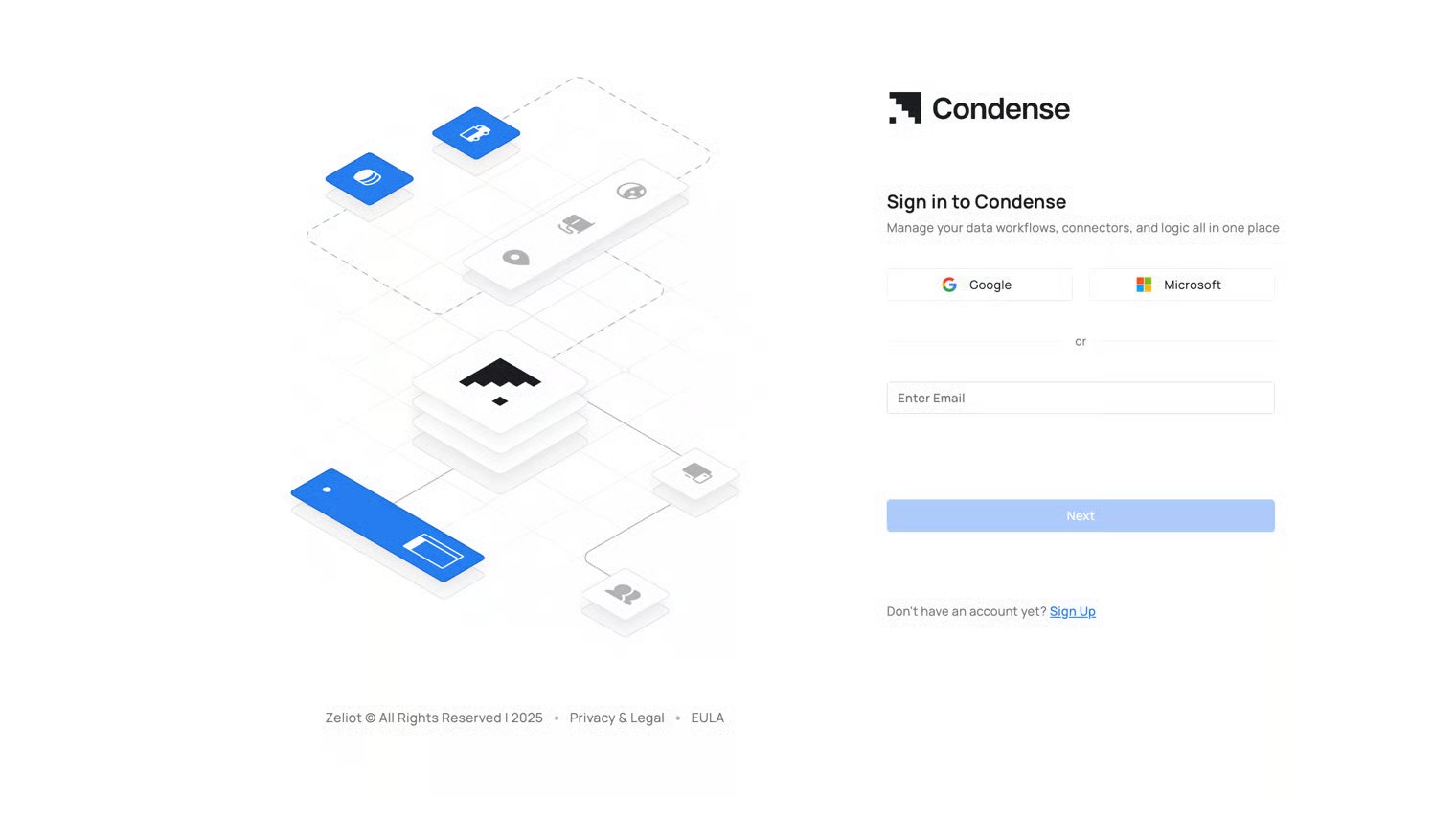
The Single Sign-On (SSO) feature in Condense allows users to authenticate seamlessly using their existing corporate or third-party identity provider credentials, eliminating the need for multiple login credentials. Currently, Condense supports SSO via Google and Microsoft. This guide will walk you through signing up and signing in to Condense.

Condense currently uses 2 kinds of authentication methods

  1. Native Sign-up and Log-in: Users can create an account using their email and password.
  2. Single Sign On (SSO): Users can sign in using their existing corporate or third-party identity provider credentials (e.g., Google - GSuite, Microsoft-M365).
IMPORTANTRight now, you will be able to log in or sign up through your work email using Google (GSuite) and Microsoft (M365). We will soon be enabling Single Sign On (SSO) using your work email address for other Identity Providers, too.

Accessing the Sign-up and Sign-in Page
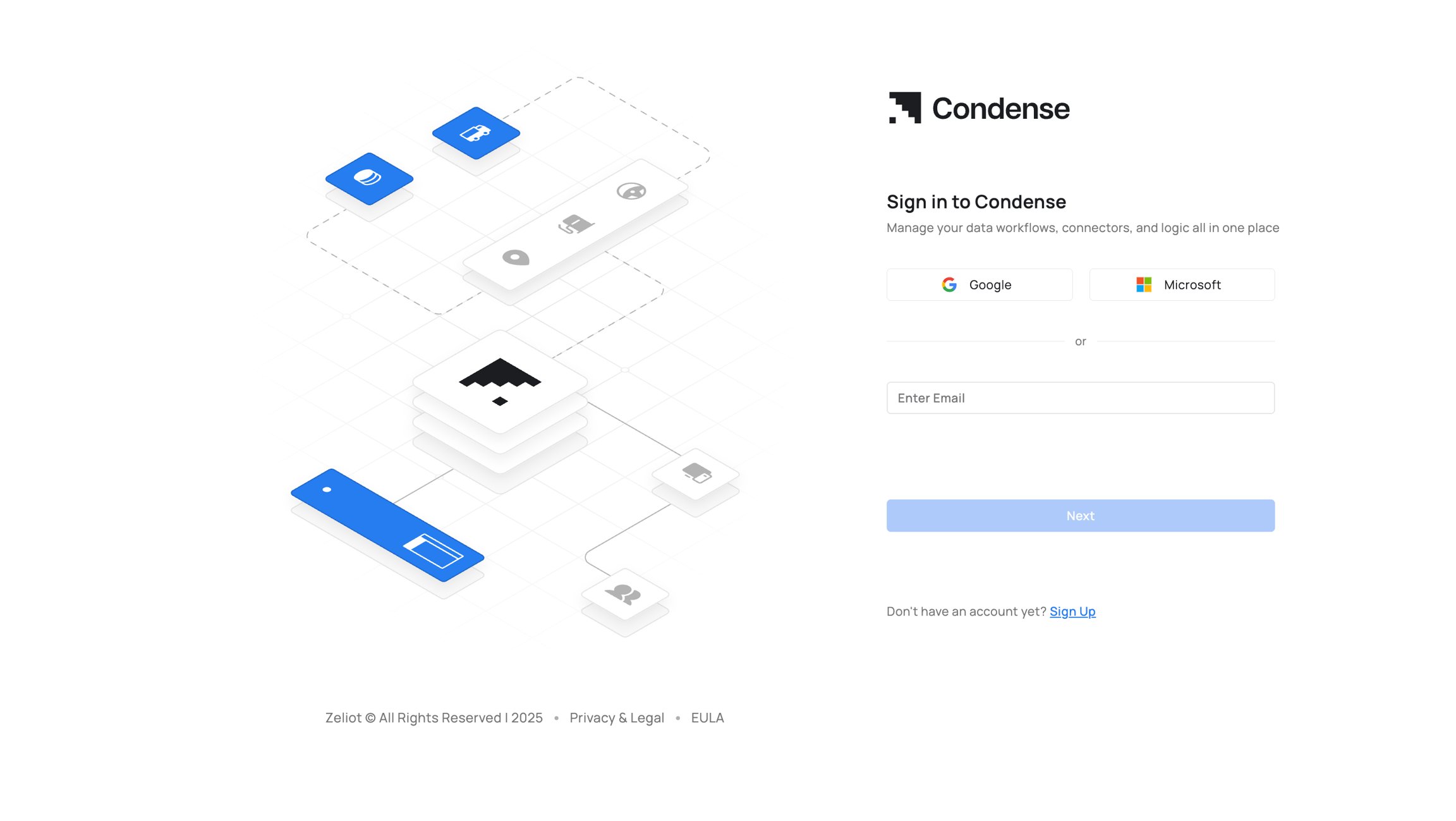
Step 1: Visit the login page for the Condense App
Look for the email from alertsnoreply@zeliot.co.in that has the unique URL for you to sign up and start using the Condense App.
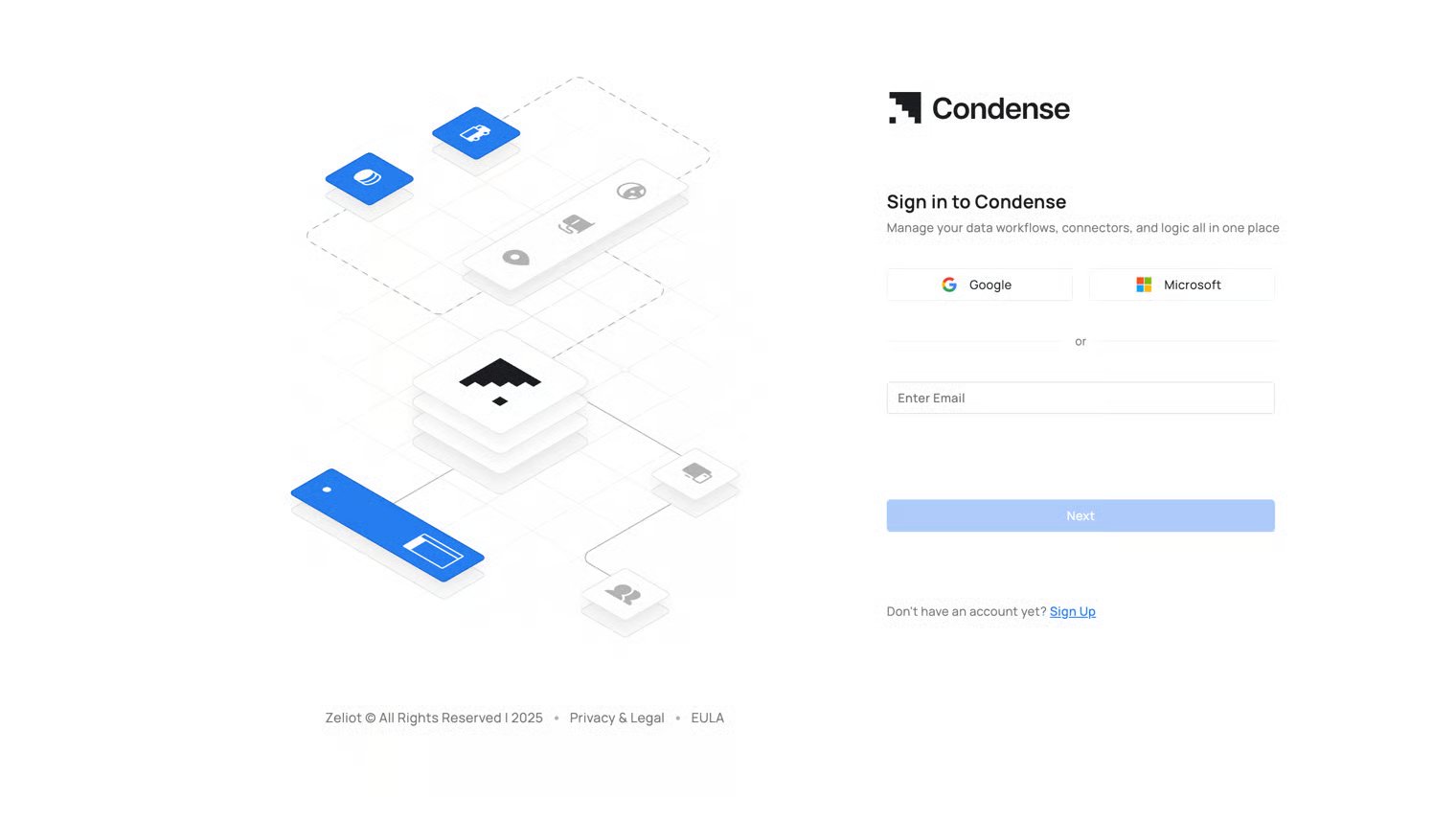
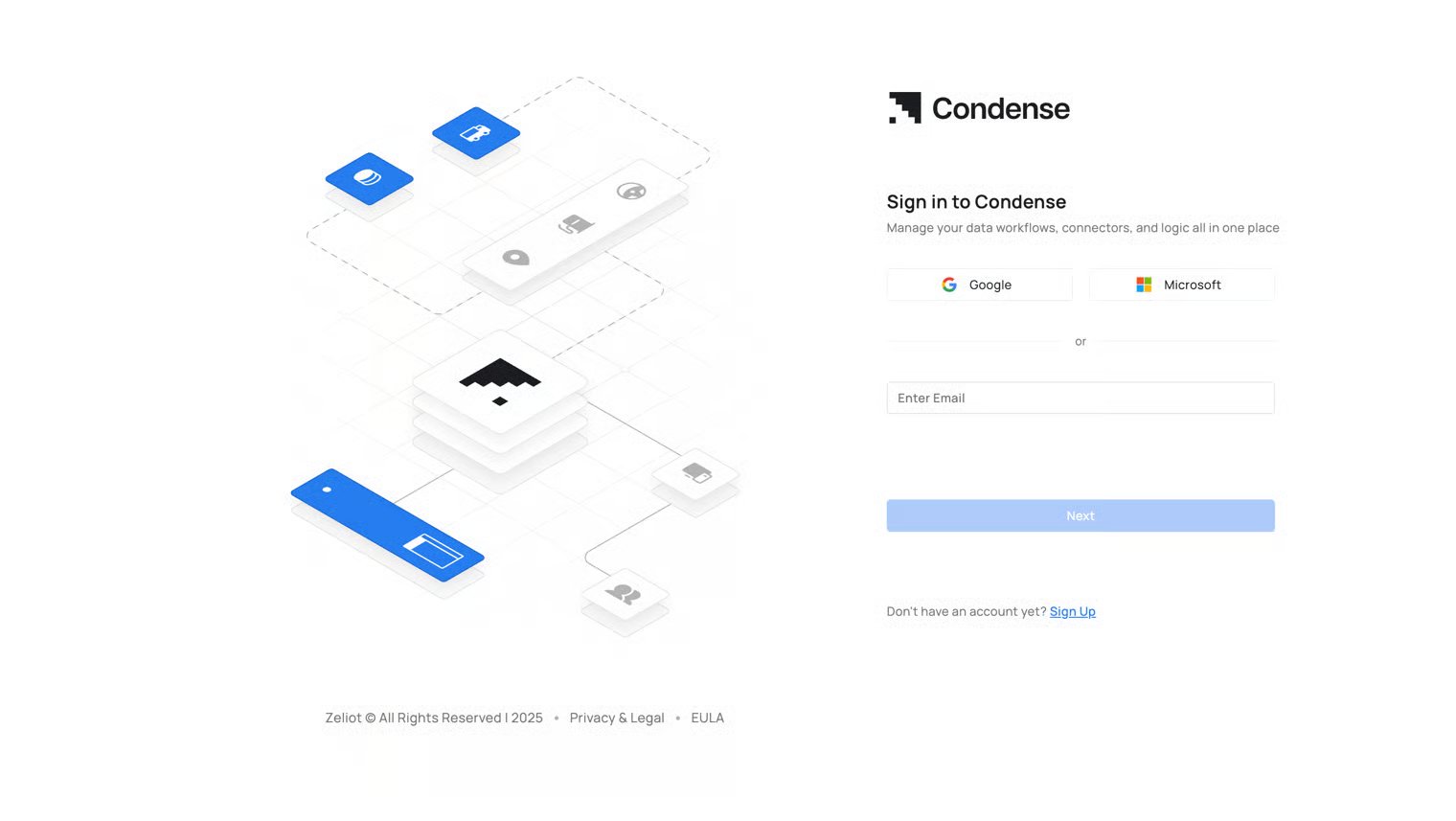
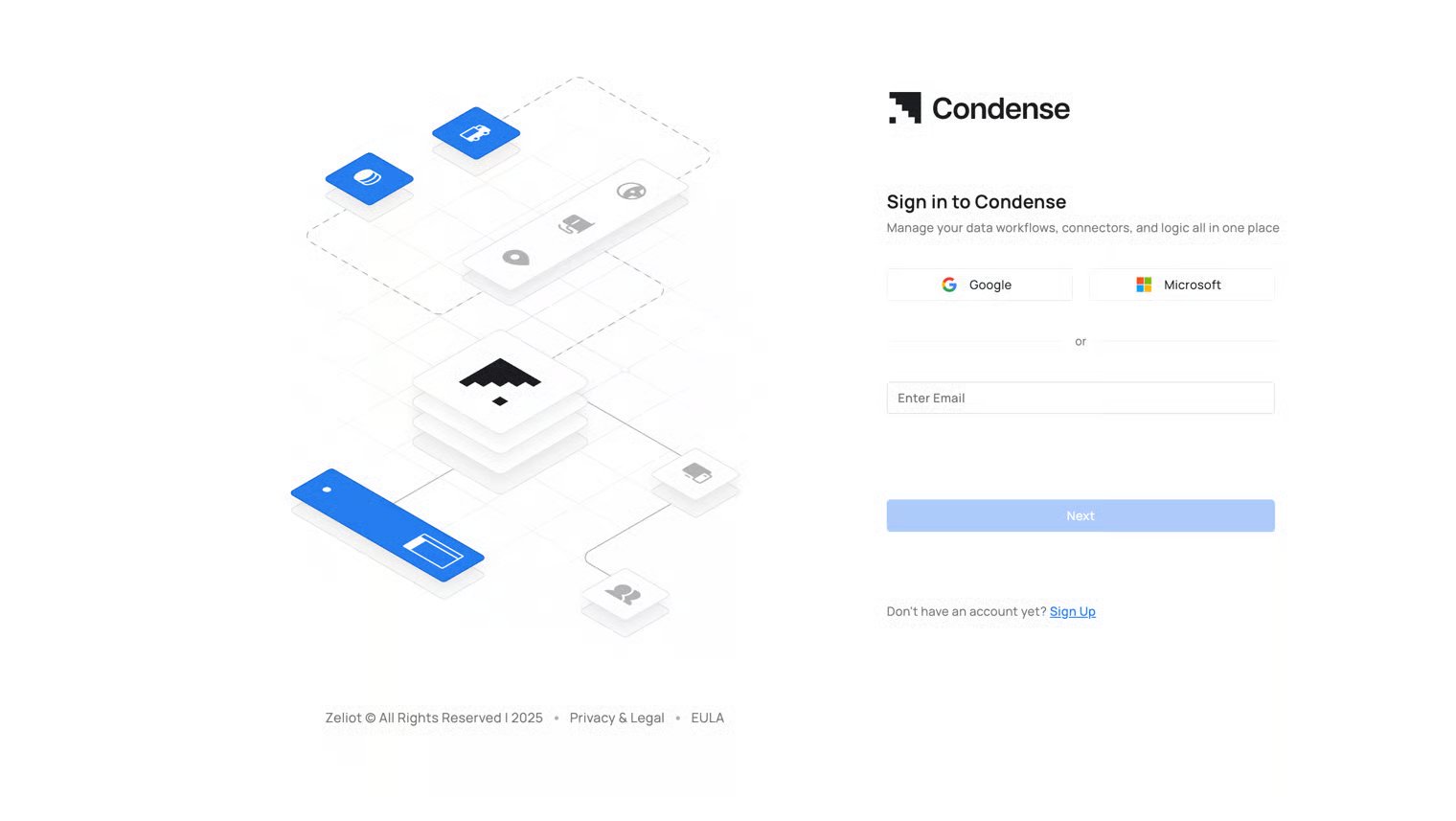
Step 2: You will see the following options for signing in:
  1. with Google
  2. with Microsoft
  3. with email
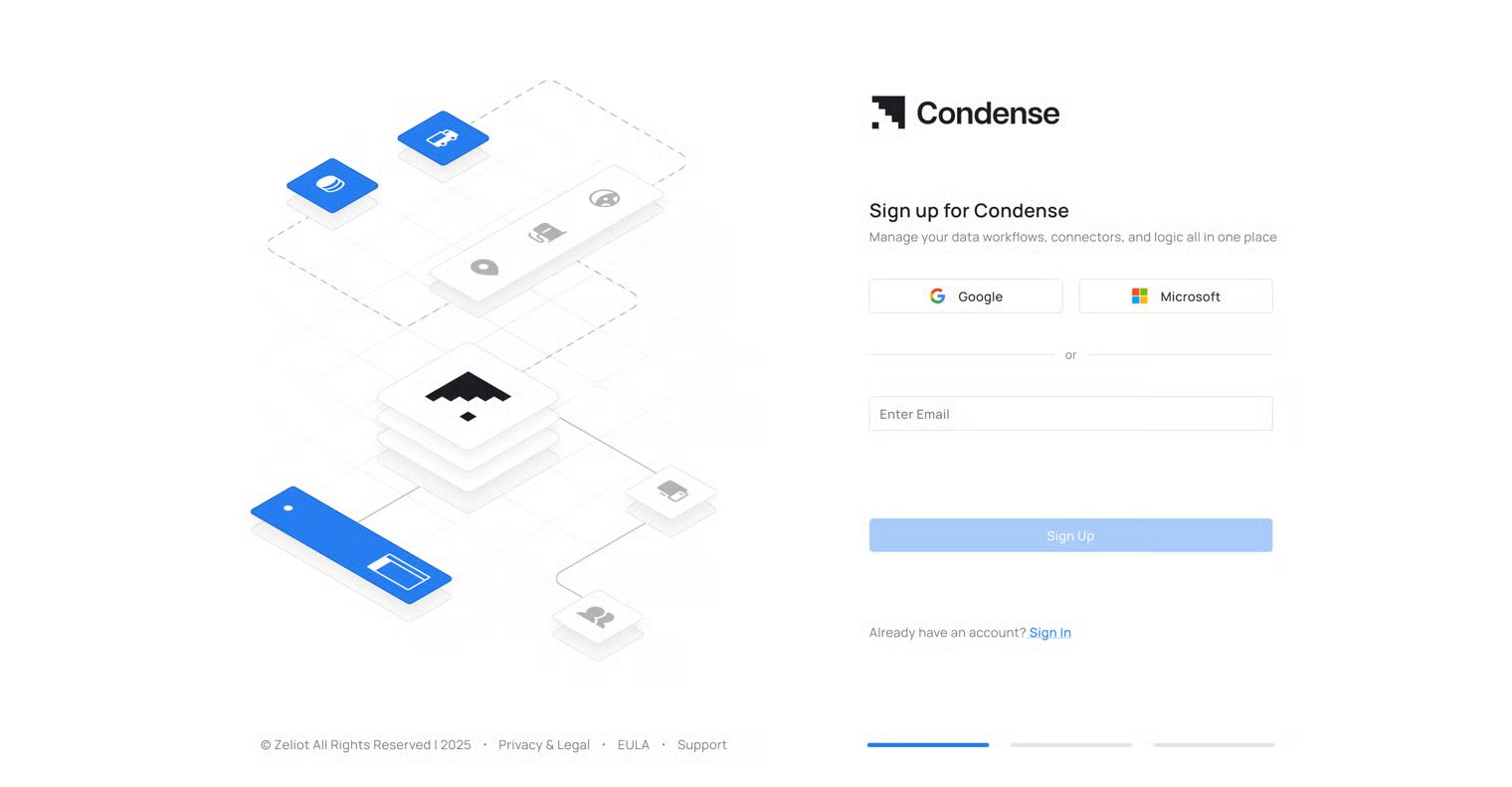
Step 3: You will also see an option to create a new account where options for creating accounts using the following will be present:
  1. With Google
  2. With Microsoft
  3. With email

Sign-up Process to access the Condense Application

Signing up with Google (GSuite)

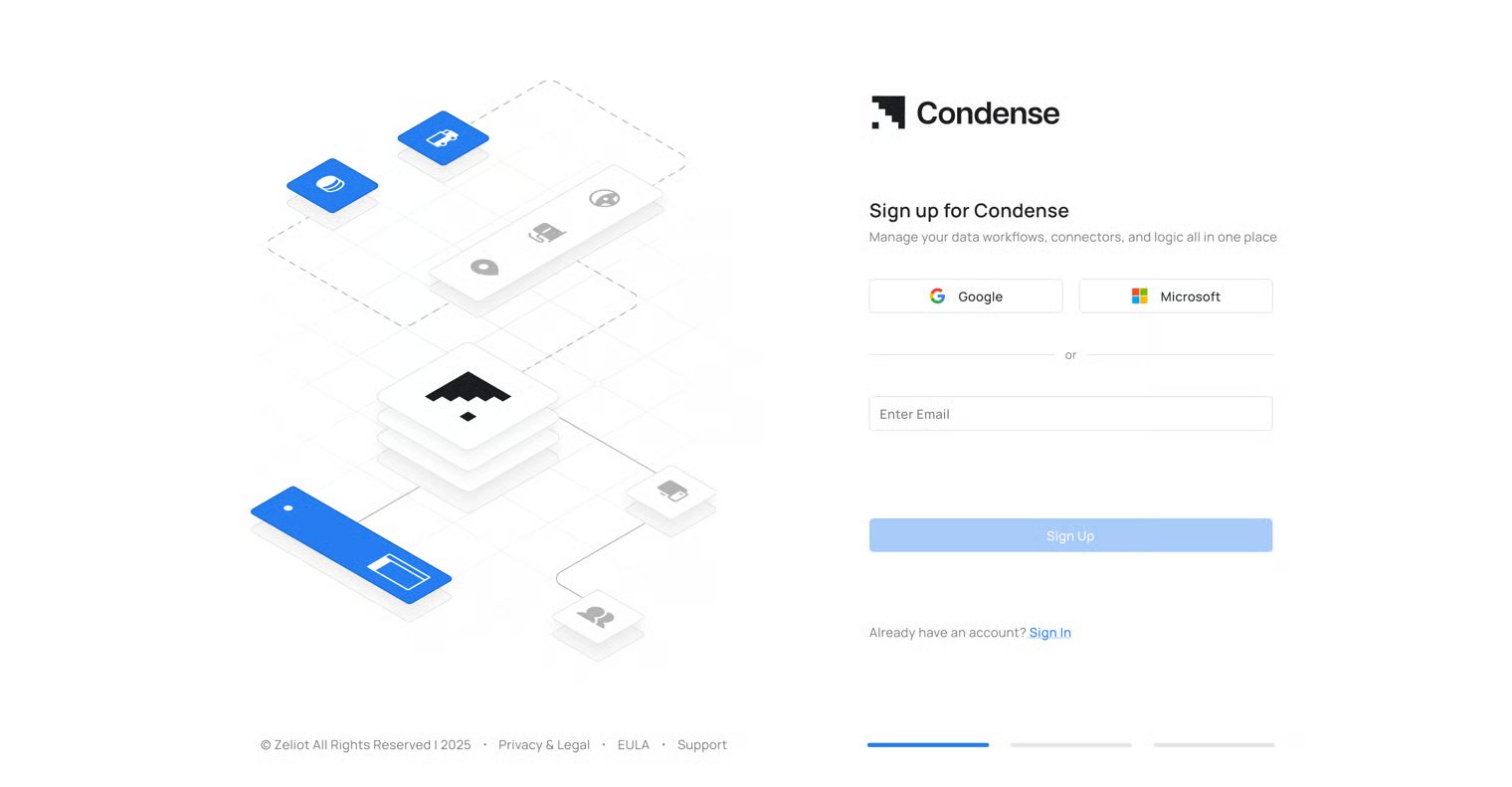
Step 1: Go to the Condense login page Step 2: Click on the “Signup” button on the login page
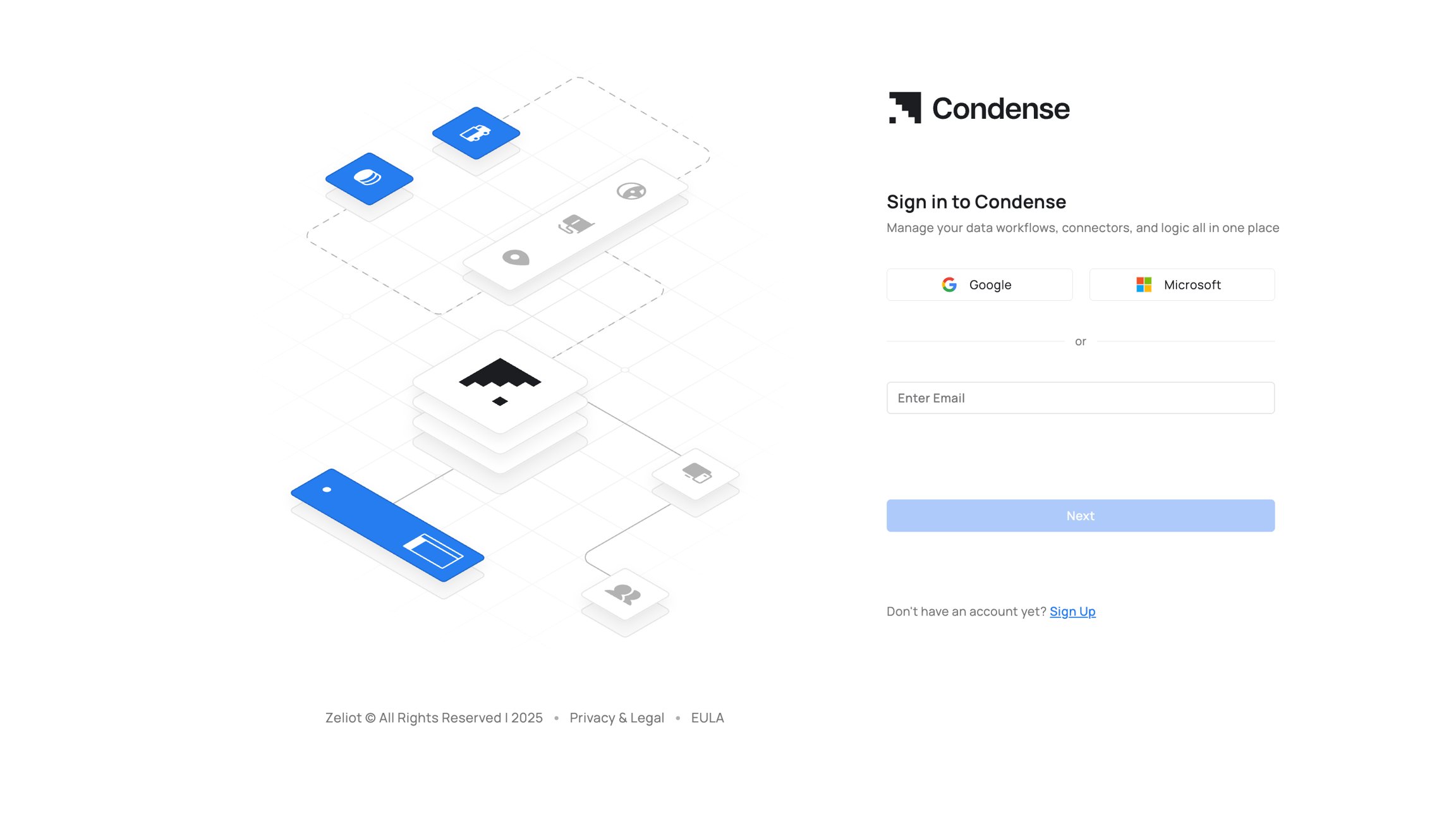
The “Signup” Button is located at the bottom of the login page
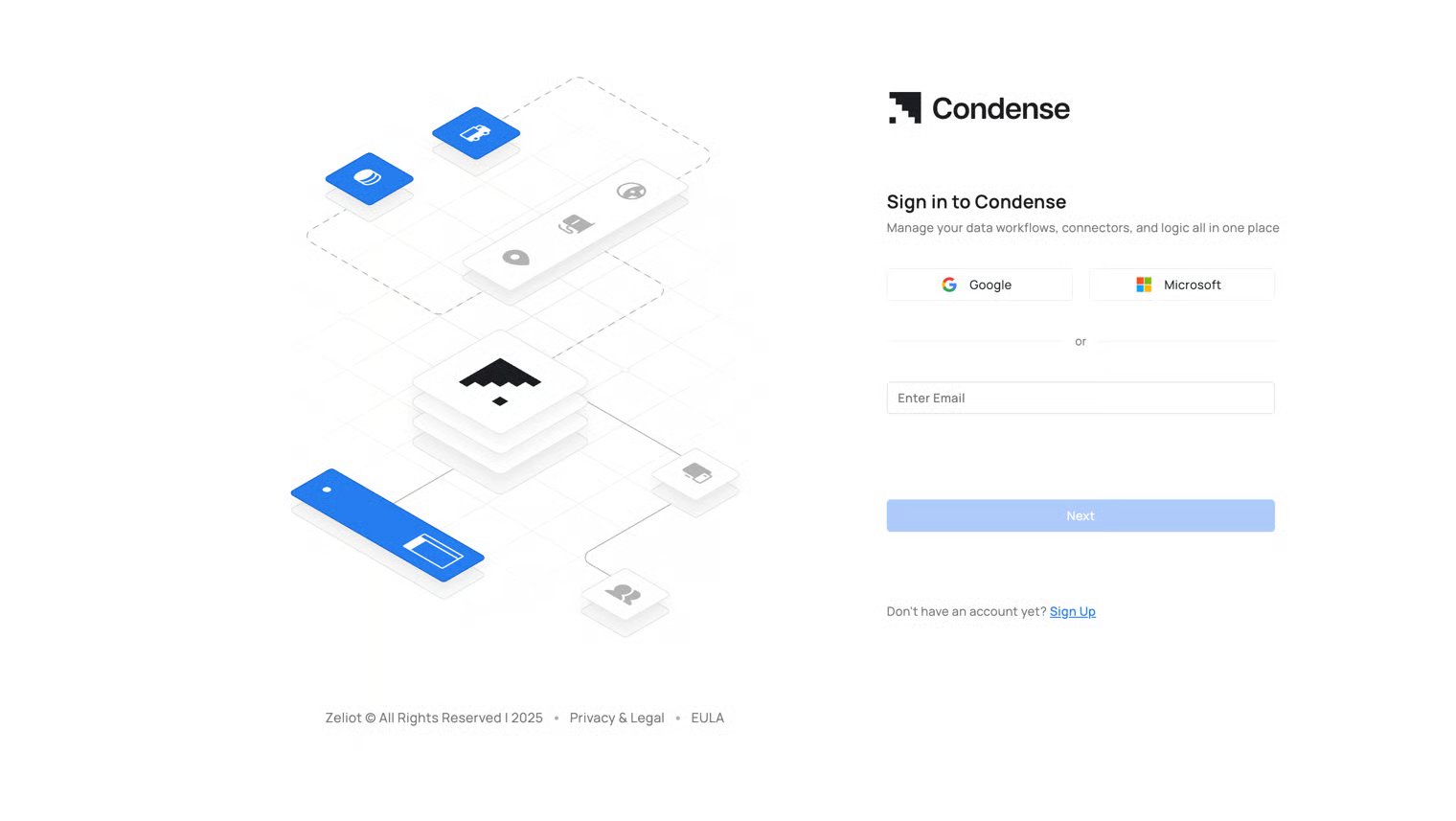
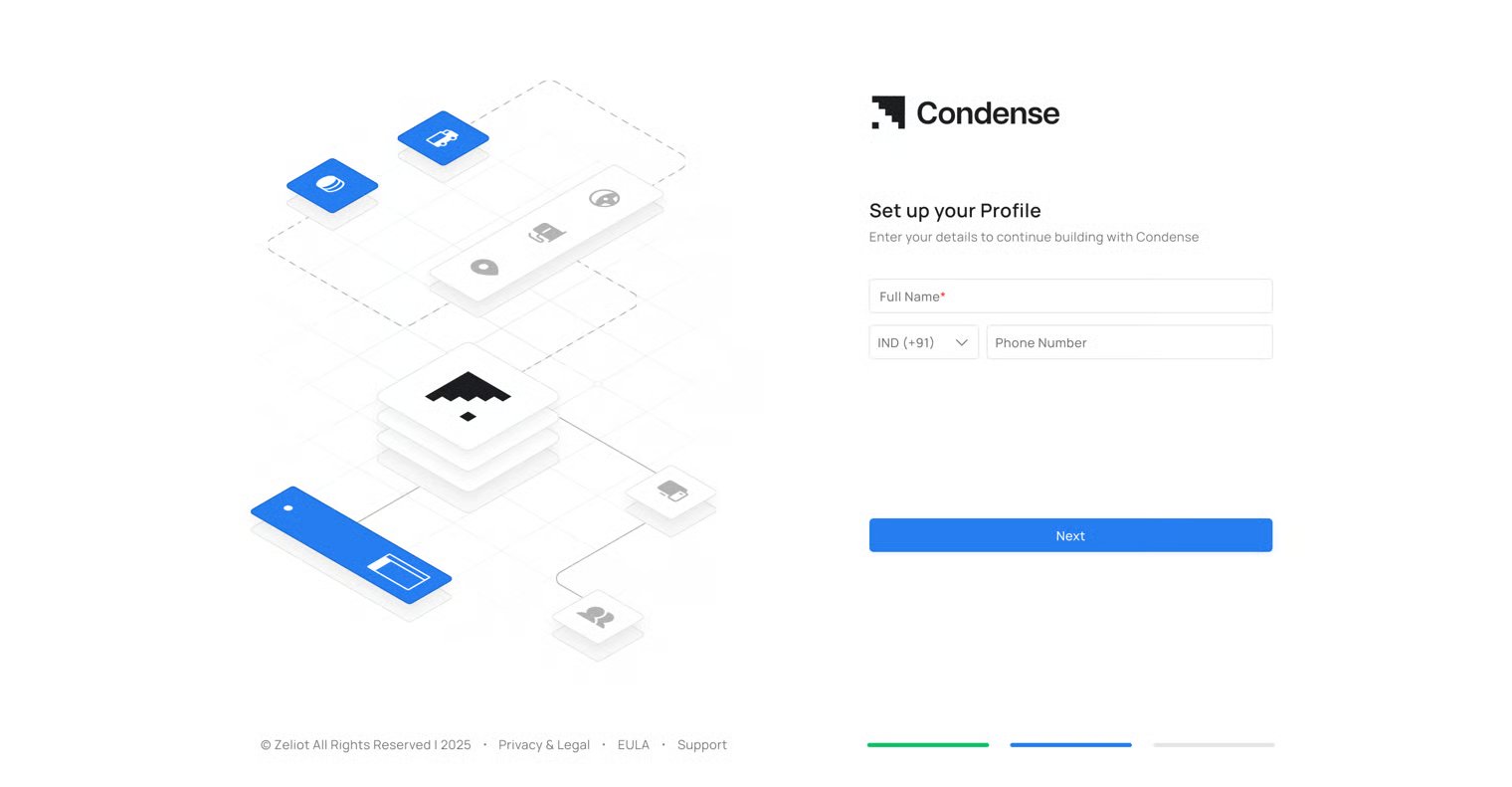
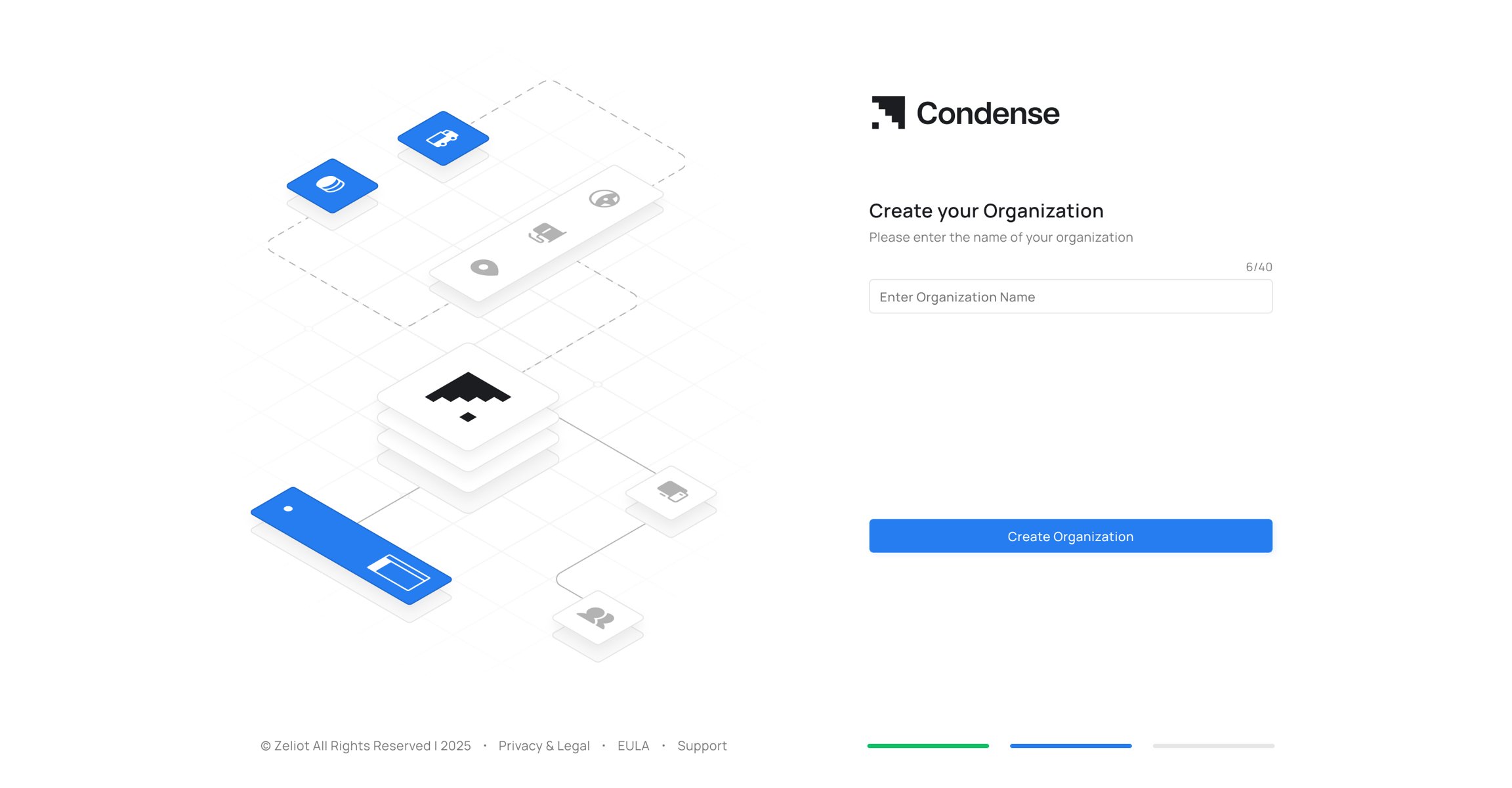
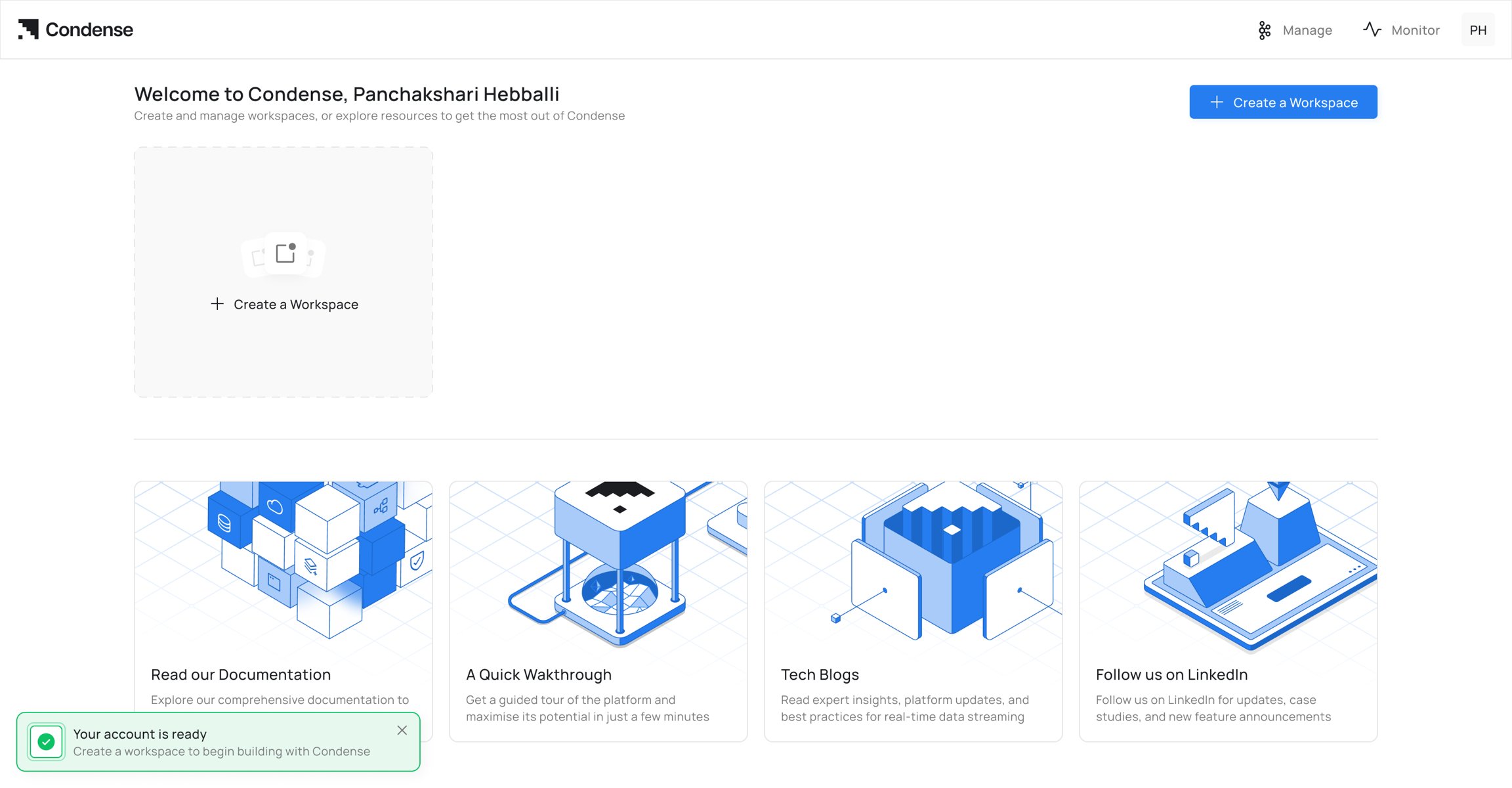
Step 3: Sign-up page will appear. Step 4: Click on the “Google” button Step 5: Select your Google account or enter your credentials if prompted. Step 6: Grant permissions if required. Step 7: Enter the Full name and phone number Step 8: Upon successful authentication, you will be redirected to the organization page Upon successful organization creation, you will be redirected to the all workspace section in the Condense Application.

Signing up with Microsoft (M365)

Step 1: Go to the Condense login page Step 2: Click on the “Signup” button on the login page
The “Signup” Button is located at the bottom of the login page
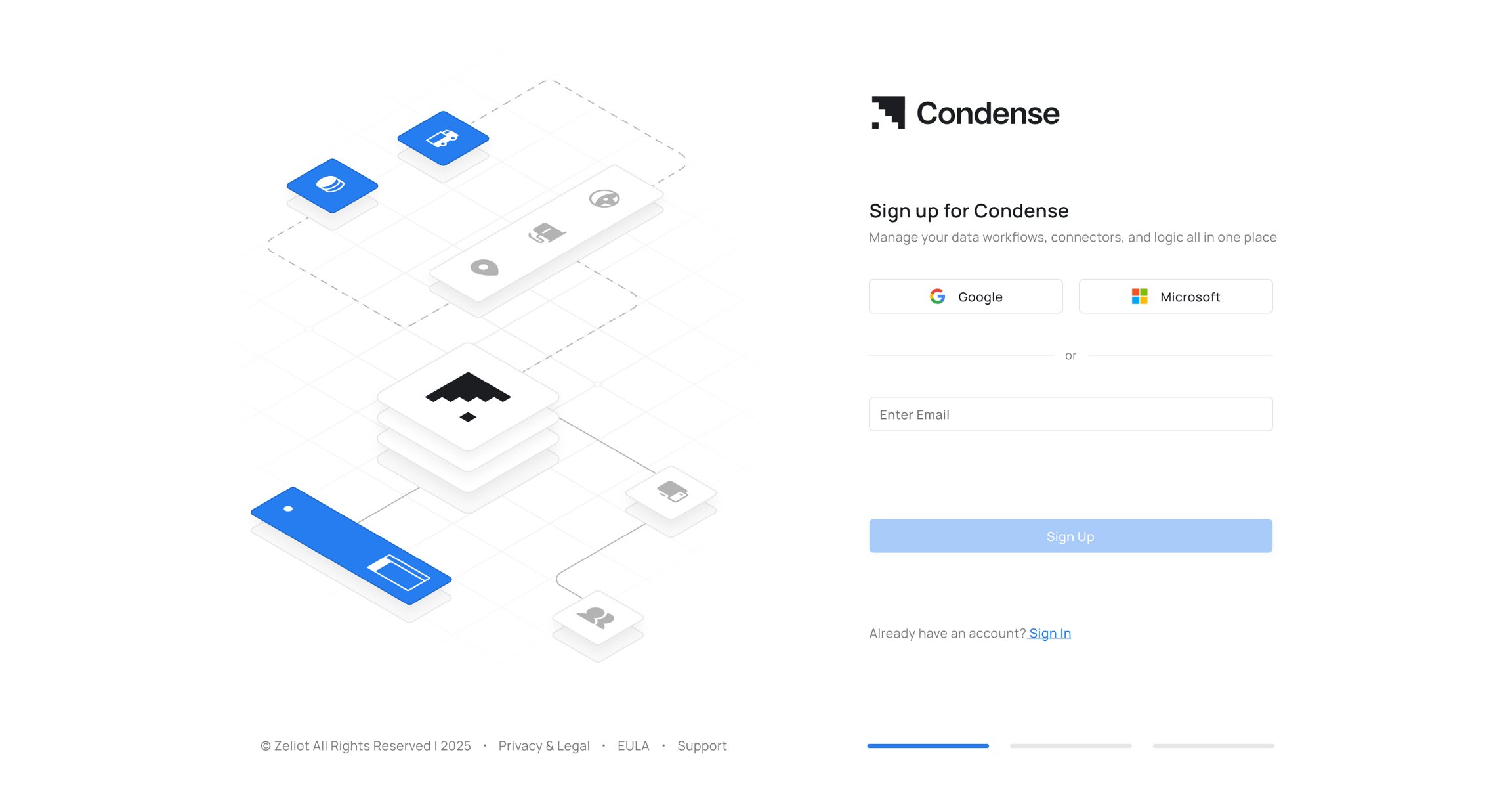
Step 3: The sign-up page will appear Step 4: Click on the “Microsoft” button Step 5: Select your Microsoft account or enter your credentials if prompted Step 6: Grant permissions if required Step 7: Enter the Full name and phone number Step 8: Upon successful authentication, you will be redirected to the organization page Upon successful organization creation, you will be redirected to the all workspace section in the Condense Application.

Signing up with Email and Password

Step 1: Go to the Condense login page Step 2: Click on the “Signup” button on the login page
The “Signup” Button is located at the bottom of the login page
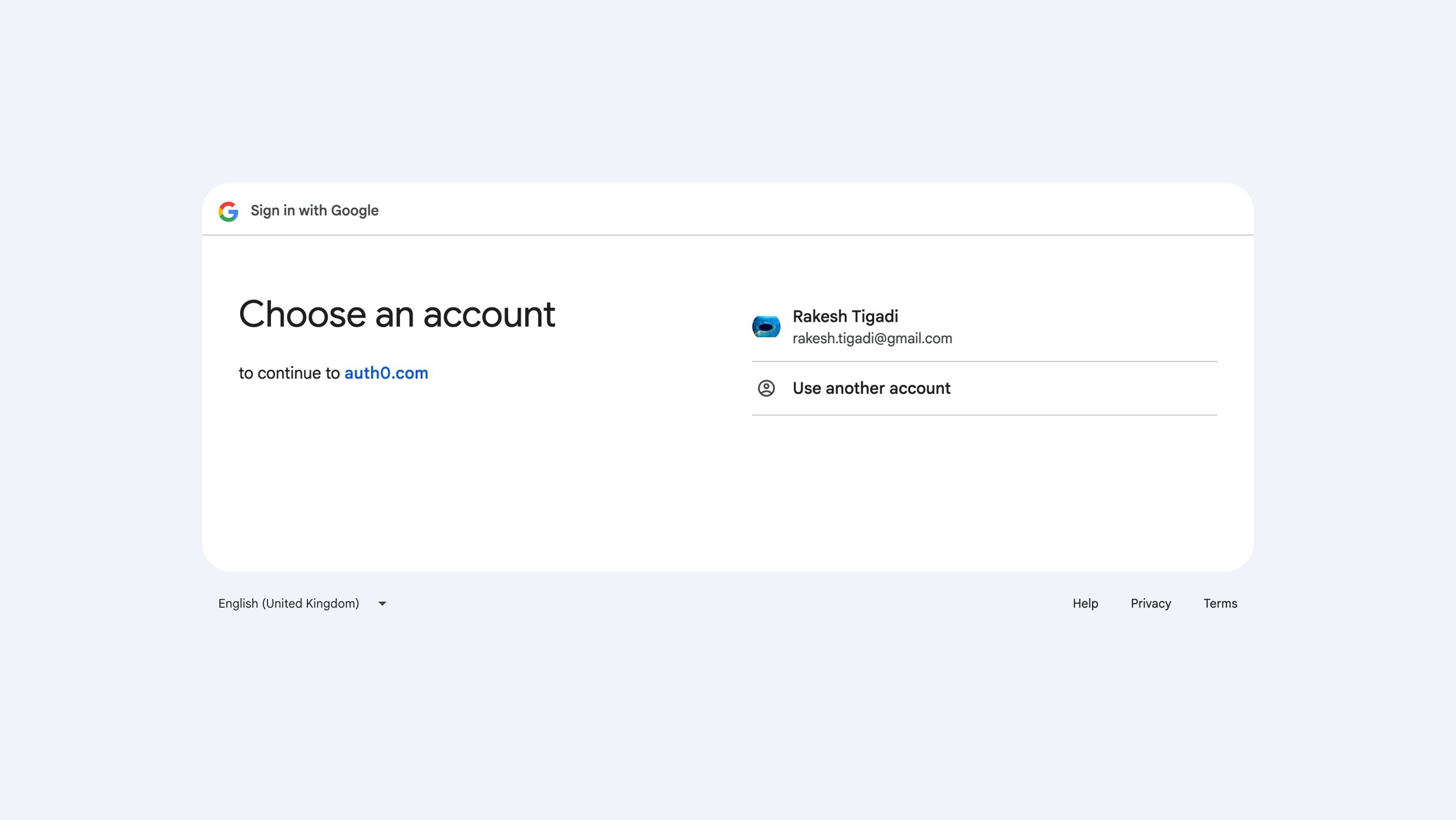
Step 3: Enter your email address in the email text field Step 4: Click on the Signup button
You can invite another user to your workspace by asking them to create an account to use the Condense App from Settings. Read More about this here
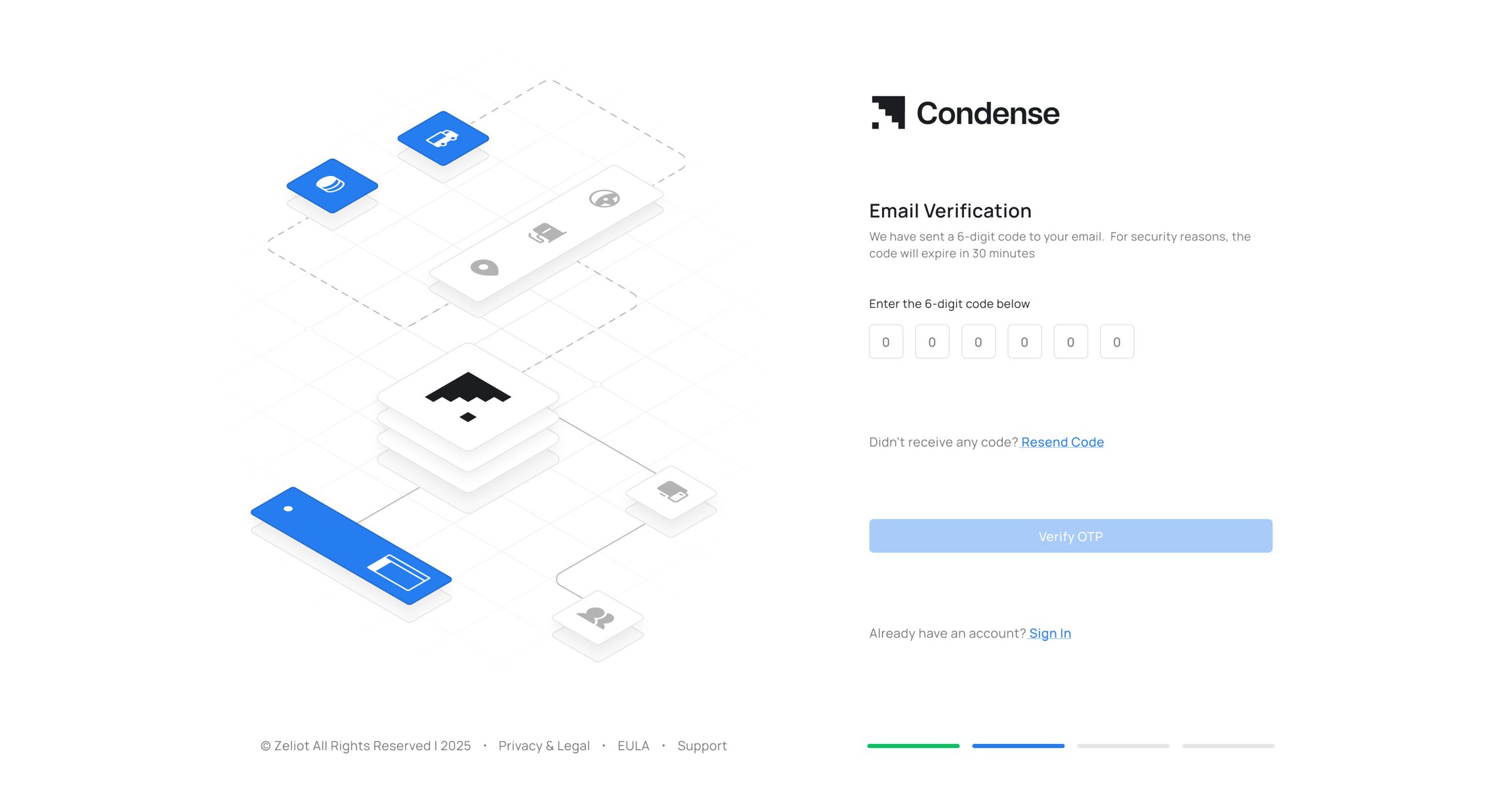
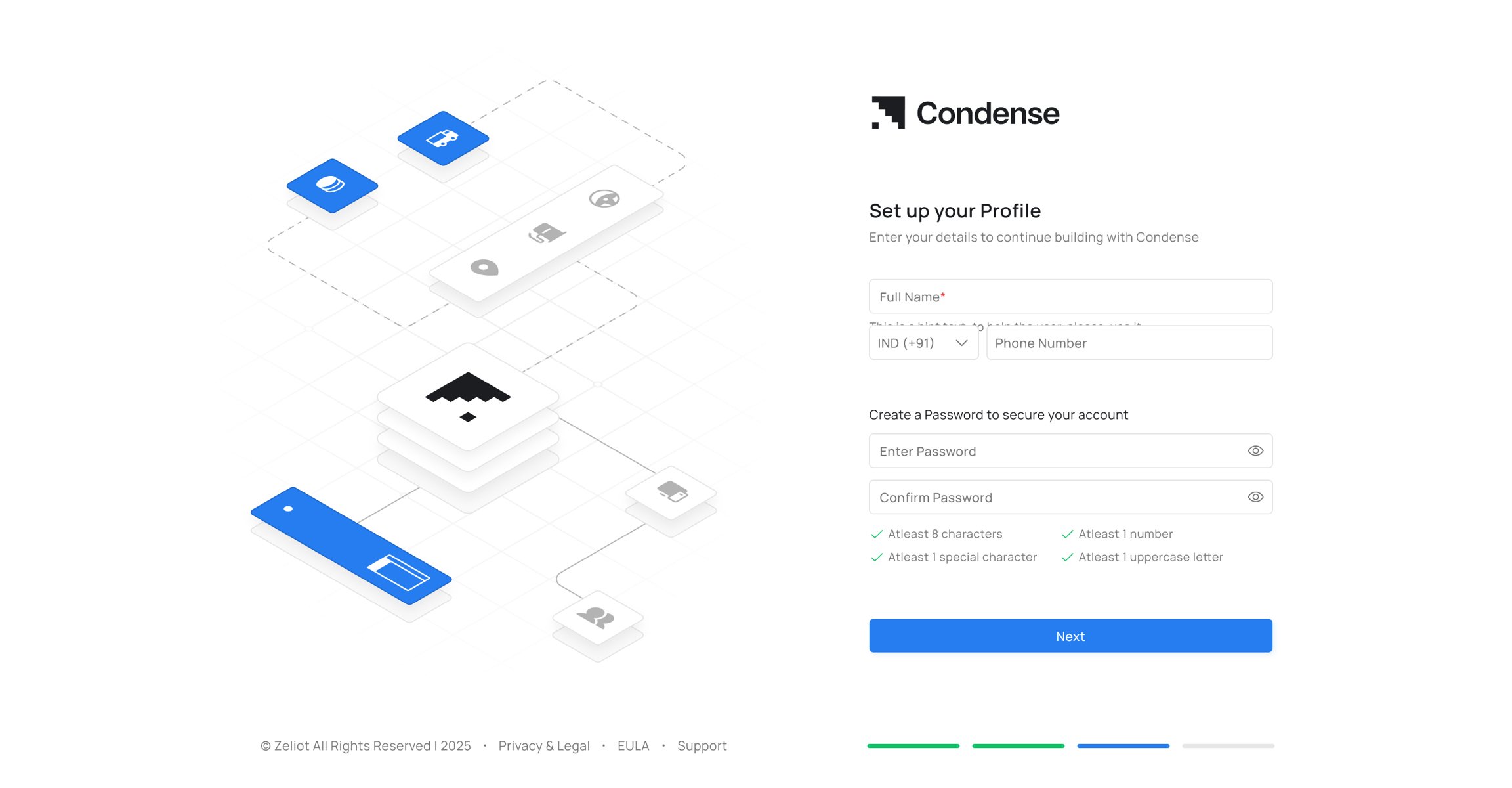
Step 6: Click on the “Signup” Button Step 7: Verify the OTP Step 8: Set the profile and password after OTP verification Step 9: Upon successful authentication, you will be redirected to the organization page Upon successful organization creation, you will be redirected to the all workspace section in the Condense Application.

Sign-in Process

Signing in with Google (GSuite)

Step 1: Go to the Condense login page Step 2: Click on the Google button on the login page Step 3: Select your Google account Step 4: Upon successful authentication, you will be redirected to the dashboard.

Signing in with Microsoft (M365)

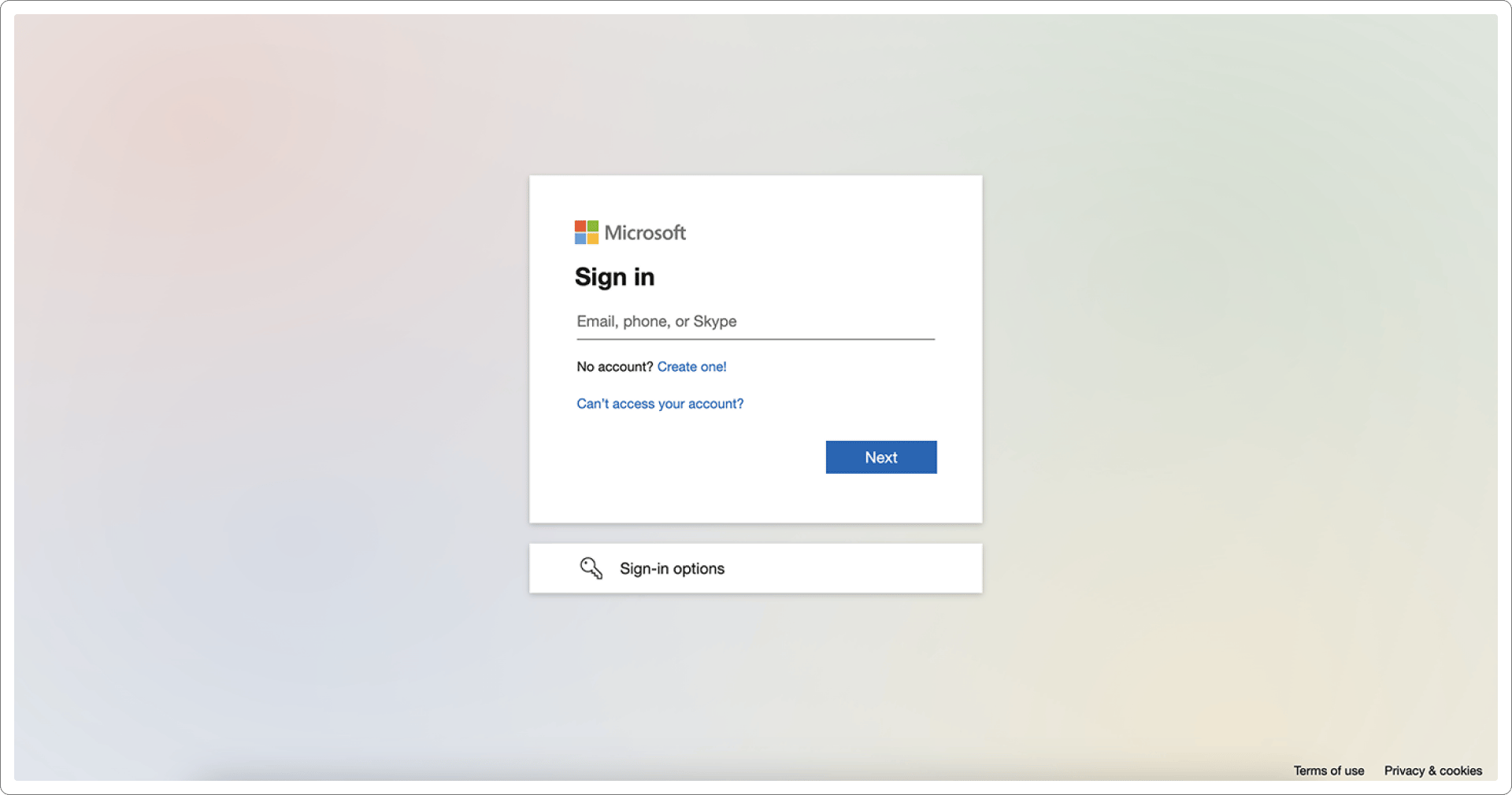
Step 1: Go to the Condense login page Step 2: Click on the Microsoft button on the login page Step 3: Enter the Microsoft account Step 4: Log in to your Microsoft (M365) account Step 5: Upon successful authentication, you will be redirected to the dashboard
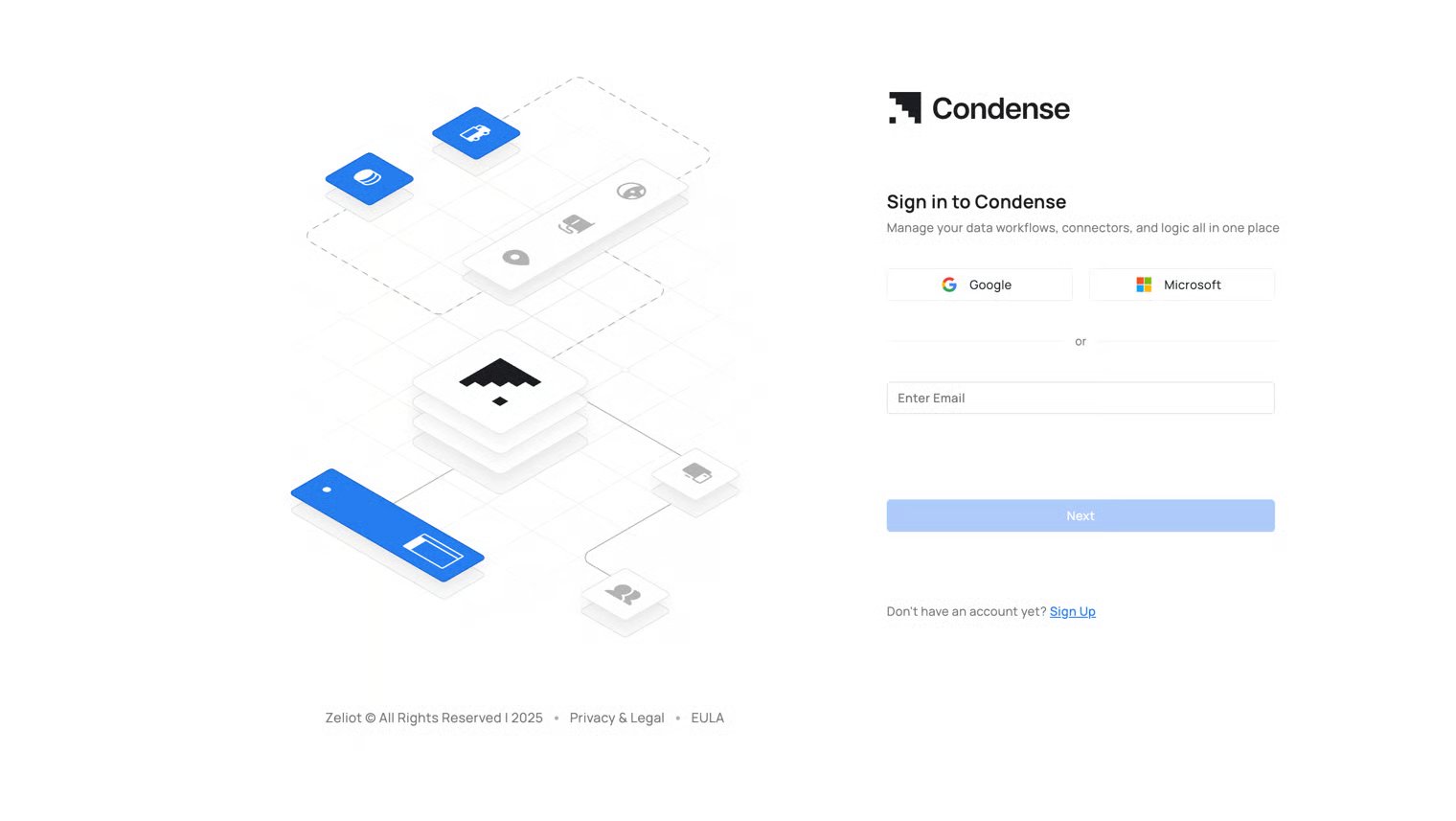
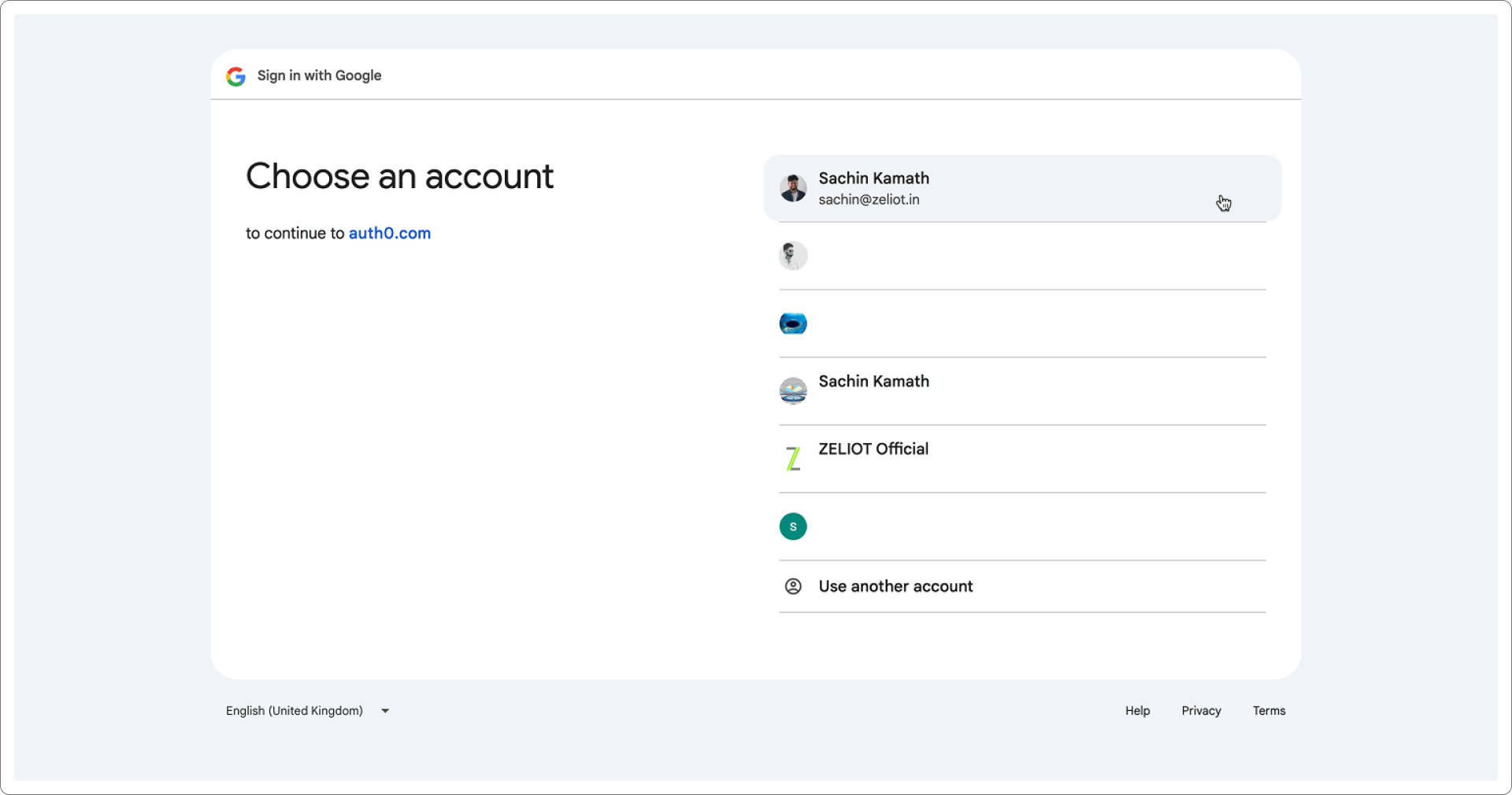
Signing in with Email and Password

Step 1: Open your Condense application which will land you on the login page. Step 2: Enter your registered email. Step 3: Click on the Next button.
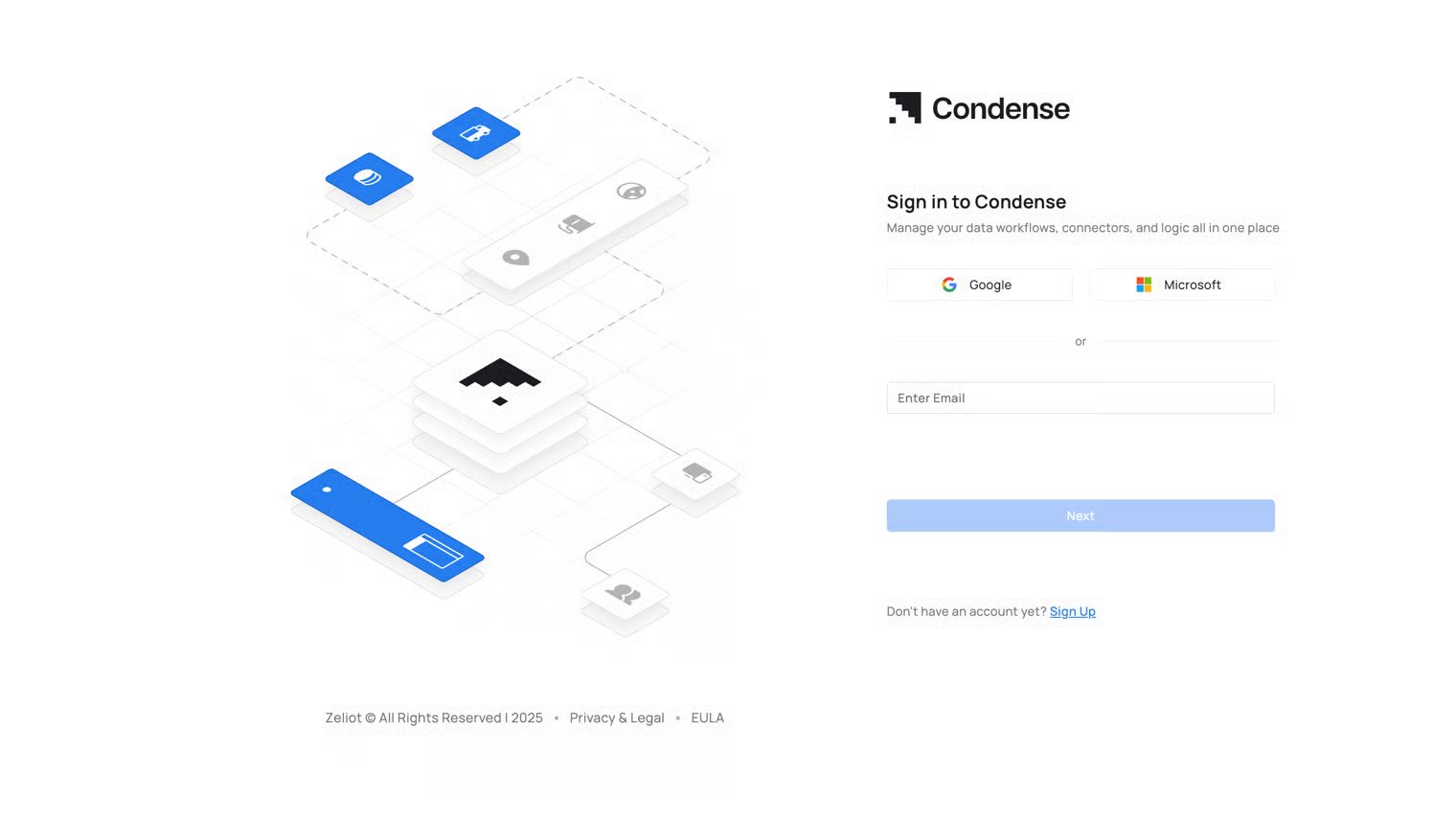
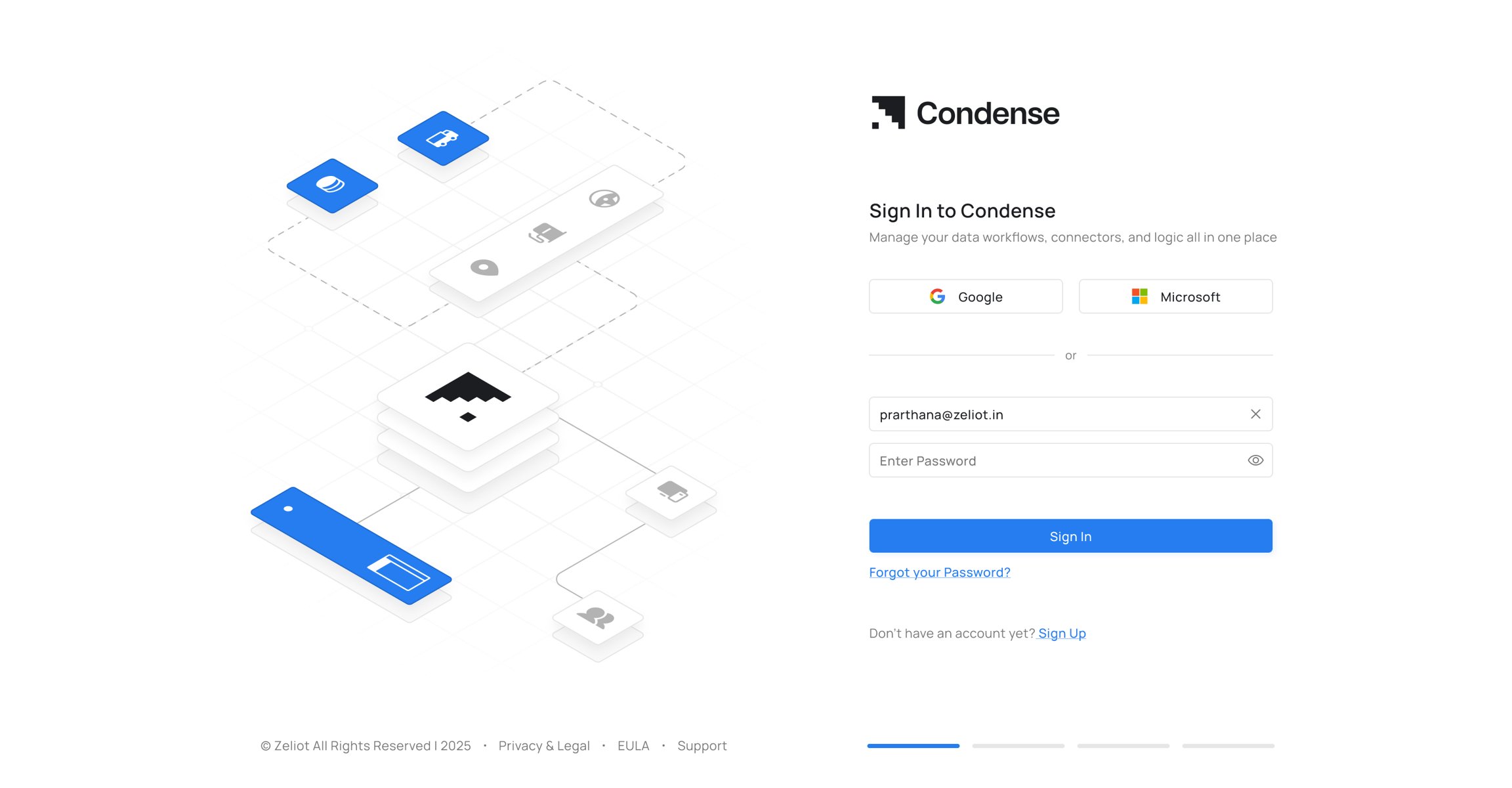
If you have signed up using SSO, you will be redirected to the corresponding SSO account page or else the password field will be displayed
Step 4: Enter the password in the password text field Step 5: If the credentials are correct, you will be redirected to the dashboard
IMPORTANT!
  1. Log-in using email and password will only be available for the user accounts that are created using the regular sign-up flow (i.e. email address and password)
  2. Users have the option to log in to their respective accounts using the SSO option or the regular sign-up flow (i.e. email address and password)
  3. The ‘Change password’ and ‘Forgot Password’ will only work for accounts which are signed up using the regular sign-up flow (i.e. email address and password)