

Overview
A Workspace in Condense is a dedicated, isolated space where you build and operate your real-time streaming solutions. It is the functional boundary where teams can design pipelines, configure connectors, develop and deploy applications or transforms, and manage access for team members. Workspaces help:- Keep development process organized (e.g., development, staging, production)
- Separate resources for different business units, customers, or use cases
- Control access with fine-grained, workspace-specific roles
- Monitor, audit, and manage all resources within a contained scope
What you can do in a Workspace
A workspace is more than just a container for resources, it is the active space where all real-time streaming components come together. In this section, you will find how a workspace brings together pipelines, connectors, applications, and transforms into a cohesive workflow. You’ll also see how members collaborate within this space, manage configurations, and monitor performance, all without leaving the workspace boundary. To understand this better, let’s look at the key components that make up a workspace and how each one contributes to building and operating real-time streaming solutions.Pipelines
Design complete, event-driven workflows by linking sources, processing logic, and destinations. Within a pipeline, you can:- Ingest data through connectors
- Process and enrich streams with transforms or utilities
- Deliver results to output systems
Connectors
Integrate your workspace with external systems.- Source connectors bring data into the workspace
- Sink connectors send processed data to other systems
- Configuration includes workspace parameters, authentication, and topic/data mapping
Applications
Custom-built solutions created in Condense in-built IDE, connected to a Git repository for version control. Applications:- contain custom logic written in supported programming languages
- are tested and refined in the workspace IDE
- can be published as Custom Transforms or a Custom connector for deployment in pipelines
Transforms
Processing components are added directly into pipelines. Types:- pre-built Transforms: Ready-to-use, provided by Condense (e.g., Geofence, Alerts, Split, Logger)
- custom Transforms: Derived from your published applications
- utilities: NCLC tools for common processing needs (e.g., conditional splits, alert triggers).
Workspace Members
Manage which existing organization members can access the workspace and what they can do.- Assign workspace-specific role bindings: Admin, Maintainer, Developer, Viewer
- Adjust or revoke access instantly from Workspace Settings
Monitoring & Audit
- Monitor pipeline, connector, and transform health
- Review activity logs for changes and actions
- View dashboards for throughput, latency, and error tracking
Workspace Lifecycle
Every workspace follows a clear lifecycle, from creation to configuration, ongoing updates, and eventual deletion. This section explains who can create, edit, or delete a workspace, the steps involved in each stage, and the rules that apply. You’ll also find naming guidelines, role considerations, and important safeguards to prevent accidental loss of resources.Creating a Workspace
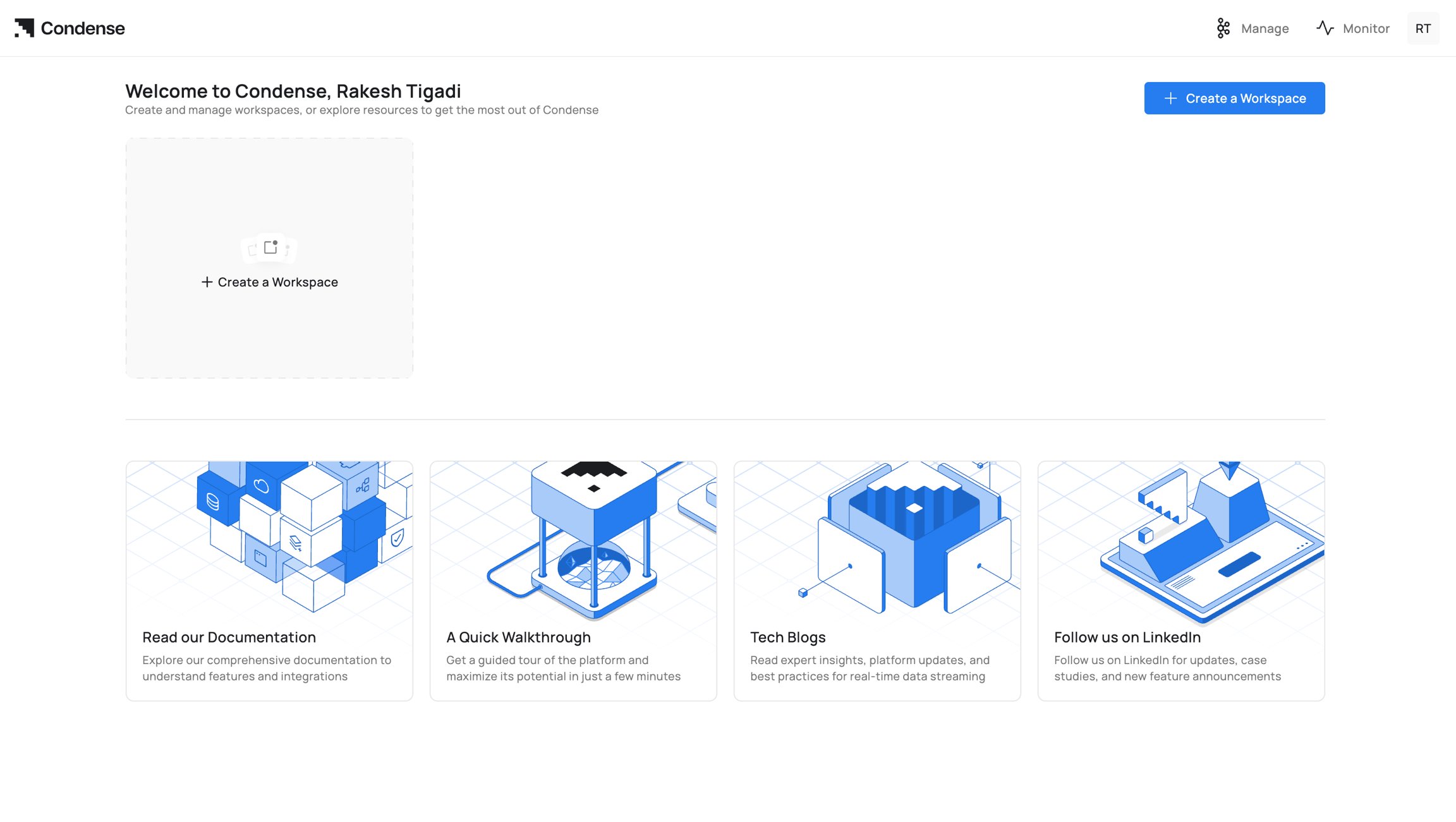
Who can create: Only Organization Admins
- Upon successful login and selecting the organization, you will be redirected to the workspace catalogue.
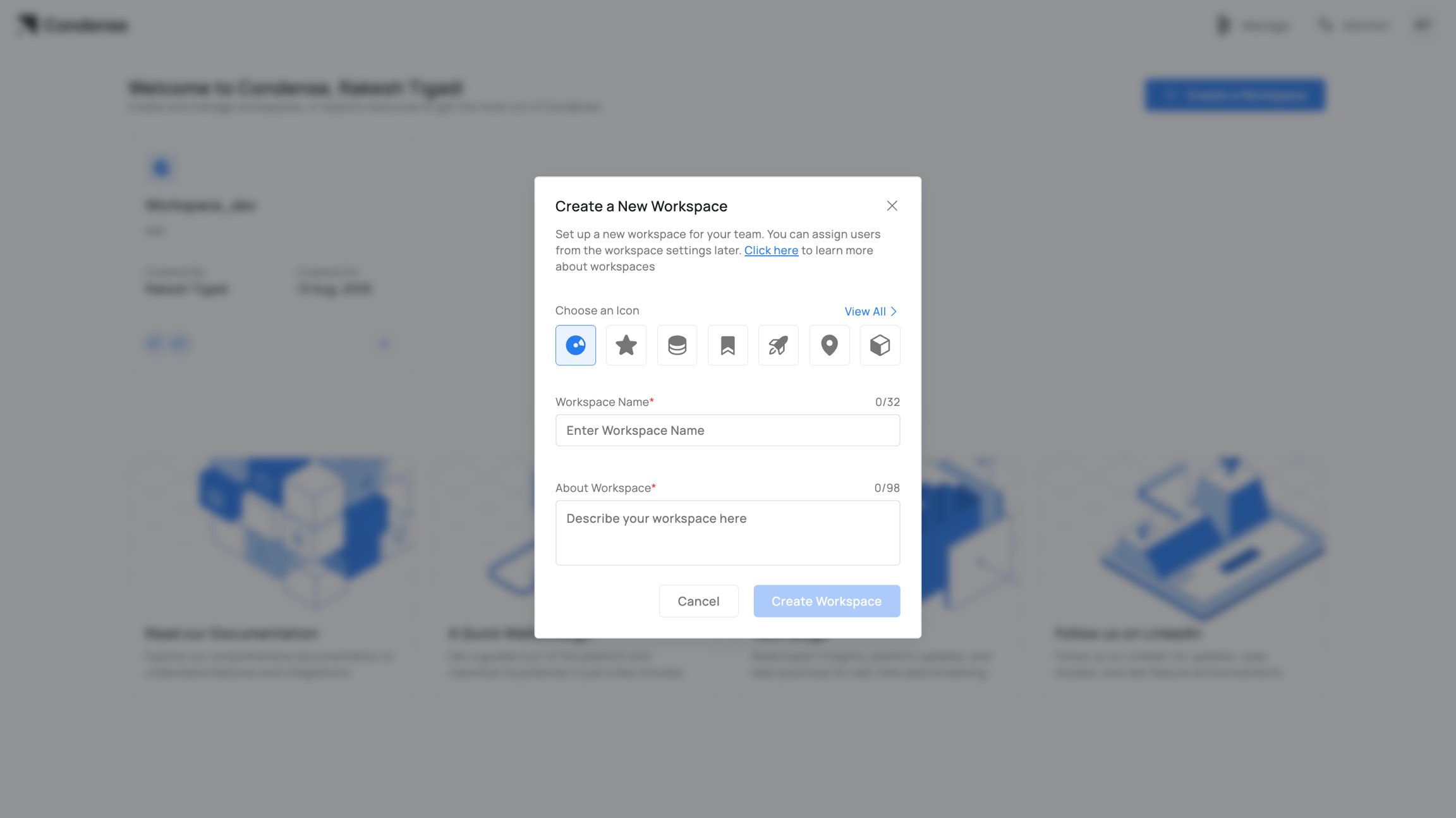
- Click Create Workspace
- Enter a unique name and optional description/tags
- Click Create
- Allowed: Letters, numbers, hyphens (-), underscores (_)
- Length: 3–63 characters
- Unique within the organization
Step 1: Create a Workspace
Step 2: Configuration of Workspace
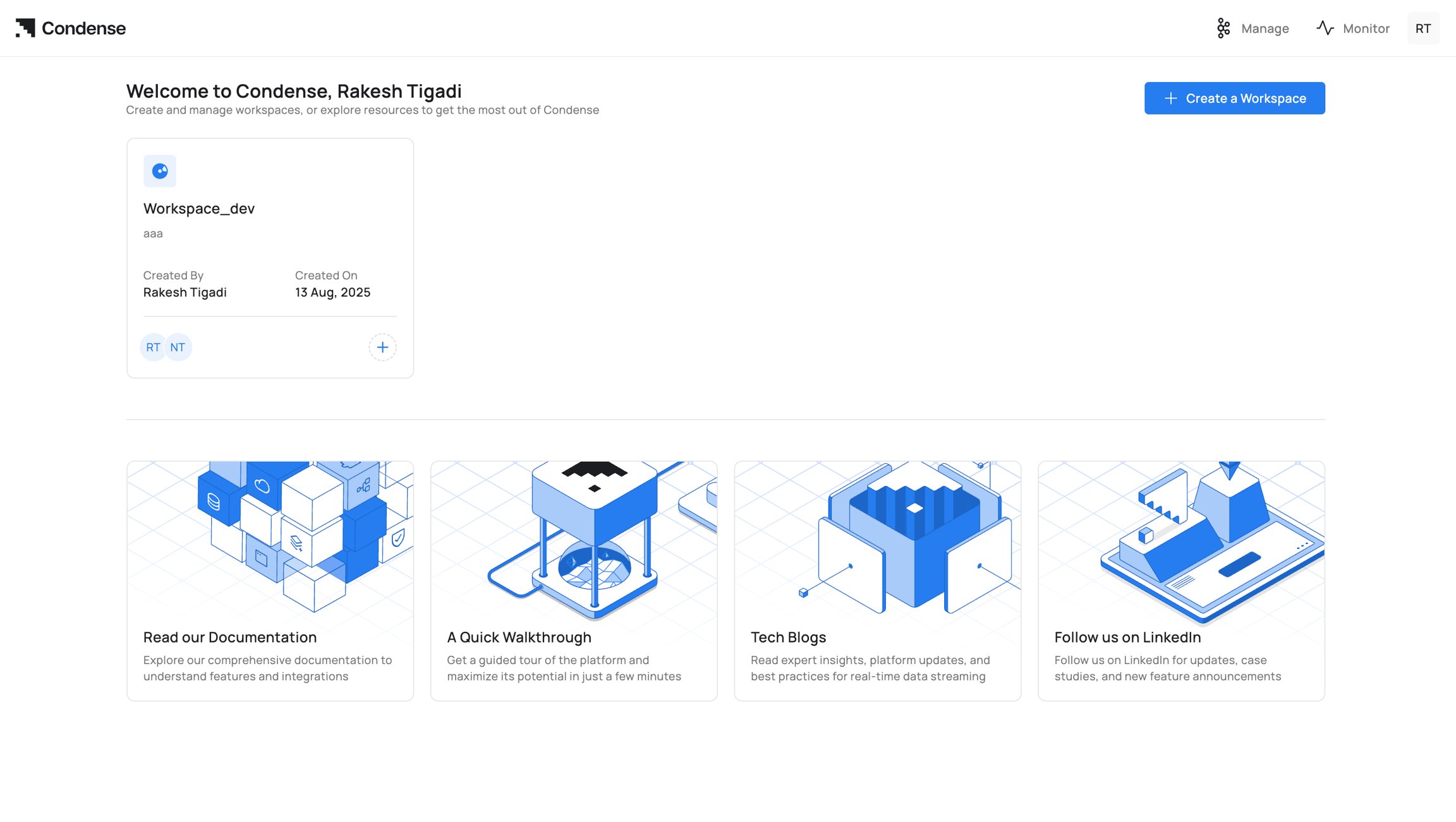
Editing a Workspace
Who can edit: Workspace Admins and Organization Admins- Editable: Name, description, tags
- Non-editable: Workspace ID, creation date
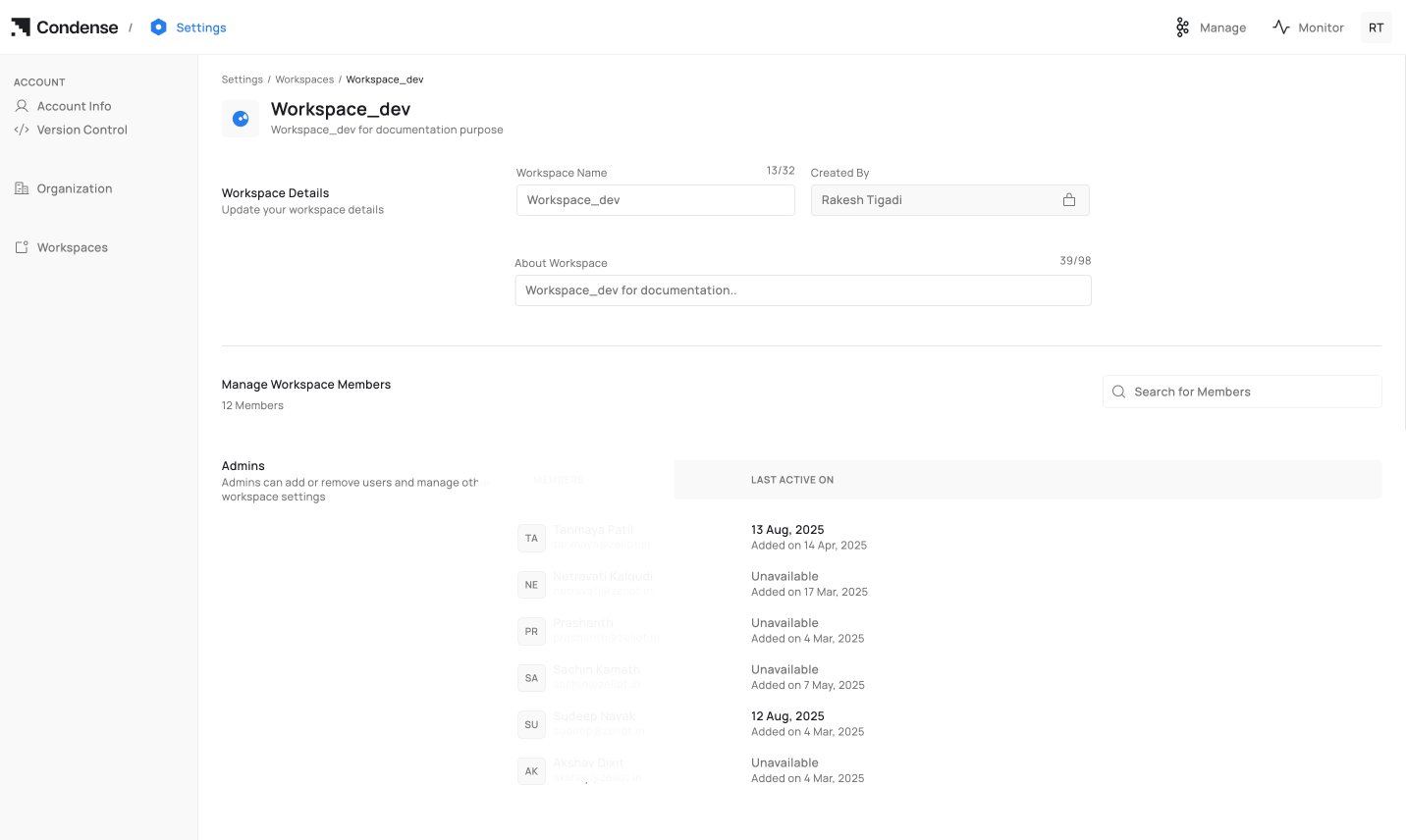
Step 1: Go to Settings and click on the workspace
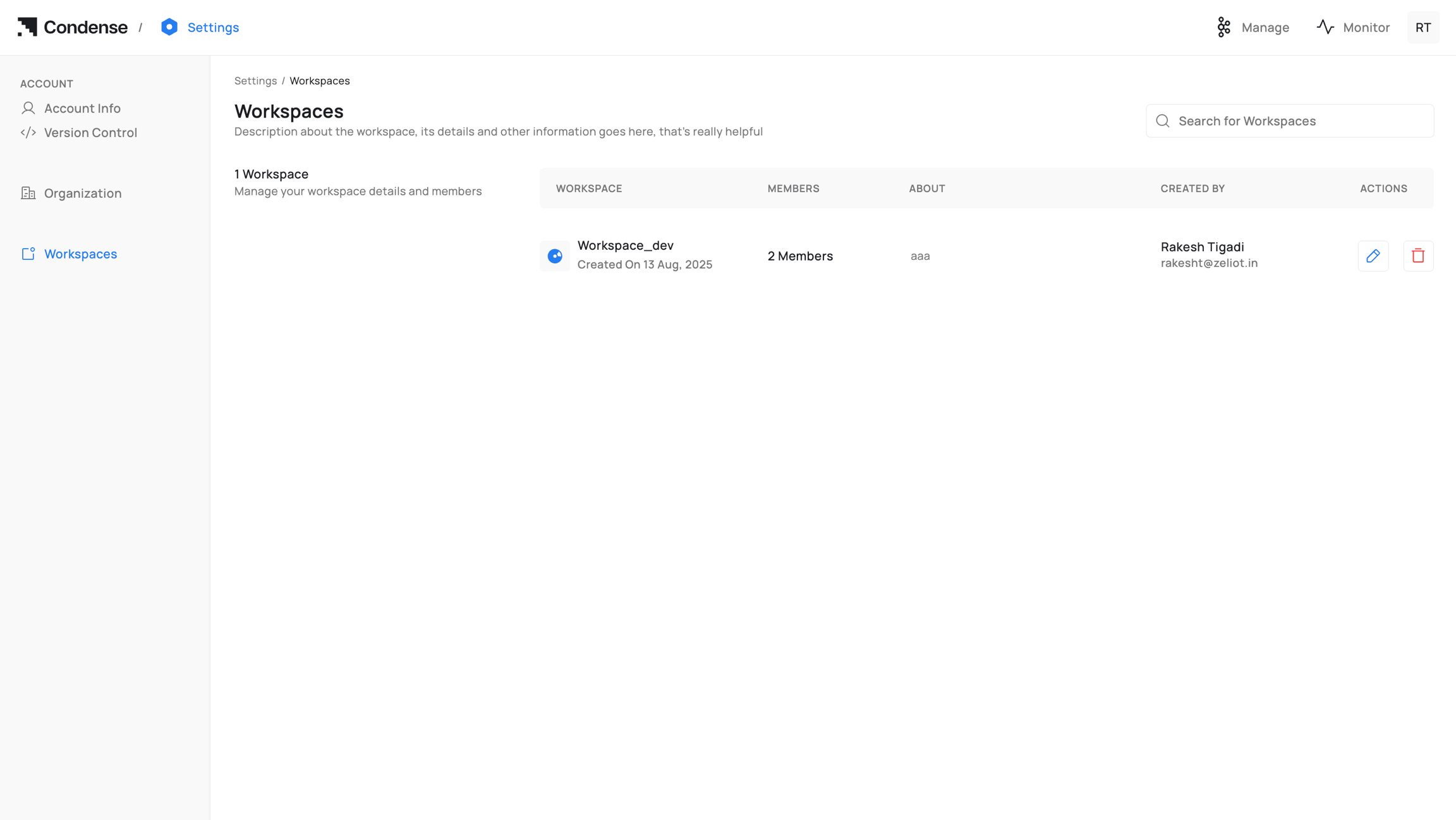
Step 2: Select the workspace and in the action section, click on the edit icon. A dedicated workspace settings page will open where you can edit the name and about the workspace.
Deleting a Workspace
Who can delete: Workspace Admins and Organization Admins
Warning
- Deletion is permanent. There is no backup, export, or recovery feature
- All pipelines, connectors, transforms, and applications in the workspace are removed permanently
- Confirm with your team before proceeding
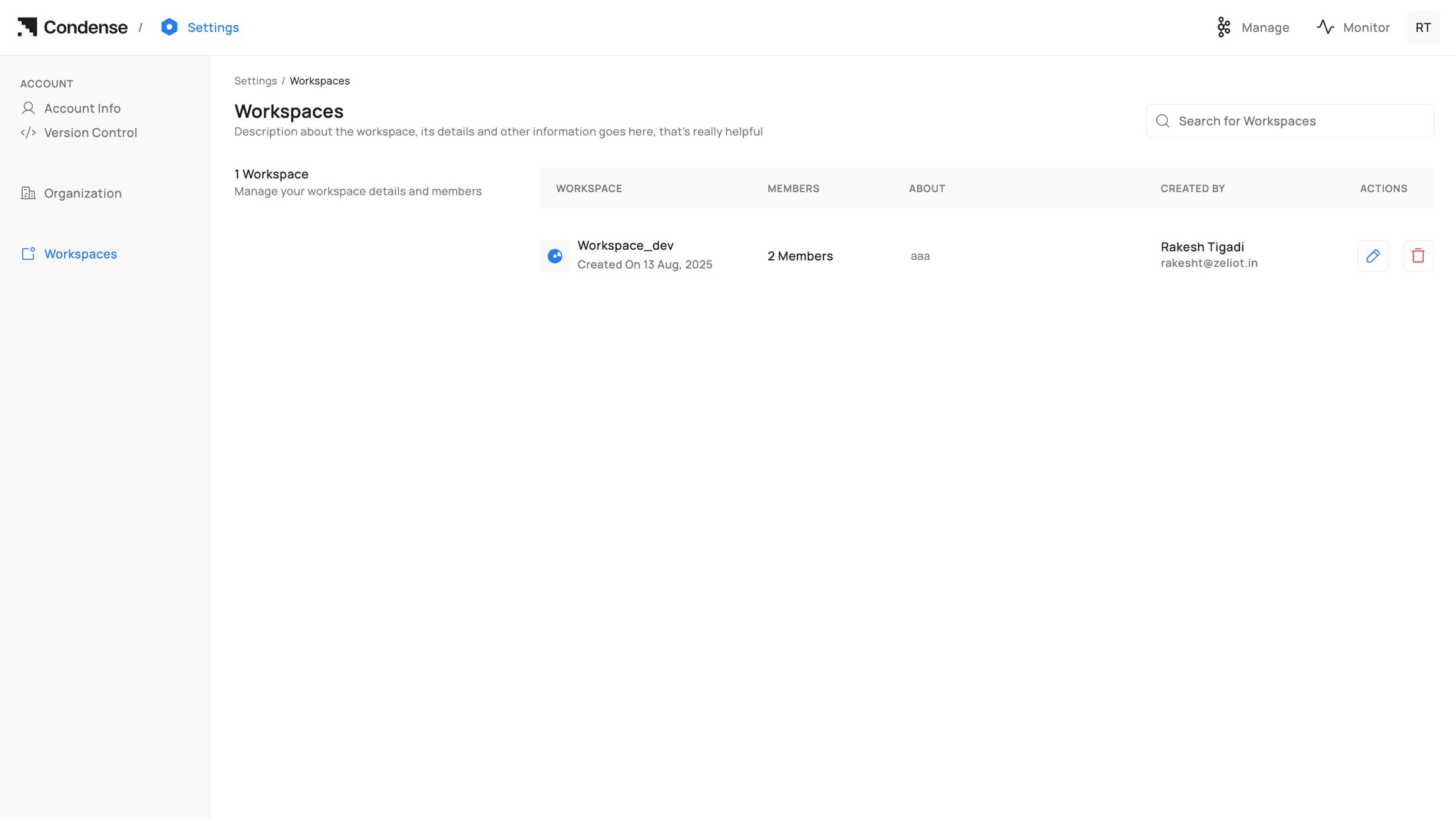
Step 1: Go to settings and click on the delete icon of the action section against the workspace name which needs to be deleted
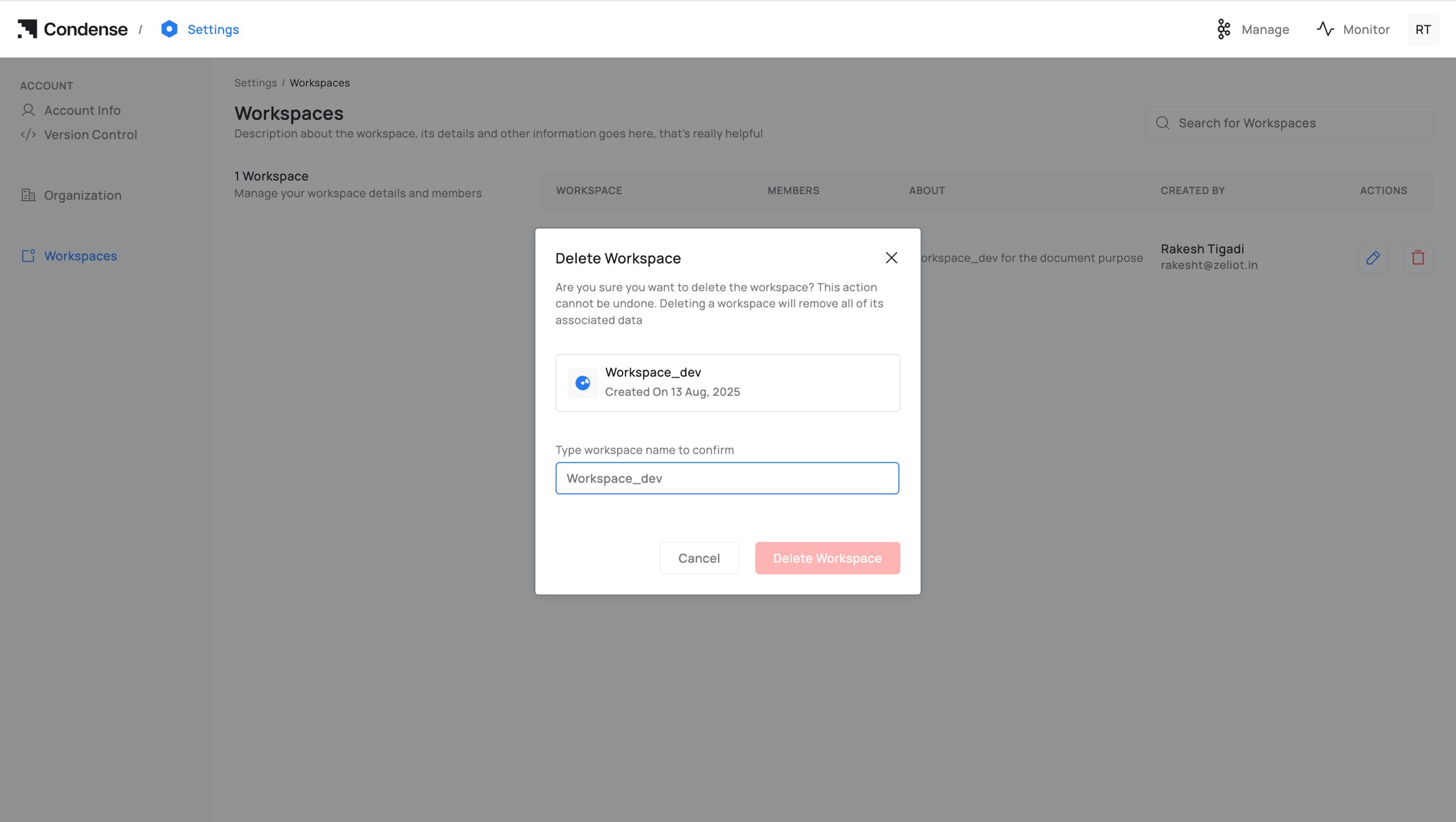
Step 2: Confirm the delete operation by typing the workspace name. If the entered workspace name matches, then deletion will be executed, and it will be removed from the catalogue of workspaces.
Workspace Roles and Permissions
Role bindings are assigned per workspace, so a user can have different permissions in different workspaces.Only existing organization members can be added to a workspace.
Role descriptions
- Admin: Full control over workspace resources, settings, and members
- Maintainer: Can deploy and operate pipelines/connectors/transforms; manage members
- Developer: Can build and edit applications/transforms; view configurations; cannot deploy or change settings
- Viewer: Read-only access
Managing users in a Workspace
Add users
- Go to the Workspace catalogue page
- Click on the “Add User +” icon on the workspace card
- Search and select users from the organization member list
- Assign a workspace role
- Click on Add
Steps to associate members with the workspace
Step 1: Select the workspace from the catalogue to add the users
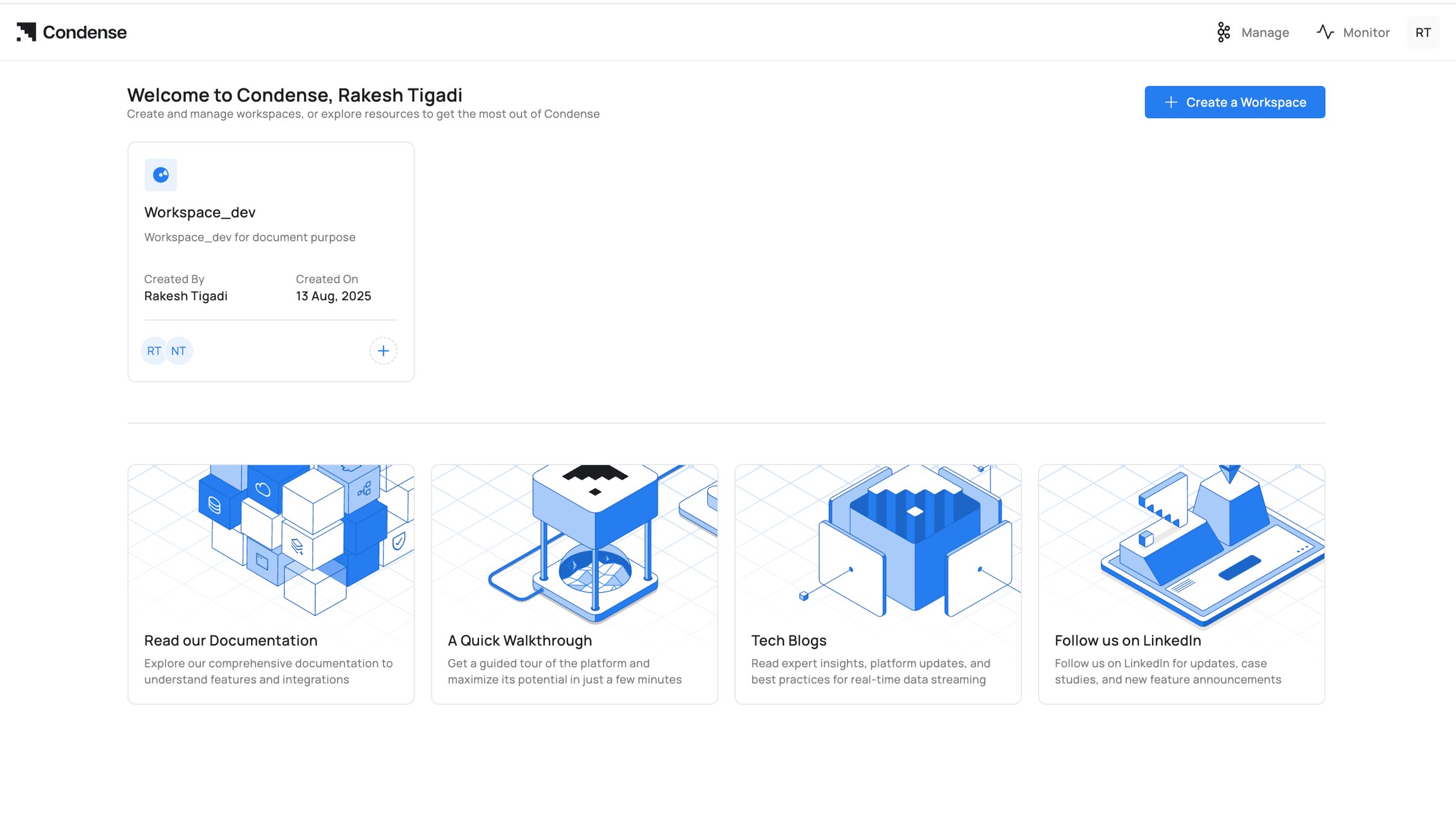
Step 2: Look for the unassigned users list and select the member, and click on the “add user” icon.
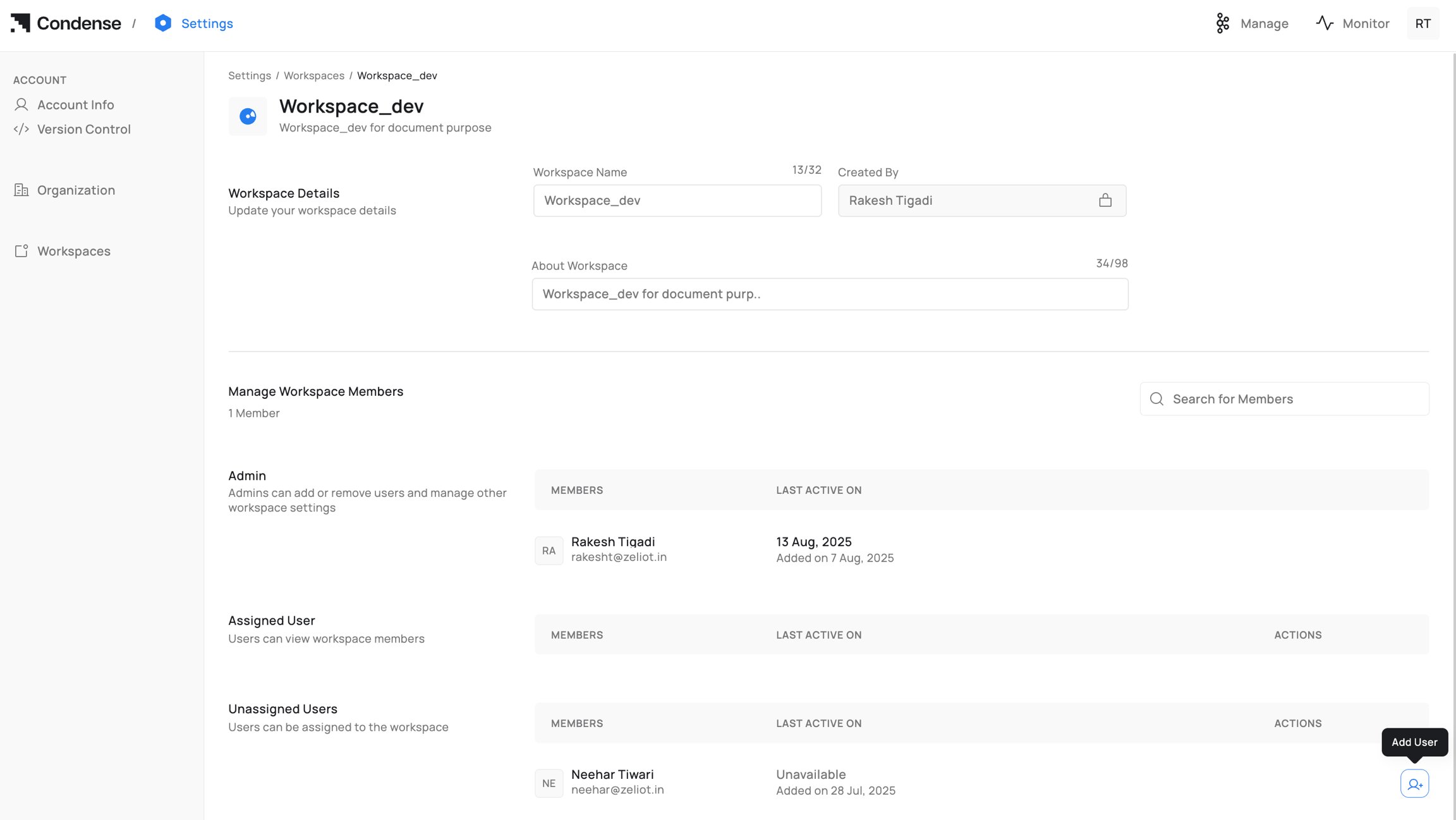
Step 3: The Member will be added as a user of the workspace and moved to the assigned users list.
By default, the user will be assigned a viewer role binding. Admin is required to bind the appropriate role to the added user.
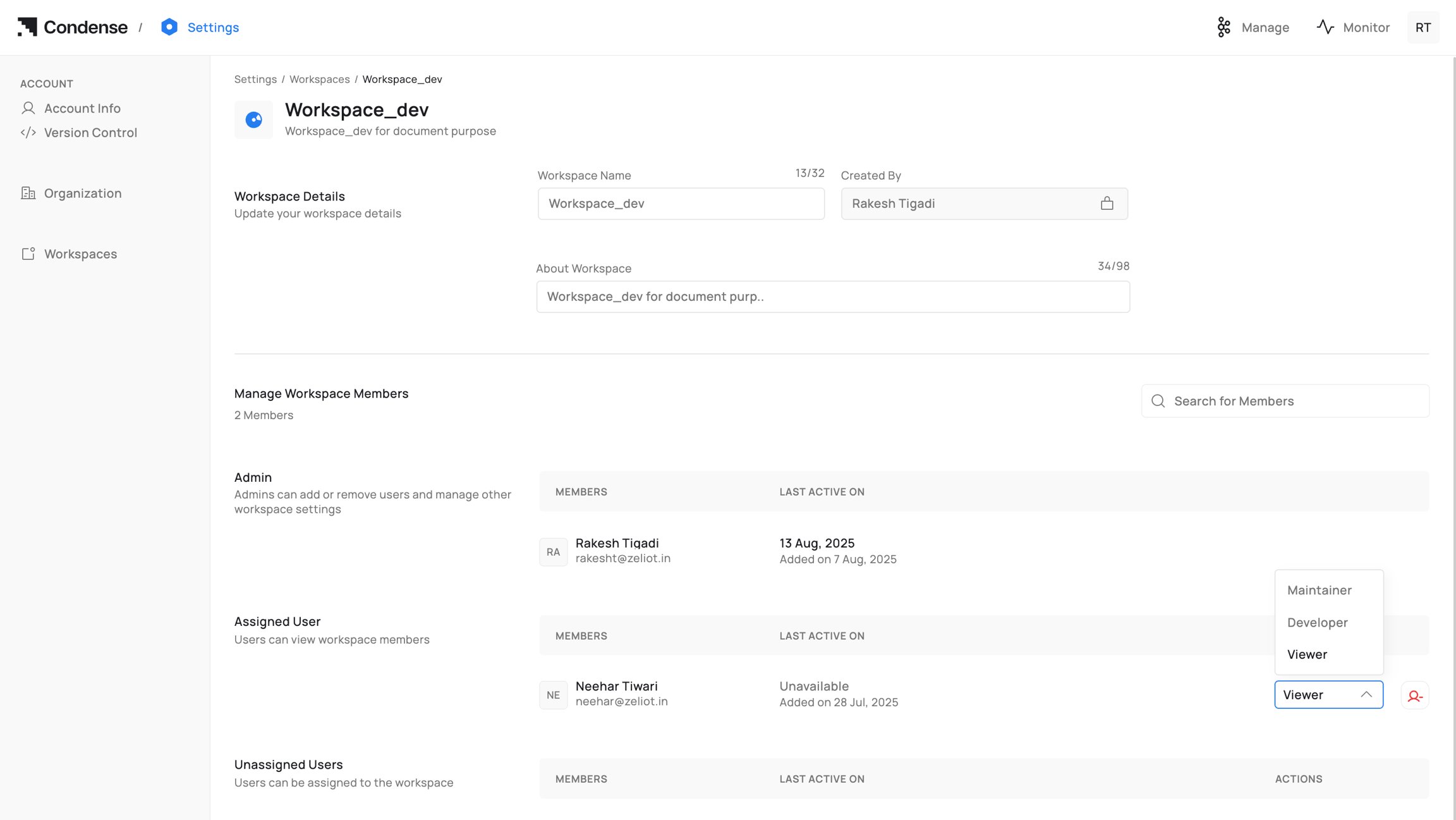
Change Roles
- Admins and Maintainers can change roles anytime
- Changes take effect immediately
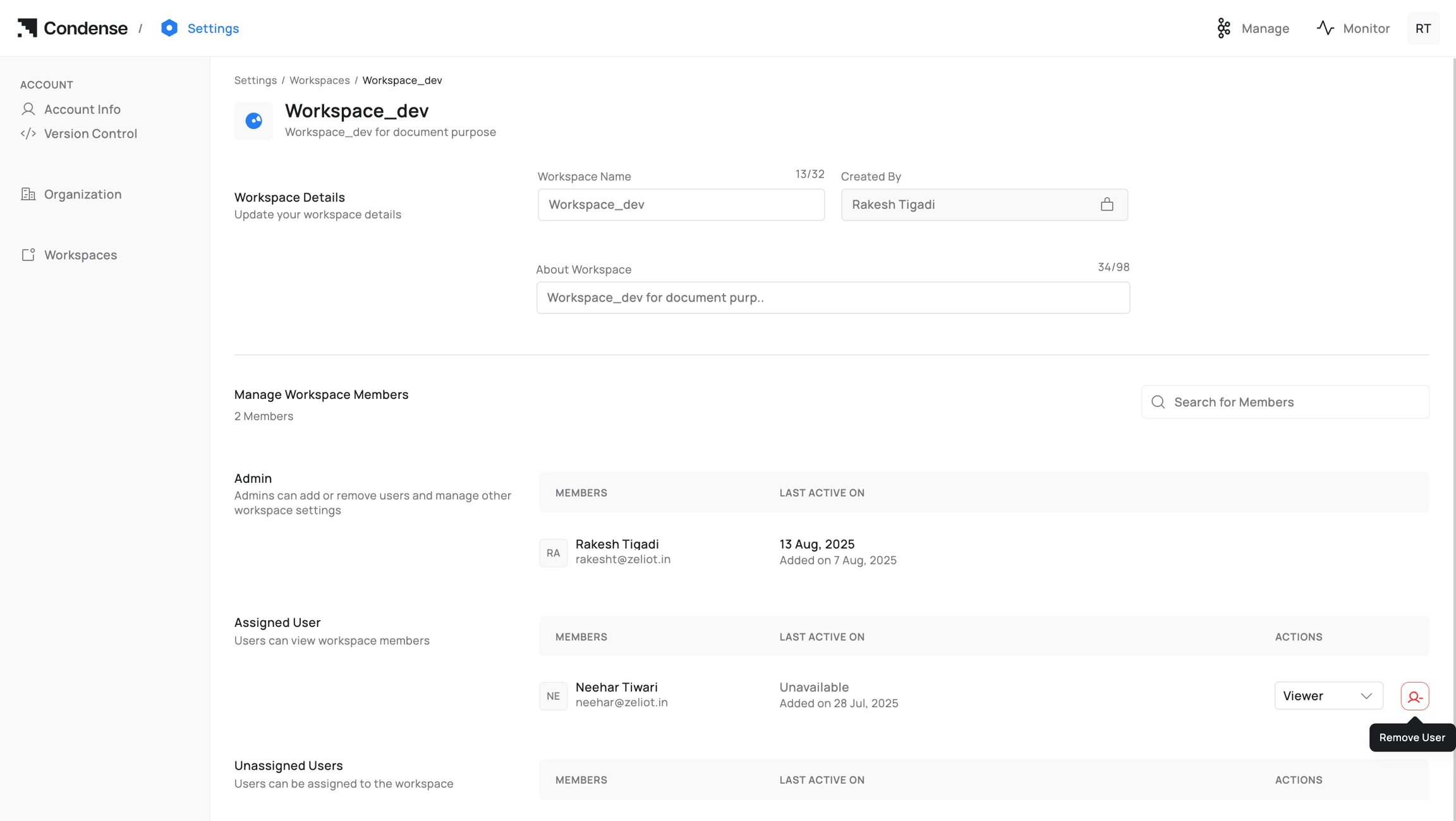
Remove workspace user
- Admins and Maintainers can remove workspace users
- You cannot directly remove the last Admin. Promote another user first
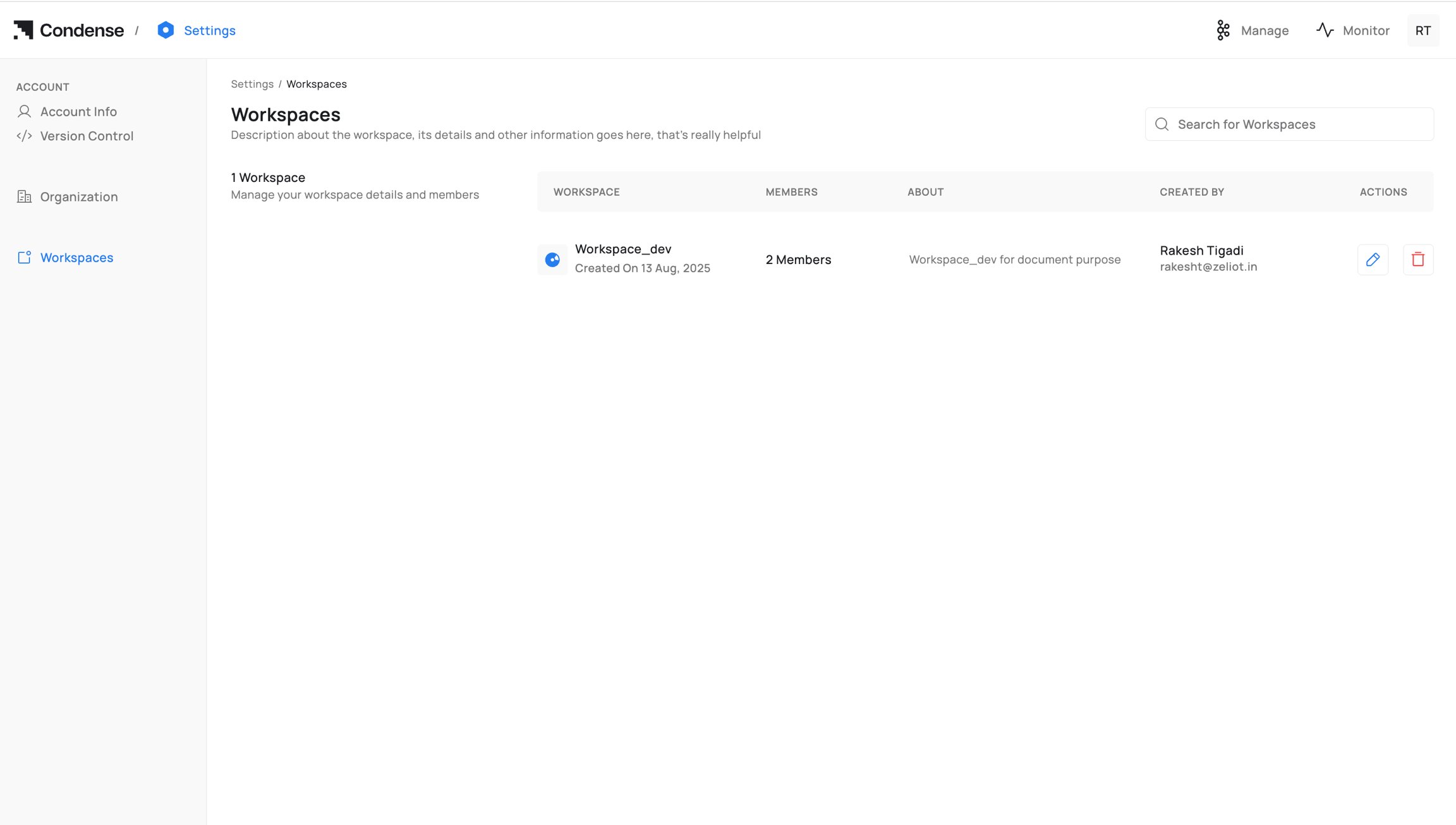
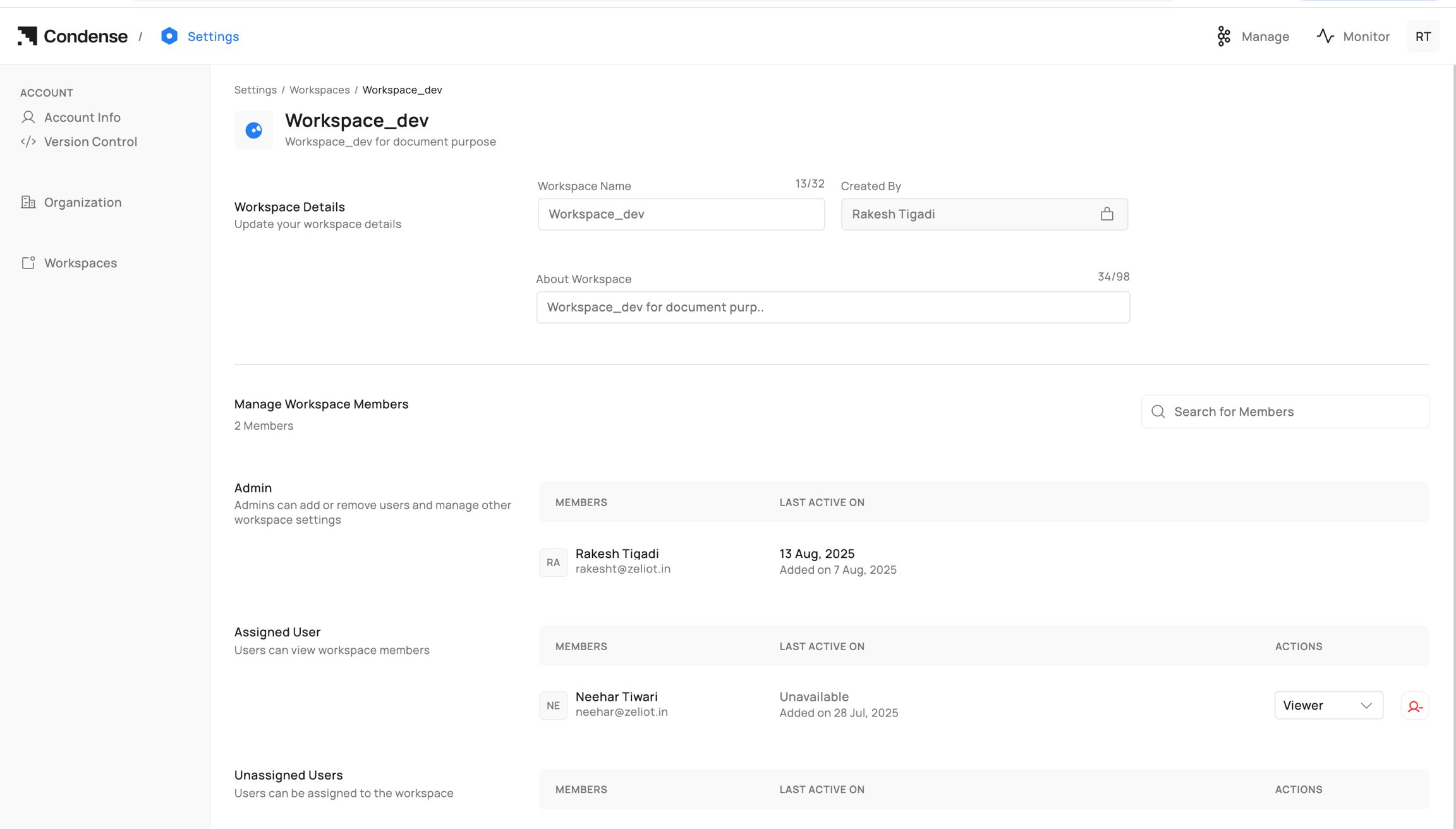
Workspace Settings
From Workspace Settings, you can:- View and update workspace details
- Manage workspace members and roles
- Access activity logs
- View resource usage and workspace parameters
The Workspace settings page is where you get a list of existing workspaces in the organization
Monitoring and Audit
Workspaces include monitoring and auditing tools to help manage operations:- Pipeline status (running, stopped, error)
- Connector health (connected, disconnected, error state)
- Transform/application status (active version, logs)
- Activity log (who changed what, when)
Best Practices
- Use separate workspaces for each development stage (dev, staging, prod)
- Apply the least privilege principle when assigning roles
- Document the workspace’s purpose in the description
- Regularly review membership and roles
- Remove unused pipelines/connectors to keep the workspace clean
Common Pitfalls and How to Avoid Them
- Trying to add a user who not member of organization
- Accidentally deleting a workspace
- Assigning all members as Admins