

Creating an Organization and Becoming Organization Admin
- Sign up or create a new organization in Condense Console https://console.condense.zeliot.in/signUp
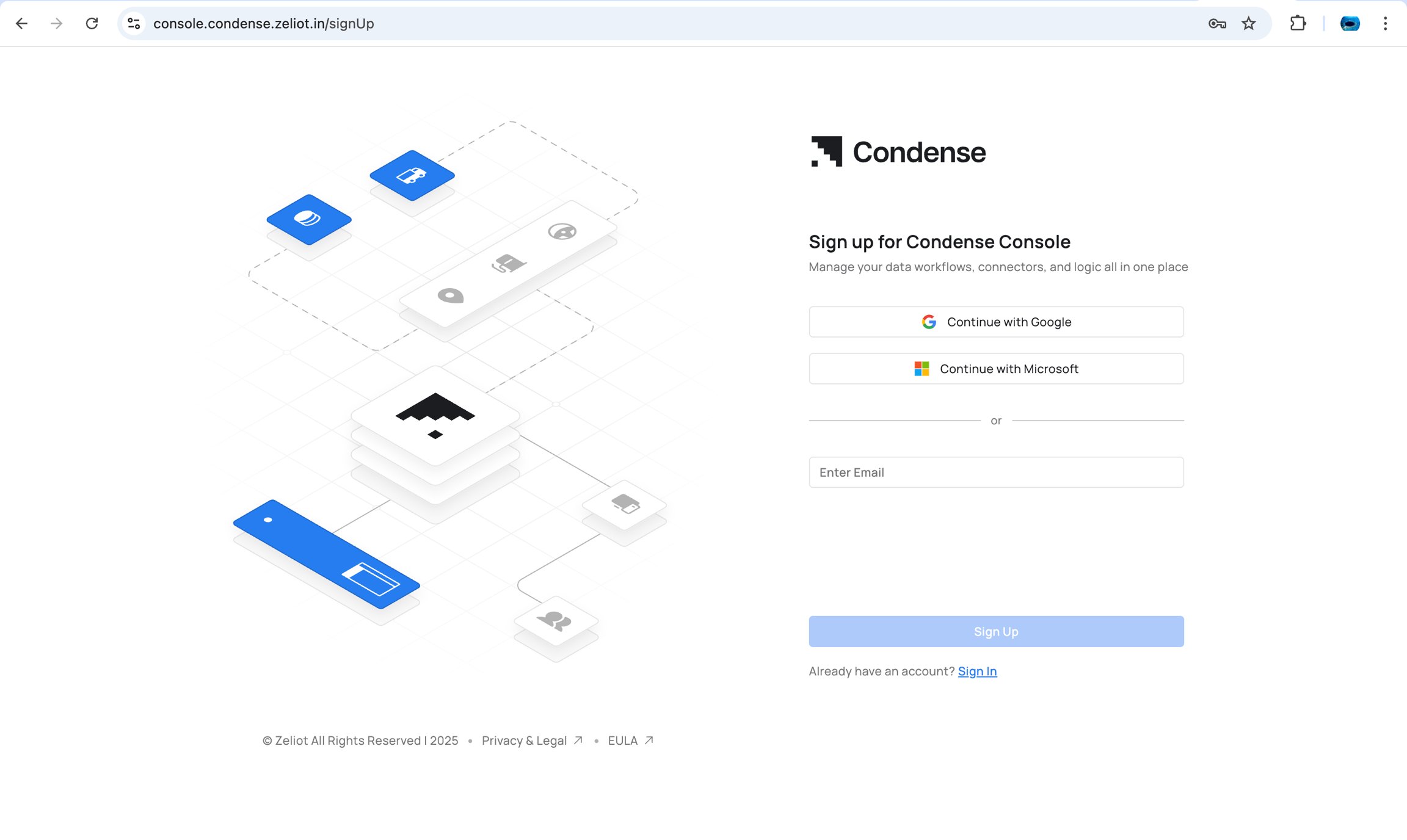
- The creator automatically becomes the Organization Admin
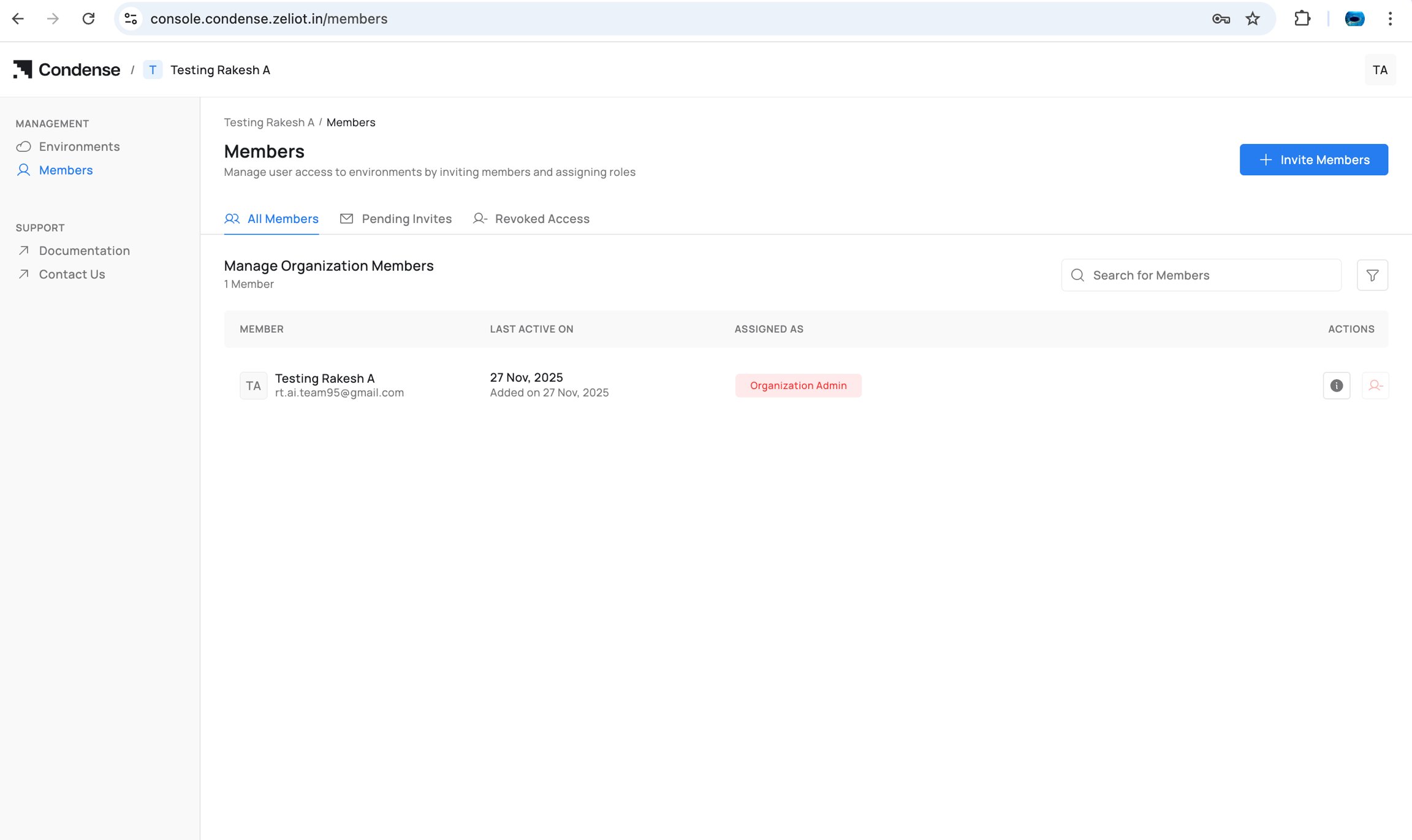
- Environment(s) can now be linked to the organization
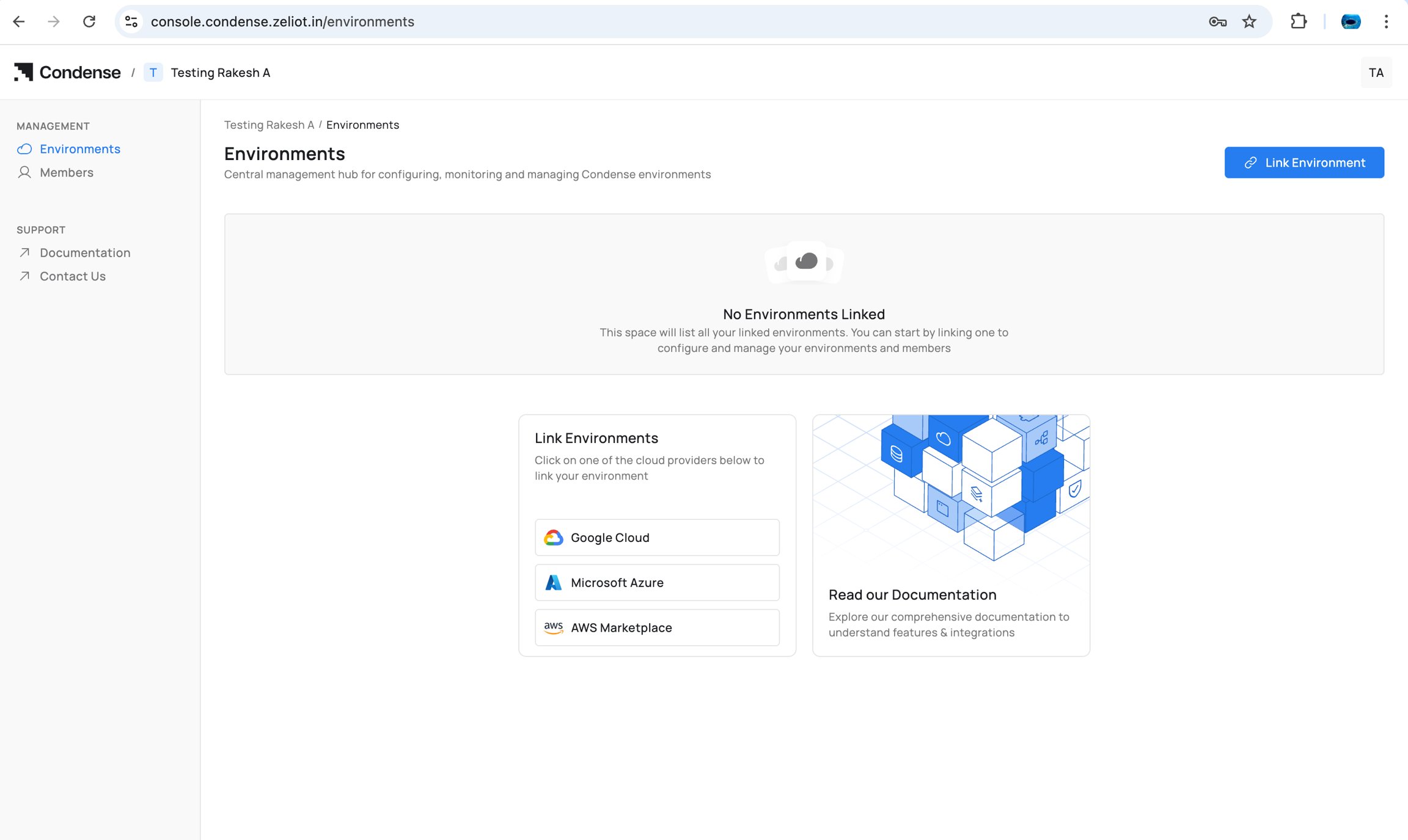
Inviting Members
As Organization Admin:- Go to Members
- Select Invite Member
- Enter user details
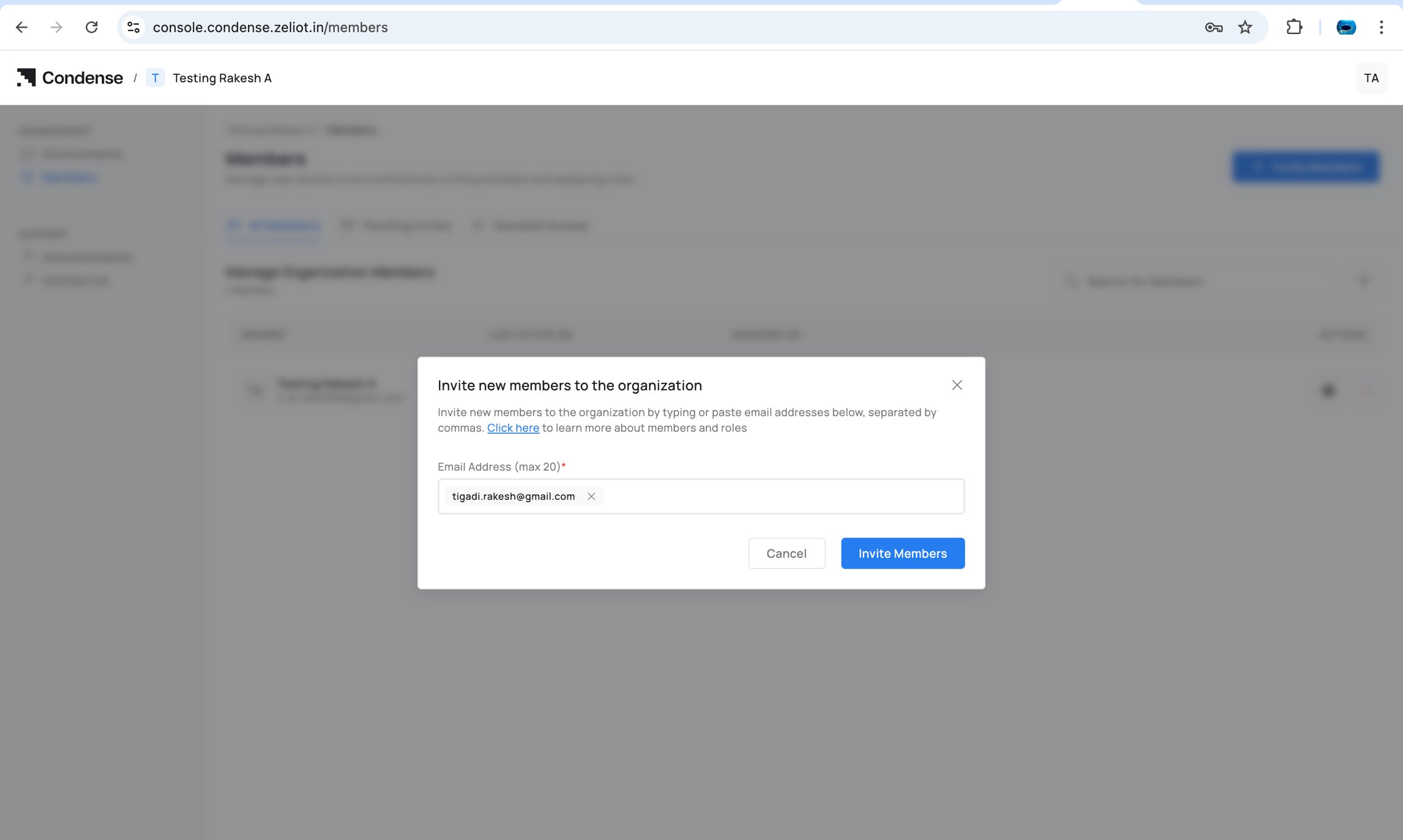
- Send invite
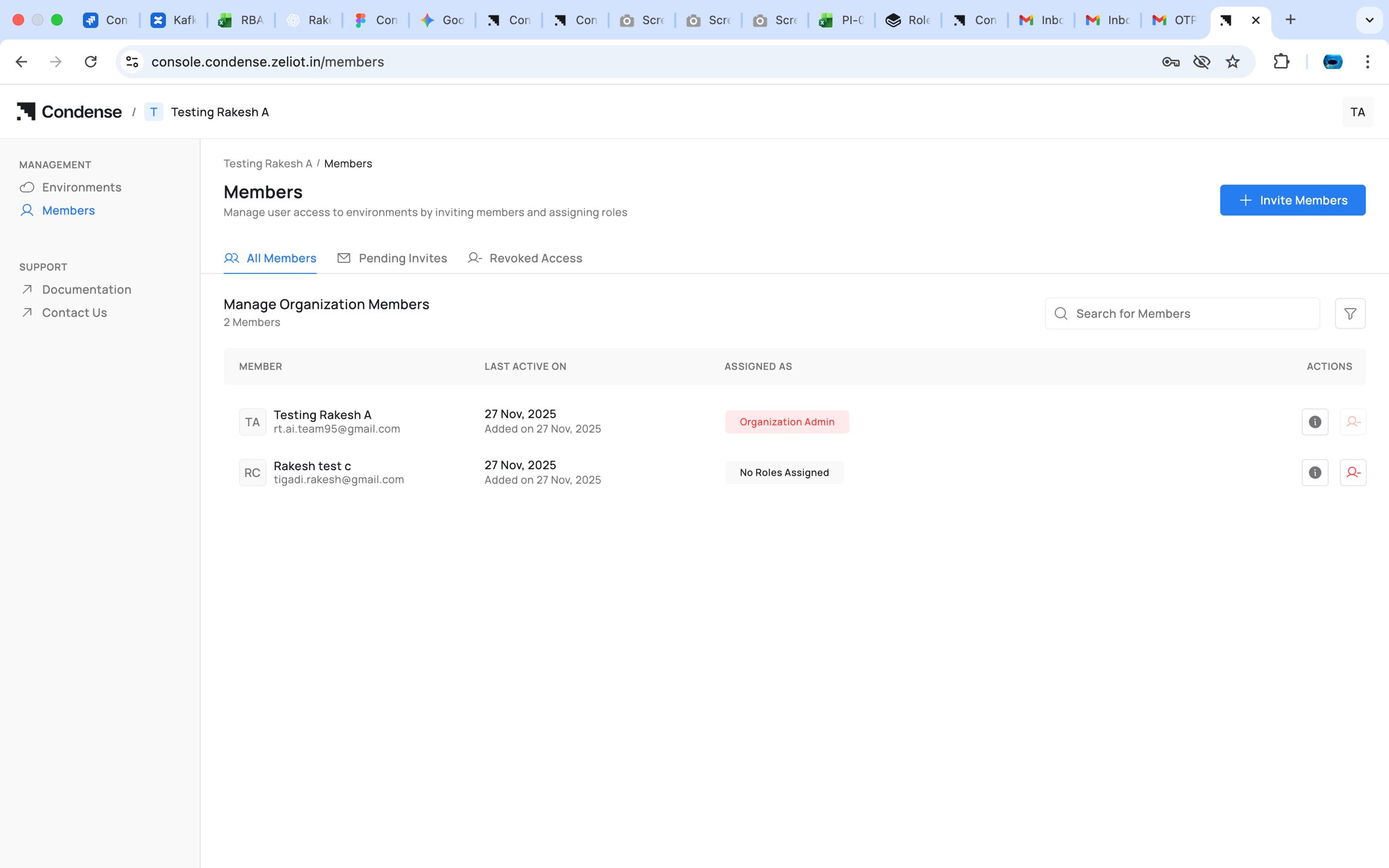
- Select the member and assign one of the Organization-level roles:
- Organization Admin
- Account Admin
- Billing Admin
- Environment Admin (for selected environments)
- Environment User (for selected environments)
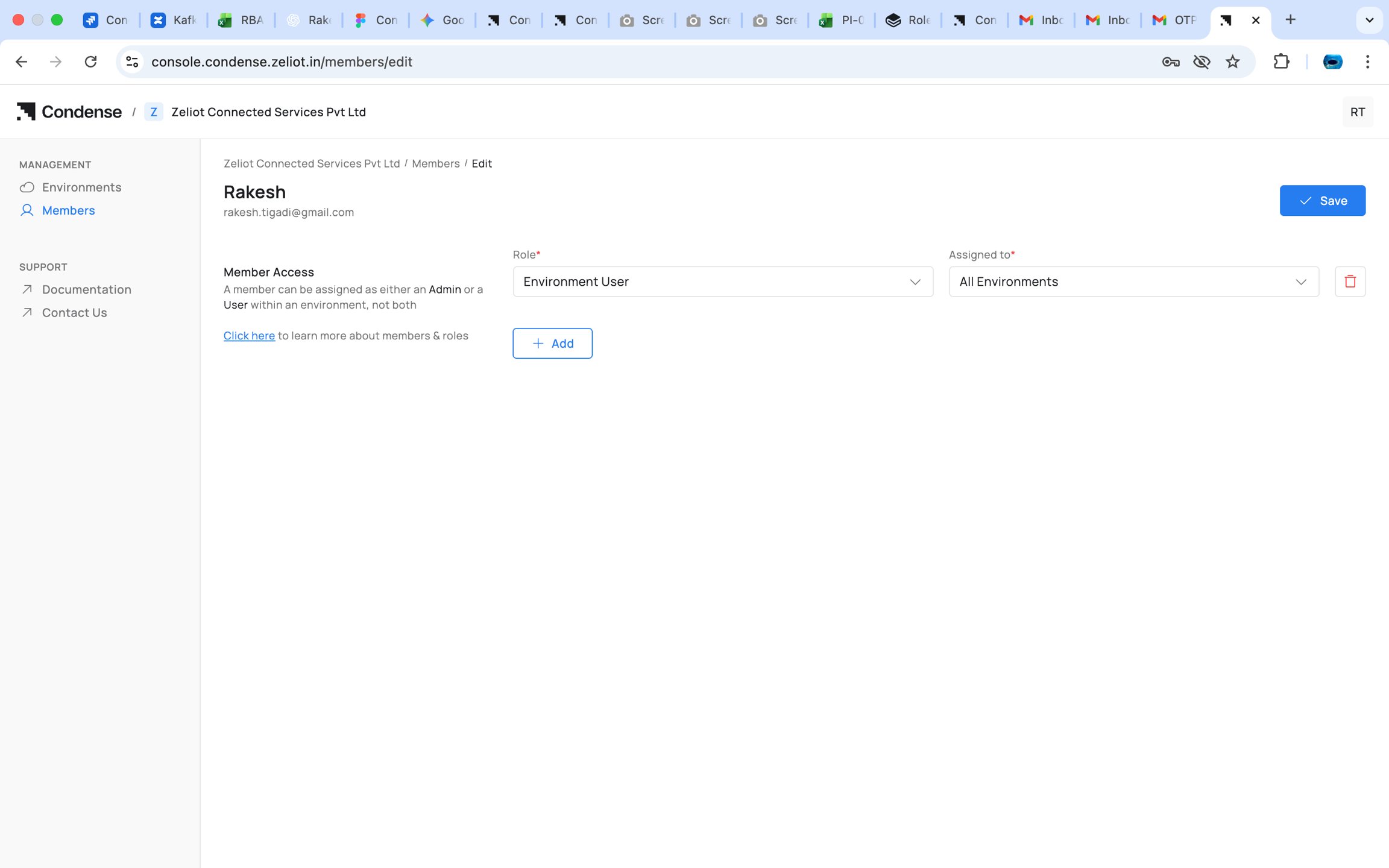
You cannot assign any role to member if there is no Environment is associated to organization
Assigning Organizational Roles
Organization Admins can assign:- Organization Admin
- Account Admin
- Billing Admin
Assigning Environment Roles
Organization Admin or Account Admin can:- Select a member
- Choose Add to Environment
- Select an environment
- Assign either:
- Environment Admin
- Environment User
Assigning Workspace Roles (inside Condense Core)
Only Environment Admins do this. For an Environment User:- Navigate to Members in Condense Core
- Select the Environment User
- Choose Assign Workspace Role
- Select role:
- Kafka Admin
- Maintainer
- Developer
- Viewer
- Select one or more workspaces
Note The role selected applies to all selected workspaces. Later additions must use the same role.
Example Scenario
Setup
Environments: Production, Testing Workspaces: FleetTracking, ColdChain, SandboxTeam
User Experience
- Anita Full authority across both environments and all workspaces.
- Bharat Sees Production only. Sees only FleetTracking because of the Kafka Admin role.
- Divya Sees all workspaces in Testing. Can deploy and manage connectors in Sandbox.
- Eshan Sees Production. Sees FleetTracking and ColdChain as Developer.
- Farah Sees Sandbox with read-only access.
Behavior
- Environment Admins see and operate across all workspaces of their environments
- Environment Users only see the workspaces they have a role for
- Workspace roles for an Environment User always remain uniform across all selected workspaces
Capability Overview
Condense RBAC provides a structured, predictable access model across three layers:
- Organization Layer : governs who administers the organization and who can assign access
- Environment Layer : determines seniority and visibility for operations
- Workspace Layer : controls fine-grained operational capabilities