

Where to sign up and sign in
Both are in Condense Console, where you create your account, manage your organization and open your environments.- Sign up: https://console.condense.zeliot.in/signUp
- Sign in: https://console.condense.zeliot.in/signIn
Key terms
- Organization: the top-level container for your account. It holds your environments, members, roles and billing.
- Environment: a place where your pipelines run. Your first one is called Sandbox.
- Workspace: a space inside an environment that organizes your applications and pipelines.
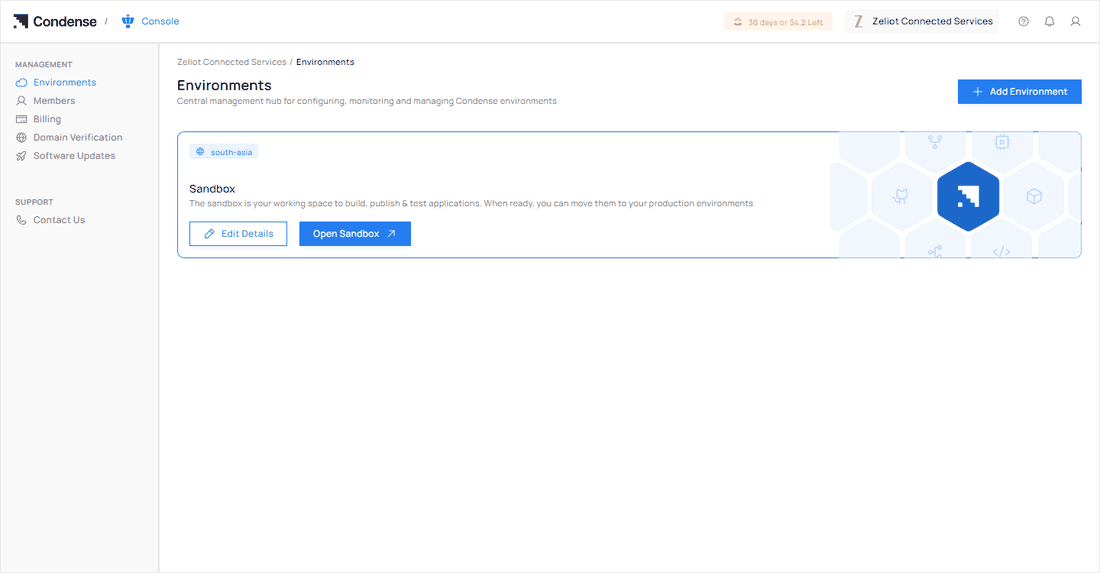
- Condense Console: where you manage your organization. Its menu has Environments, Members, Billing, Domain Verification and Software Updates, with Contact Us under Support.
- Condense Core: where you work inside one environment: your workspaces, Applications, pipelines, Library and Settings. Open it from the Console with Open Sandbox or Access Environment.
What you get
- An organization with you as its administrator. You start as Organization Admin, Billing Admin and Account Admin, and as Environment Admin of your Sandbox.
- A ready environment called Sandbox, your working space to build, publish and test applications.
- A default workspace that opens on the Applications page, with Vapr open beside it.
- A free trial, so you can try Condense before you choose a plan. The indicator in the top bar shows how much of it is left.
The screens in this documentation are illustrations. Names, dates and amounts in them are examples.
Sign up
With email and a password
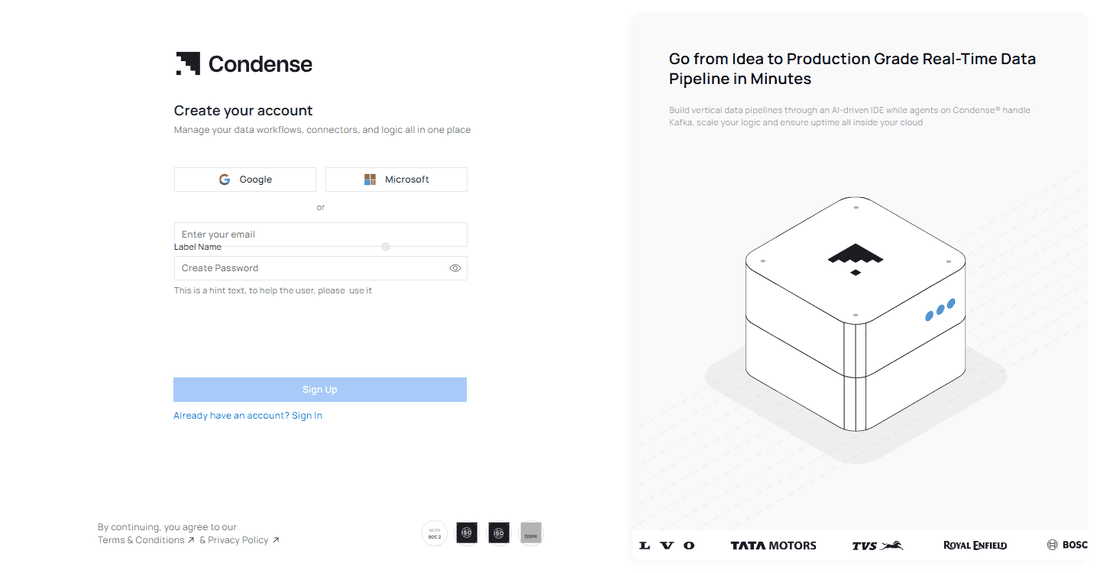
- Open the sign-up page at https://console.condense.zeliot.in/signUp. It is headed Create your account.
- Enter your email address.
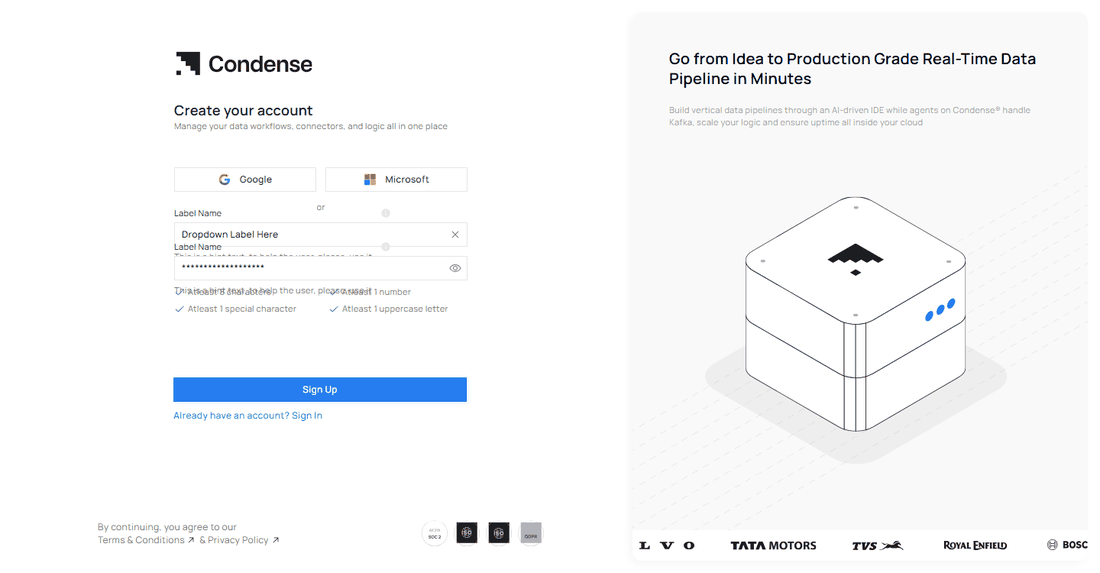
- Create a password. The page checks it as you type, and the eye icon shows or hides what you typed.
- Select Sign Up. By continuing you agree to the Terms & Conditions and the Privacy Policy.
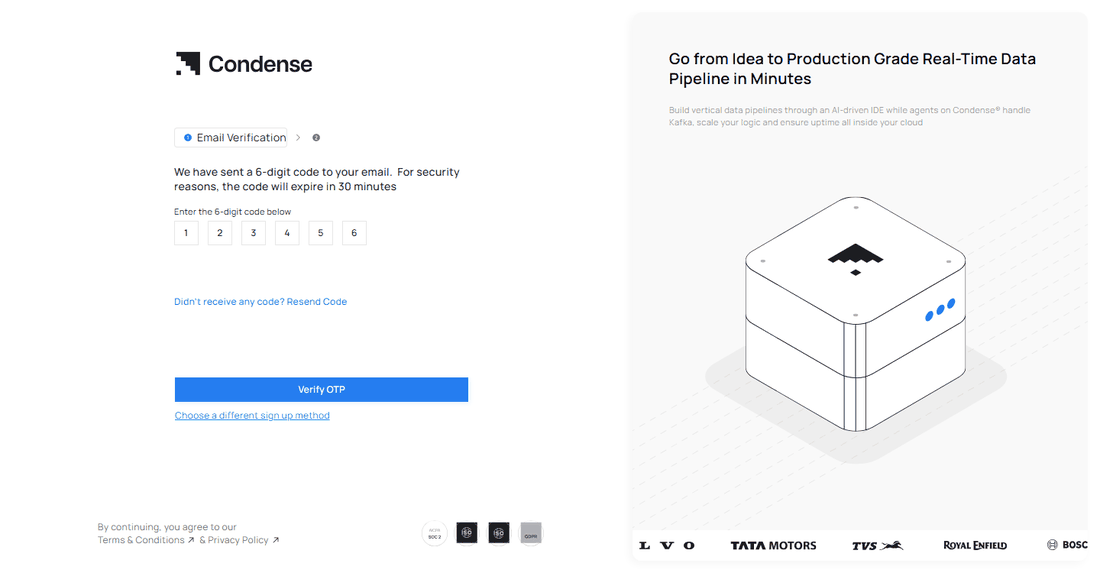
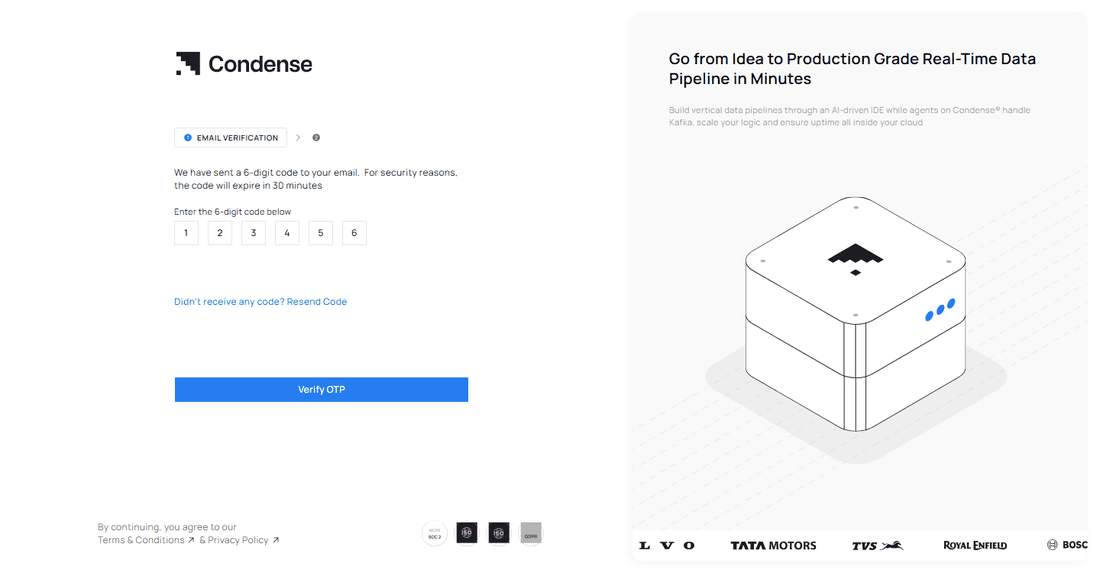
- Enter the 6-digit code that Condense emails you, then select Verify OTP.
What happens if I enter the wrong code?
What happens if I enter the wrong code?
You have three tries for each code. After a wrong code, Condense tells you the code is incorrect and how many tries are left. After the third wrong code, that code is no longer valid. Select Resend Code to get a fresh one.
With Google or Microsoft
Choose Google or Microsoft at the top of the page and approve access in the window that opens. There is no password to create and no code to enter. Condense takes your name from the account and does not ask for a phone number. You can add one later in your settings.I am told an account already exists
I am told an account already exists
Condense tells you that an account with this email already exists and suggests signing in. Select Sign In at the bottom of the page and use your existing account.
Please enter a valid email address
Please enter a valid email address
You see Please enter a valid email address. in red under the form when the address is not in a valid format, and Sign Up stays pale. Check the address for typing mistakes.
Tell us about your organization
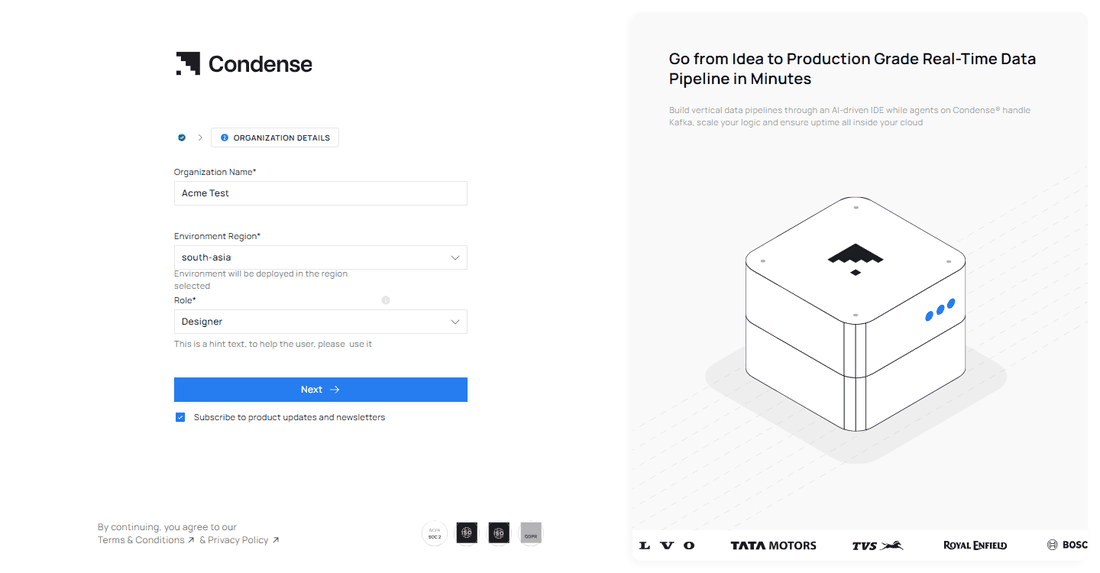
After you verify your email, or approve Google or Microsoft, one short form sets up your organization and your first environment.- Organization Name (required): the name your teammates see. Spaces alone are not accepted.
- Role (required): choose the role that best describes you.
- Environment Region (required): your environment is deployed in the region you select.
- Subscribe to product updates and newsletters (optional).
If your environment is still being prepared when you arrive, Condense finishes the setup in the background and has it ready shortly.
Your first environment and workspace
You land on the Applications page of your default workspace, with Vapr open. A new workspace shows No Applications Found and a Create Application button, and the Vapr panel suggests three prompts to start with.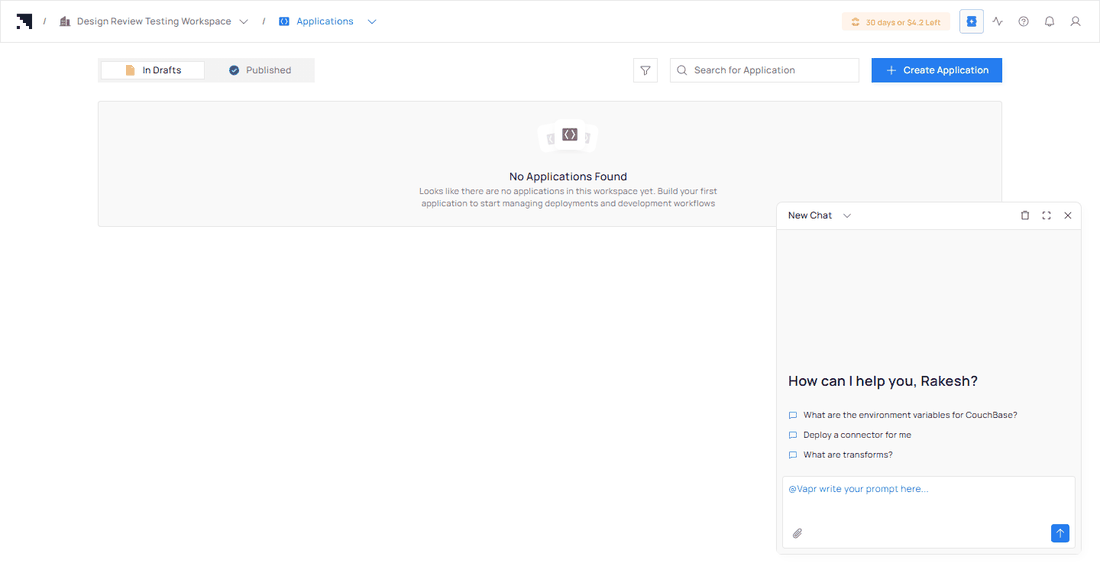
Sign in
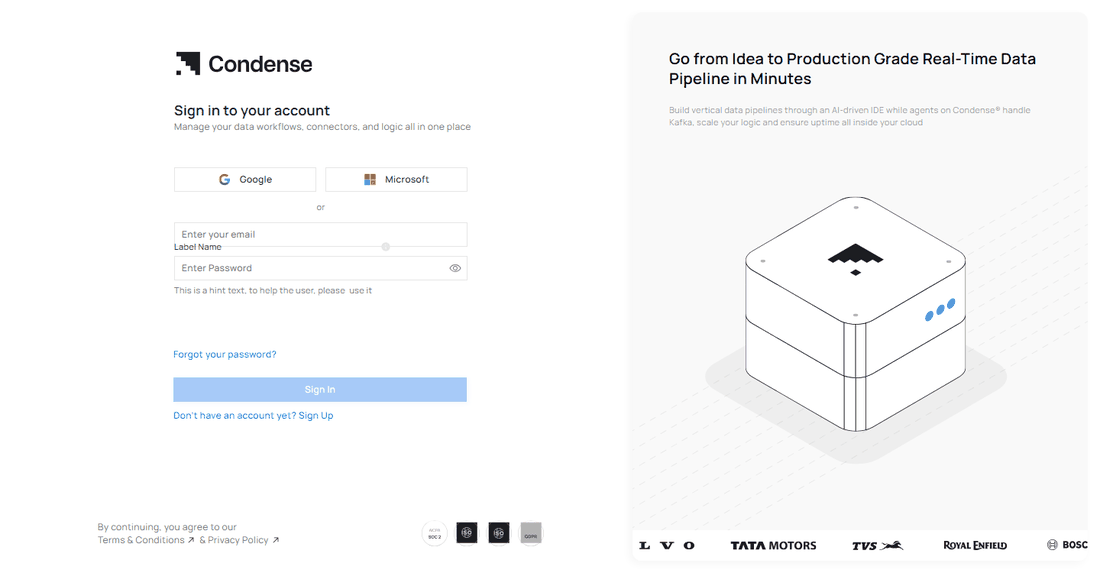
- Open the sign-in page at https://console.condense.zeliot.in/signIn. It is headed Sign in to your account.
- Choose Google or Microsoft, or enter your email and password.
- Select Sign In.
If you forgot your password
- Select Forgot your password? on the sign-in page.
- Enter the 6-digit code that Condense emails you. It expires after 30 minutes.
- Enter a new password that meets the same four rules as on sign-up, then select Change Password.
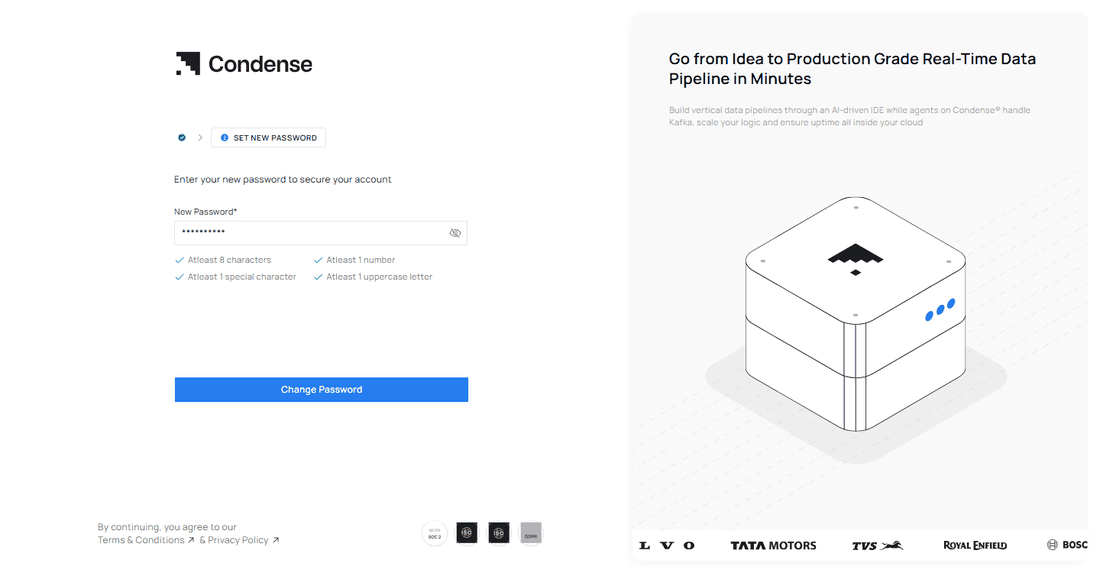
If you belong to more than one organization
After you sign in, the Your Organizations page lists them. Select one to open its environments.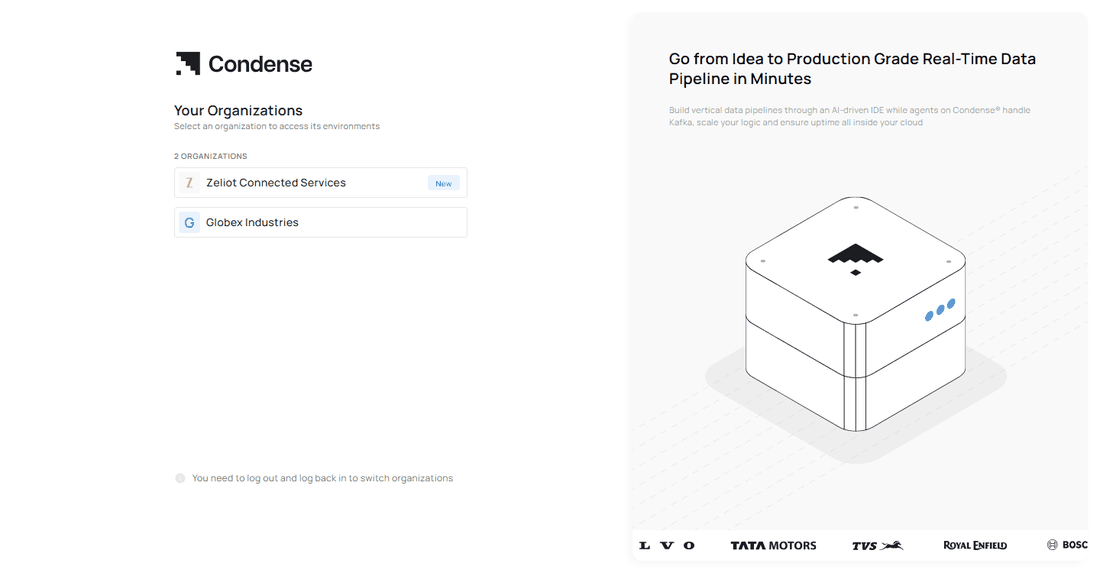
To switch to a different organization, log out and sign in again. You choose the organization on this page.
When your free trial has ended
If you sign in, or sign up again with the same email address, after your trial has ended, Condense opens the Upgrade plan window straight away instead of starting a new trial. The window stays open until you choose how to continue. See Plans and upgrading. Access to the organization through Condense MCP stops when the trial ends.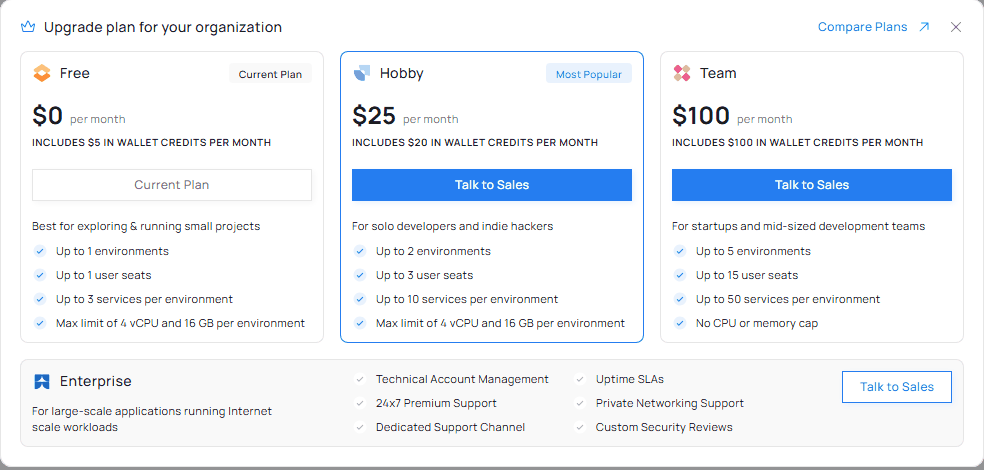
Questions and answers
I did not receive my code
I did not receive my code
The code expires 30 minutes after it is sent. Check that you typed your address correctly, then select Resend Code. If you still cannot use email, select Choose a different sign up method.
Can I sign up on my phone?
Can I sign up on my phone?
You can start, but Condense is built for desktop work. After you enter your details on a phone you see Continue on Desktop. You can open the documentation from that screen with Explore Docs, or select Contact Us. If your environment is still being provisioned, Condense finishes the setup in the background.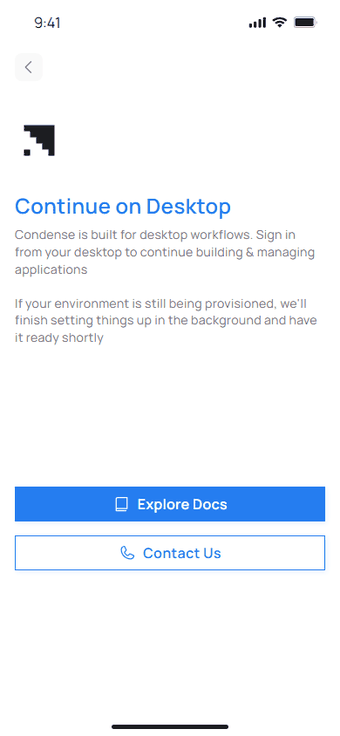
Why am I not asked for a phone number?
Why am I not asked for a phone number?
Sign-up no longer asks for one. You can add a phone number later in your settings, where it is empty by default.
Someone invited me. Do I sign up?
Someone invited me. Do I sign up?
Use the link in the invitation. If you already have a Condense account, you are taken to sign in. After a verified invitation you land on the Your Organizations page. See Invite Members.