

Your connections
Each saved connection shows on its broker card with a Connected status, the alias and description you gave it, and its environment tag. Use Search for broker connections to find one. All your configured connections are also listed in the top bar, with the broker address, so you can look one up from anywhere.Re-configure a connection
Select Re-Configure on a card. The details you saved open so you can change them. Test the connection again before you save the change.Disconnect a connection
Select Disconnect on a card and confirm. You will be required to reconnect to this broker if you want to use it again.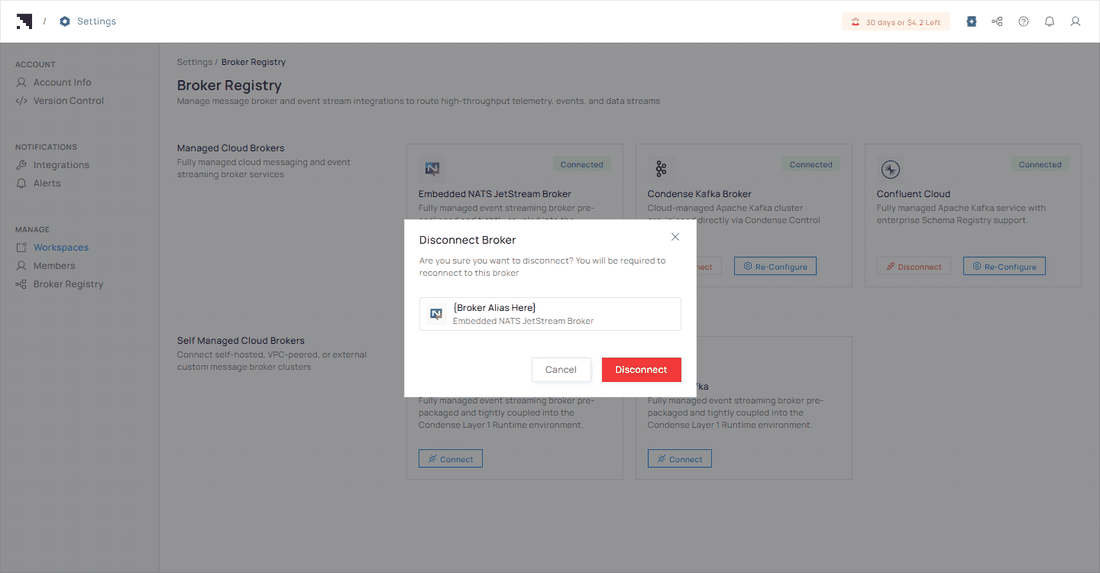
The Disconnect Broker confirmation shows the alias and the broker type.