

The side panel
When you sign up, or open a new workspace, Vapr opens on the right of the Applications page. You can also open it at any time from the Ask Vapr icon in the top bar, which appears on every page of Core.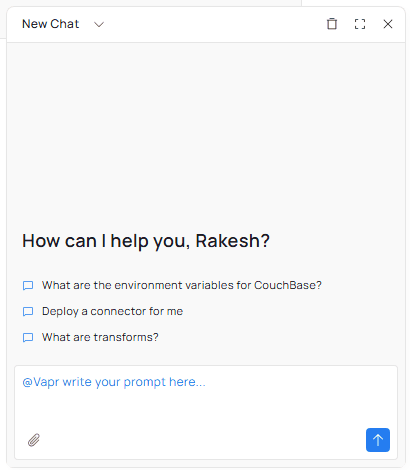
The Vapr side panel with suggested prompts and the prompt box.
- Type in the prompt box, which starts with @Vapr write your prompt here. Use the paperclip to attach a file.
- Select a suggested prompt to try one, for example Deploy a connector for me.
- The panel header lets you switch conversation or start a New Chat, delete the conversation, go full screen or close the panel.
The full-screen chat
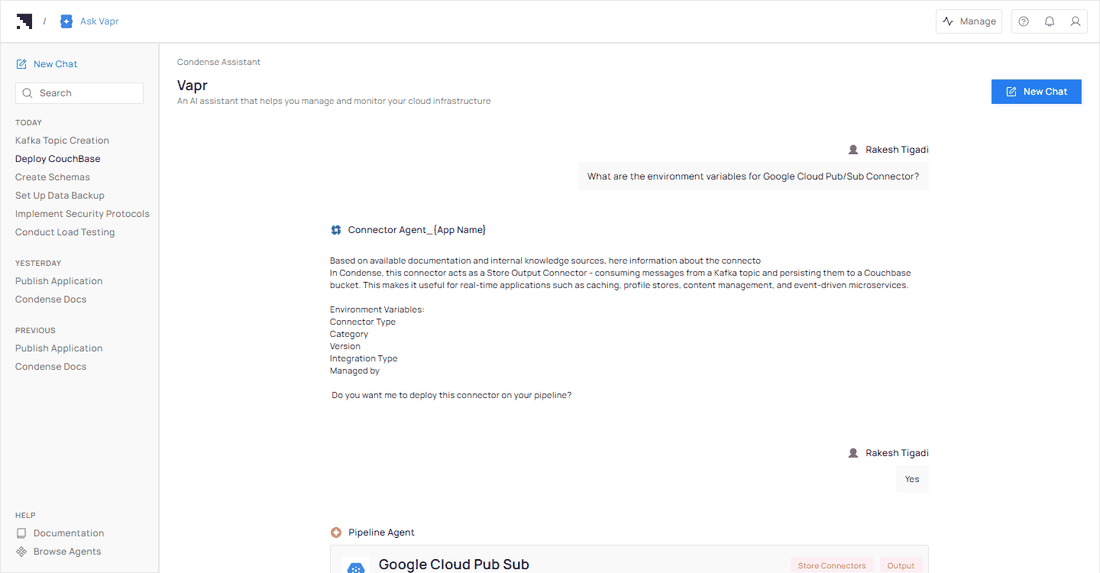
The full-screen Vapr chat. Your conversations are listed on the left, grouped by day.
- Your conversations are listed on the left under Today, Yesterday and Previous. Use Search to find one, or New Chat to start another.
- Each answer shows which agent wrote it, in the side panel and in full screen.
- Documentation and Browse Agents are at the bottom of the left column.
- A note reminds you that Vapr uses AI. Verify results.