

- Reserve too much and you pay every month for capacity nothing uses. Nodes that could have been switched off stay on.
- Reserve too little and your connector slows down under load, or is stopped when it runs out of memory.
Insights is available for custom connectors. The pages in this section say “connector” for short, where the screens say “service”.
What you get
Pay for what you use
When a connector reserves far more than it uses, Insights shows the smaller figure and tells you that the change lowers your invoice.
Fewer surprise restarts
When a connector needs more memory than it reserved, or was stopped for running out of it, Insights shows you the figure that fits.
One click, not a spreadsheet
Each recommendation puts the figure you have now beside the one it suggests. Accept it and the connector restarts once.
You stay in control
Nothing changes until you accept. Dismiss a recommendation and it stays dismissed until the recommended figure changes.
Where to find it
Open your workspace, open the pipeline, and select a custom connector. Its Insights tab sits beside Observability, Alerts, Logs and Environment Variables.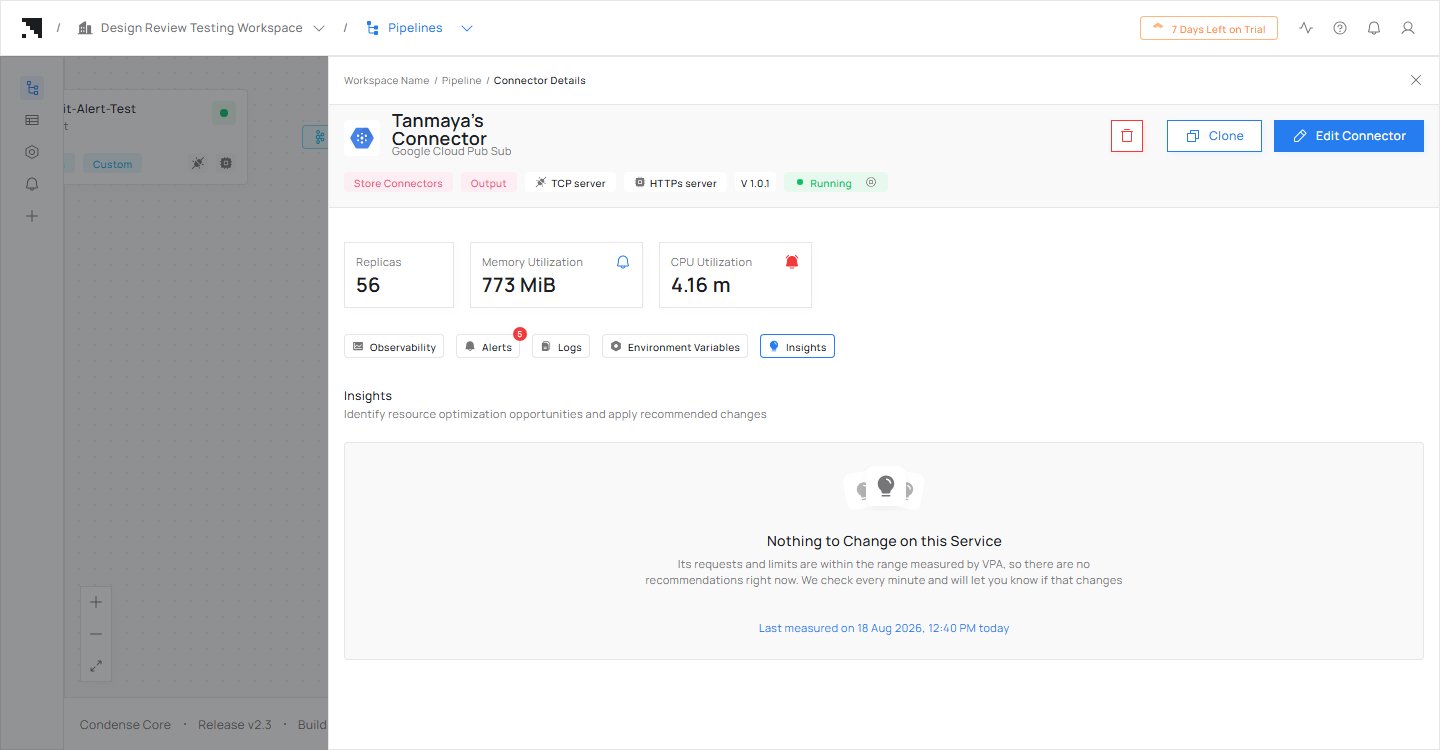
The Insights tab of a connector with nothing to change.
What Insights will never do
- Change how much your connector reserves by itself. Every change is one you accepted.
- Restart your connector by itself. A restart only follows something you accepted, and you are warned before you commit.
- Add or remove nodes. How much capacity your environment has is not part of this feature.
- Make up a figure. Where it cannot tell, it says so.
Next steps
How Insights follows your connector
From deployment to a change you have accepted.
Choose what your connector reserves
The four figures, and what goes wrong at each end.
What Insights can tell you
The five situations it speaks up about.