

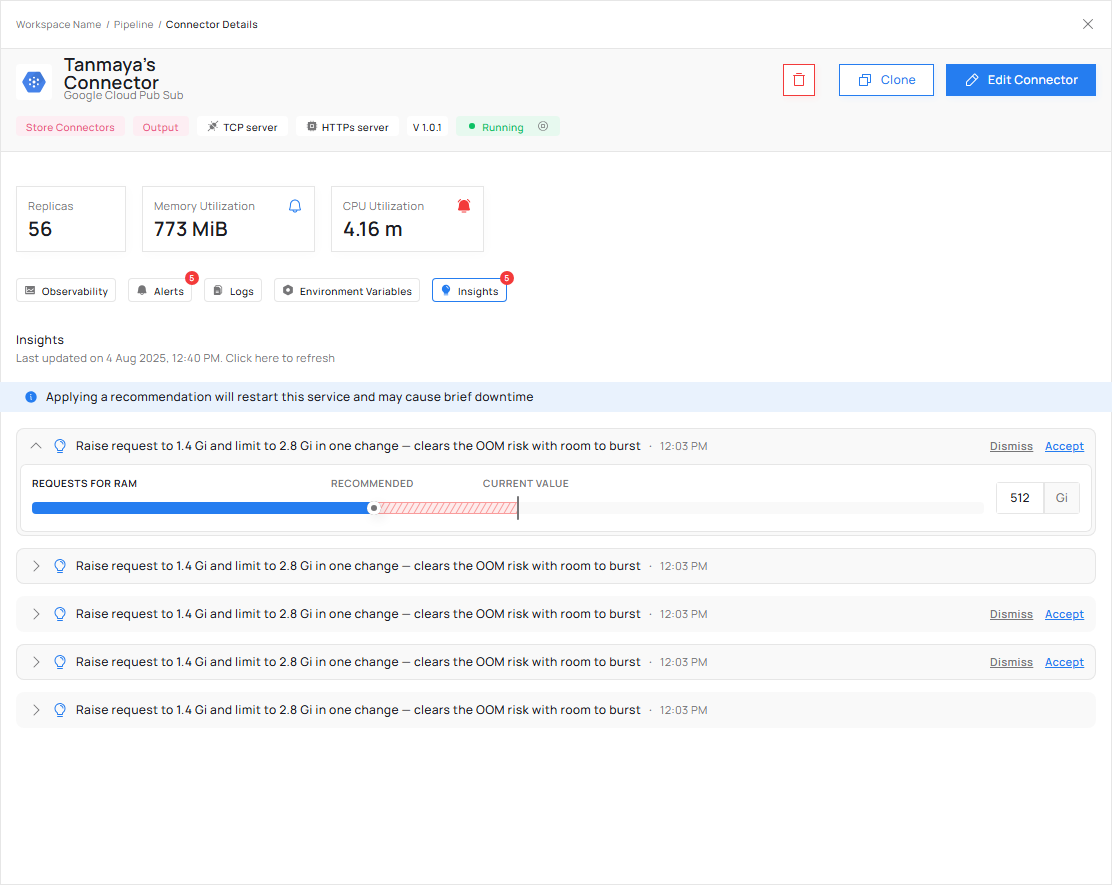
One recommendation: the figure you have now, the figure Insights suggests, and Dismiss and Accept.
Reading a recommendation
Each recommendation says in one line what it is for, lists only the fields it wants to change, and shows for each of them what it holds now beside what is suggested.- One line at the top saying what the recommendation is for, in plain words.
- One label saying which way your invoice moves: Costs More, Costs Less or No Cost. It always agrees with the change on offer.
- One Accept and one Dismiss, on the recommendation, never on a single field.
- Only the fields it changes. A CPU recommendation lists CPU fields and nothing else.
- Field names spelled as the deployment form spells them, so you can find what is being changed.
How the suggested figures are worked out
- A request, Requests for CPU or Requests for RAM: the recommended size.
- A limit: the new request multiplied by the ratio between your existing limit and your existing request. The headroom you chose is kept rather than widened, so a limit you set at twice the request is offered at twice the new one.
When a field has no figure beside it
A field that is already at the highest value the form accepts is shown as text rather than as a change, for example “Already at 2000m, the highest this field accepts.” The wording tells you why, so you are not left wondering whether something failed.Accept it
Accepting applies every field the recommendation lists, in one change, and restarts your connector once. The screen warns you before you commit: applying a recommendation restarts the connector and may cause brief downtime. Before it applies anything, Condense checks that the new figures fit on a node. If they do not, the change is refused with an error message and your connector stays exactly as it was. If an accept fails for any other reason, the screen shows an error message as well. If a connector has both a CPU and a memory recommendation, you accept them one at a time. Accepting one leaves the other waiting. There is one Accept for the whole recommendation, not one per field. A request cannot be larger than its own limit, so a pair of figures that is valid together can be invalid one at a time. Taking them together is what makes the change land every time. If you want to move one field on its own, or put a figure back after accepting, edit it in Resource Configurations. A recommendation is a shortcut, not the only route.Dismiss it
Dismissing leaves every figure as it is and takes the recommendation off the tab. It applies to the connector, not to you, so it holds for everyone on your team who can see it. A dismissed recommendation stays away for as long as the recommended figure is the one you dismissed. When the recommended figure changes, the recommendation comes back. If it never changes, you are never asked again about a figure you turned down.Type a figure of your own
The suggested figure is a starting point. You can change it before accepting. Two things can happen. Refused outright:- A request larger than its own limit.
- A figure above the highest the field accepts: 2000 m for CPU, 8000 Mib for memory.
- A combination that does not fit on a node.
- A figure below what Insights recommends. You can save it, and the warning says what it invites: if your connector would really need 4 Gi and you cap it at 2 Gi, 2 Gi is what applies, and it can still be stopped under load.
Who on your team can act
Whoever can deploy the connector can accept and dismiss its recommendations. Everyone who can see the connector can read them.- Maintainer or Environment Admin: can accept, dismiss and change the suggested figure.
- Everyone else who can see the connector: can open the recommendation and read both figures and the reasoning, but cannot accept, dismiss or change anything.
After you accept
- Your connector is updated and restarts once, immediately.
- The deployment form shows the figures you accepted, and they survive the restart.
- The recommendation is withdrawn once your figures fit again.
- If the same situation comes back, you get a new recommendation on that field, whether the new figure is higher or lower than the last.
Related
What Insights can tell you
The five situations.
Best practices and pitfalls
Getting the most from recommendations.